Mount & Blade II: Bannerlord is a great game without mods. With them, though, it becomes something else entirely: deeper, livelier, and less predictable. The trouble is that modding Bannerlord can test even experienced players and modders. The game crashes when you hit Play, mods cannot find one another, and the launcher complains about versions. Sound familiar?
In this guide, I will walk you through installing Bannerlord mods, explain what changed after the War Sails DLC arrived in November 2025, and show you how to tackle the most common compatibility problems and crashes.
Why is modding Bannerlord so difficult?
Bannerlord receives regular updates. Every patch changes the game's internal structures, which can stop mods built for the previous version from working. Steam has automatically updated your game to 1.2.12, but your favorite Diplomacy release is stuck on 1.2.10? Enjoy that crash when you load your save.
- The game version makes all the difference: Bannerlord mods are closely tied to specific versions. A release of the same mod for 1.6.3 and one for 1.2.10 are two entirely different files. If the versions do not match, the launcher will either refuse to start the game or let you in, only for it to crash five minutes later.
- The second trap is load order. Bannerlord uses a modular loading system in which some mods depend on others. Put Diplomacy above a core library such as Harmony, and the game will fail to find the functions it needs and crash.
What changed after War Sails?
The War Sails DLC launched on November 26, 2025, adding naval battles for the first time in the Mount & Blade series. For modding, that means another stretch of incompatibility for most mods, lasting even longer than the disruption caused by a regular game update.
Many popular mods are still built for versions 1.2.9-1.2.11, which were current before War Sails launched.
Many popular mods are still built for versions 1.2.9-1.2.11, which were current before War Sails launched. The game moved to version 1.2.12 after the DLC arrived, and some mods stopped working correctly. Their authors are gradually updating them, but that takes time.
If you bought War Sails and want to use mods, you have two options:
- Play on the latest version (1.2.12 or later) and wait for mod updates. Some major mods, such as Bannerlord Tweaks, have already been updated, but more specialized projects may lag behind by several weeks.
- Roll back to a pre-War Sails version, such as 1.2.11, through Steam's beta branches and use stable older releases. You lose naval battles, but gain access to most existing mods.
War Sails did not introduce a new modding system. Installation still works the same way: copy files into Modules manually or use Vortex. New dependencies and changes to the game's internal structures do mean that older mods need reworking, though.
Two installation methods: manual and Vortex
There are two main ways to install Bannerlord mods:
- Manual installation: download an archive, extract it, and put the folder in the game's Modules directory. This gives you full control: you decide where everything goes and can see every file. The drawback is that managing mods and tracking updates becomes difficult once you have a lot of them.
- Vortex is the mod manager from Nexus Mods. It offers one-click installation, automatically tracks updates, handles dependencies, and creates profiles for different setups. Sounds good, but there is a catch: Vortex installs mods in a separate directory and creates symlinks rather than keeping the files in the game folder. Some players dislike having them in AppData instead of where they would prefer.
I recommend installing manually when you first get into modding. You will learn how mods are organized, where to look for conflicts, and how to fix problems yourself. Once you understand the basics, you can switch to Vortex for convenience.
Installing Bannerlord mods step by step: the manual method
Step 1: Stop automatic game updates
Steam updates games automatically by default. That can break some of your mods simply because they have not been updated for the new version.
Open Steam, find Mount & Blade II: Bannerlord in your library, right-click it, and go to Properties → Updates. Select Only update this game when I launch it, or run Steam in Offline Mode.
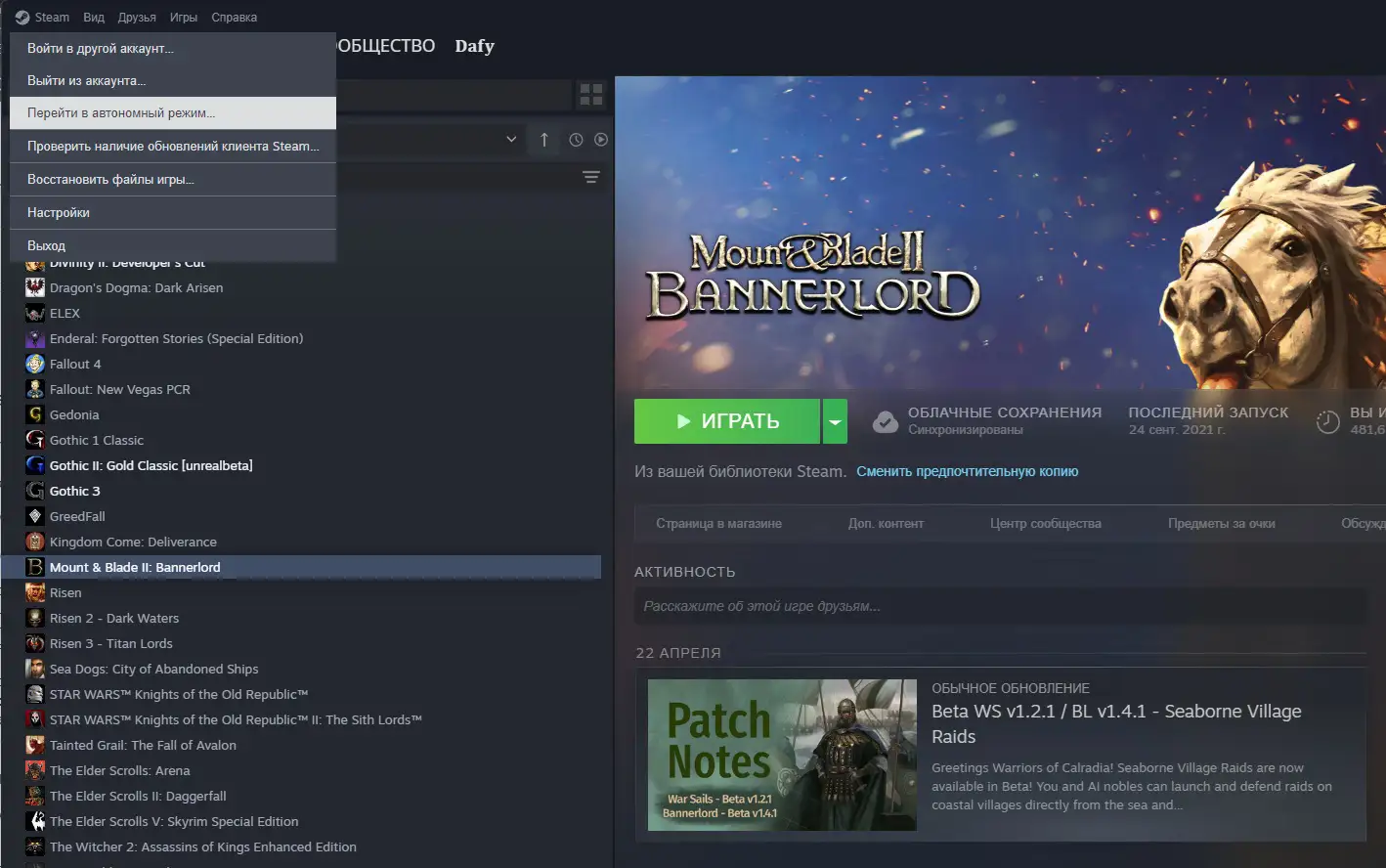
Now choose your game version. Open Game Versions & Betas and find the version you need in the dropdown. If you want to use well-established mods that receive steady updates, choose 1.6.3 : many modders consider it one of the most stable versions for long modded campaigns.
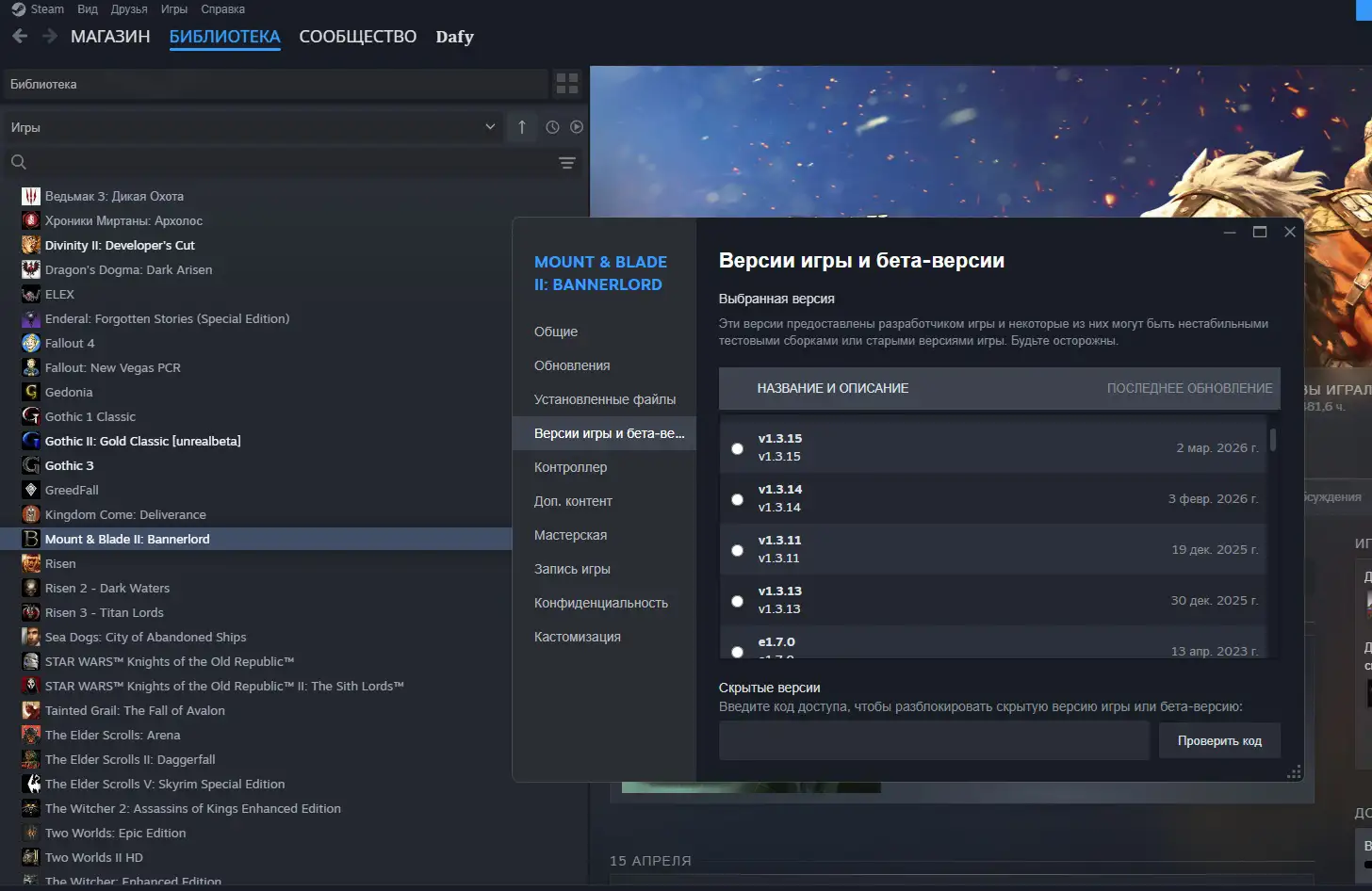
If you plan to use War Sails, stay on the latest version (1.2.12 or later), but check every mod's compatibility before installing it.
Step 2: Find the Modules folder
Bannerlord mods go in the Modules folder inside the game's main directory.
The path usually looks like this: C:\Program Files (x86)\Steam\steamapps\common\Mount & Blade II Bannerlord\Modules
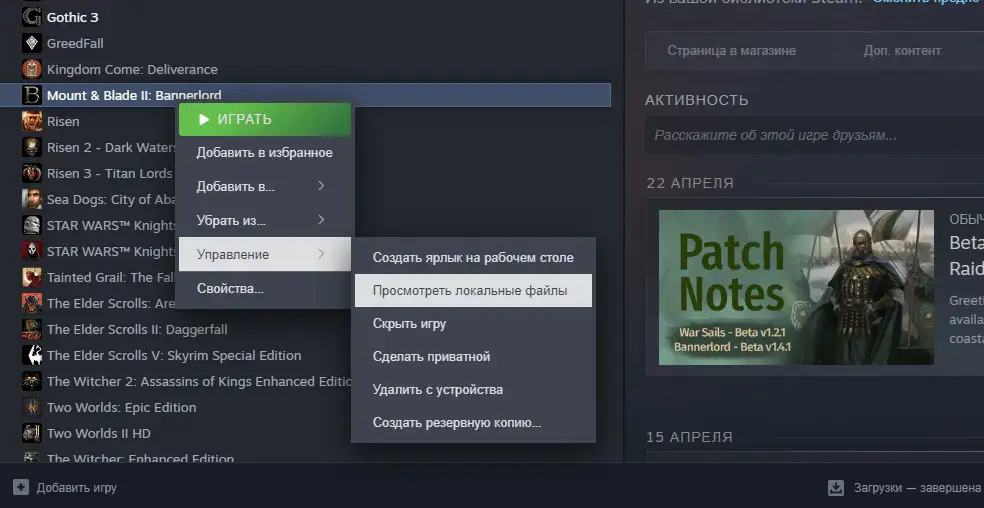
If you installed the game on a drive other than C or in another Steam library, find it through Steam: right-click Bannerlord → Manage → Browse local files. This opens the game's main folder, where you will find Modules.
The game's core modules, including Native, SandBox, and StoryMode, are already in there. Your downloaded modules will go in the same place.
Step 3: Download and install the core libraries
Most mods need additional libraries to work. Without them, the game cannot find the functions those mods use.
Required libraries, in installation order:
- Harmony is the foundation for most mods. It lets them change the game's behavior without modifying its original files.
- ButterLib provides shared tools for developers. Many modern mods depend on it.
- UIExtender Ex extends the game's interface, allowing new buttons, windows, and menus.
- Mod Configuration Menu (MCM) lets you adjust mods through a dedicated in-game menu. It is optional, but makes life much easier.
How to install them:
- Open the mod's page on Nexus Mods
- Go to Files
- Check the mod version: it must match your game version
- Click Manual Download; you need a free Nexus account to download files
- You will receive a .zip or .rar archive
- Open it with WinRAR, 7-Zip, or Windows' built-in archive tool
- Inside, you will find a folder named after the mod, such as Harmony
- Extract that entire folder into Modules
After installing all four libraries, Modules should contain these folders: Harmony, ButterLib, UIExtenderEx, and ModLib for MCM.
Step 4: Install the mods you want
You can now install other mods. The process is the same:
- Find a mod on Nexus Mods
- Check version compatibility
- Use Manual Download
- Extract the mod's folder into Modules
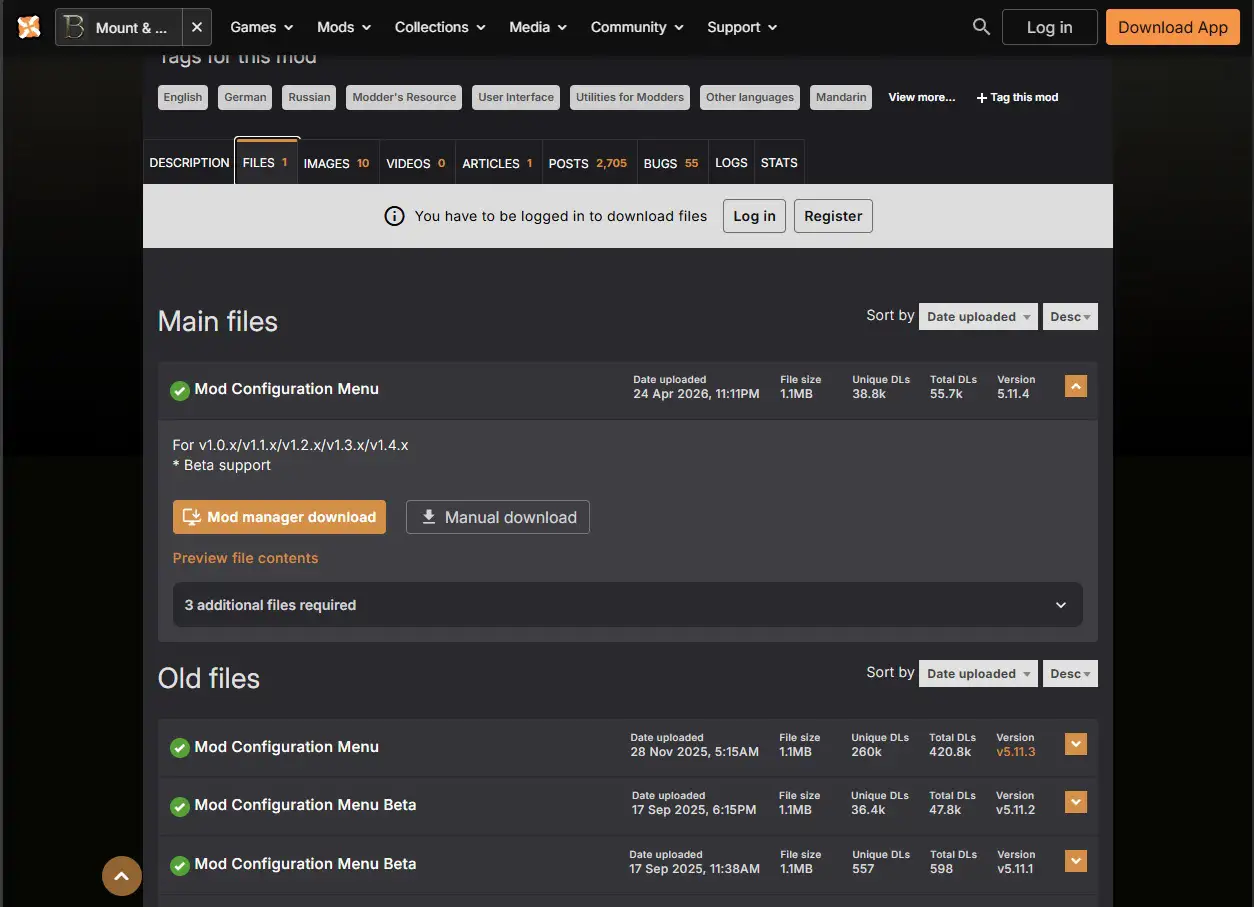
Popular Bannerlord mods:
- Bannerlord Tweaks offers a huge set of gameplay adjustments: leveling speed, party size, enemy speed, the economy, and hundreds of other settings. A must-have for any setup.
- Diplomacy expands diplomatic options with noncombatant vassals, messengers, alliances, nonaggression pacts, and peace agreements without losing influence.
- Realistic Battle Mod changes combat AI, making battles feel less scripted and more unpredictable.
- RTS Camera gives you a bird's-eye view so you can command your army like a strategy game.
If a mod needs extra dependencies, such as another mod or a library, its description will say so. Install the dependencies first, then the mod itself. I also have a separate page of Bannerlord mod collections, covering both War Sails mods and those that only work on older versions.
Step 5: Unblock DLL files on Windows
This is an essential step for Windows users. Skip it, and mods may refuse to run altogether or crash during loading.
Windows blocks DLL files downloaded from the internet for security reasons. Bannerlord relies on DLL libraries for mods, though, so that block breaks things.
How to unblock them:
- Open the installed mod's folder in Modules
- Find its bin folder
- Inside bin you will find Win64_Shipping_Client and other subfolders
- Open Win64_Shipping_Client
- Find the files ending in .dll
- For each DLL file: right-click → Properties. At the bottom, find This file came from another computer and might be blocked, tick Unblock, and click OK
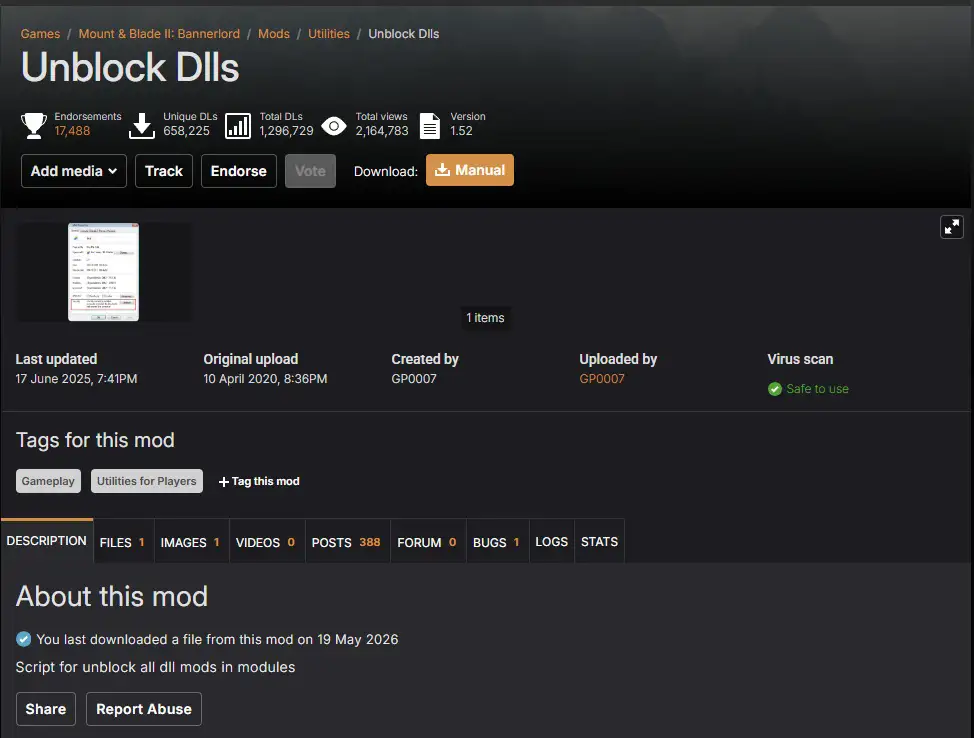
Repeat for every DLL in every installed mod. Yes, it is tedious, especially with more than 20 mods. Without this step, though, they will not work. There is also an Unblock Dlls mod to automate the process.
Alternatively, use PowerShell:
- Open PowerShell as administrator
- Go to Modules: cd "C:\Program Files (x86)\Steam\steamapps\common\Mount & Blade II Bannerlord\Modules"
- Run this command: Get-ChildItem -Recurse | Unblock-File
This unblocks every file in every Modules subfolder in one go.
Step 6: Set the load order in the launcher
Bannerlord's mod load order affects stability. Mods load in sequence, and the game will crash if a dependent mod loads before the library it needs.
Start the game through Steam to open the Bannerlord launcher. Go to Singleplayer → Mods.
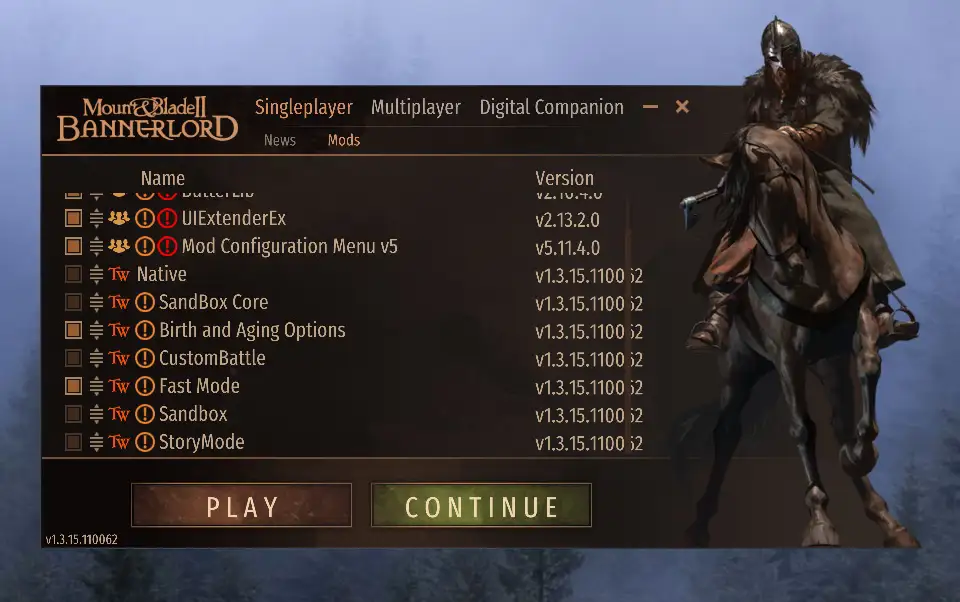
You will see a list of all mods. Use the checkbox beside each one to enable it.
The correct load order, from top to bottom:
- Harmony
- ButterLib
- UIExtender Ex
- Mod Configuration Menu
- Native is the base game; leave it alone
- SandBox, the base game
- StoryMode, if you are playing the campaign
- System libraries and fixes (Achievement Unblocker, BannerColorPersistence, Banner Fix, Xorberax’s Legacy)
- Diplomacy and major gameplay systems (Diplomacy, Improved Garrisons, Distinguished Service, Governors Handle Issues, Settlement Finances, My Little Warband)
- Combat mods (Realistic Battle Mod, Dismemberment Plus, Immersive Battlefields, Bodyguards, Fire Arrows)
- UI and quality-of-life mods (Better Time, TournamentXPanded, Small Talk, Better Prisoners, Know Everyone, More Hero Interactions)
- Weapons, armor, and items (OpenSourceArmory, Vaegir Armoury, Swadian Armoury, Legolas Bow, Babieca)
- Overhauls, total conversions, and new maps (Calradia Expanded, Eagle Rising, Europe 1100)
Drag mods by their names to move them up or down the list.
Some major mods, such as Eagle Rising and other conversions, need a specific order: one module above Native, another below it. Read the Nexus instructions carefully before installing.
Step 7: Start the game and check that everything works
Click Play in the launcher. If everything is set up correctly, the game should start without crashing.
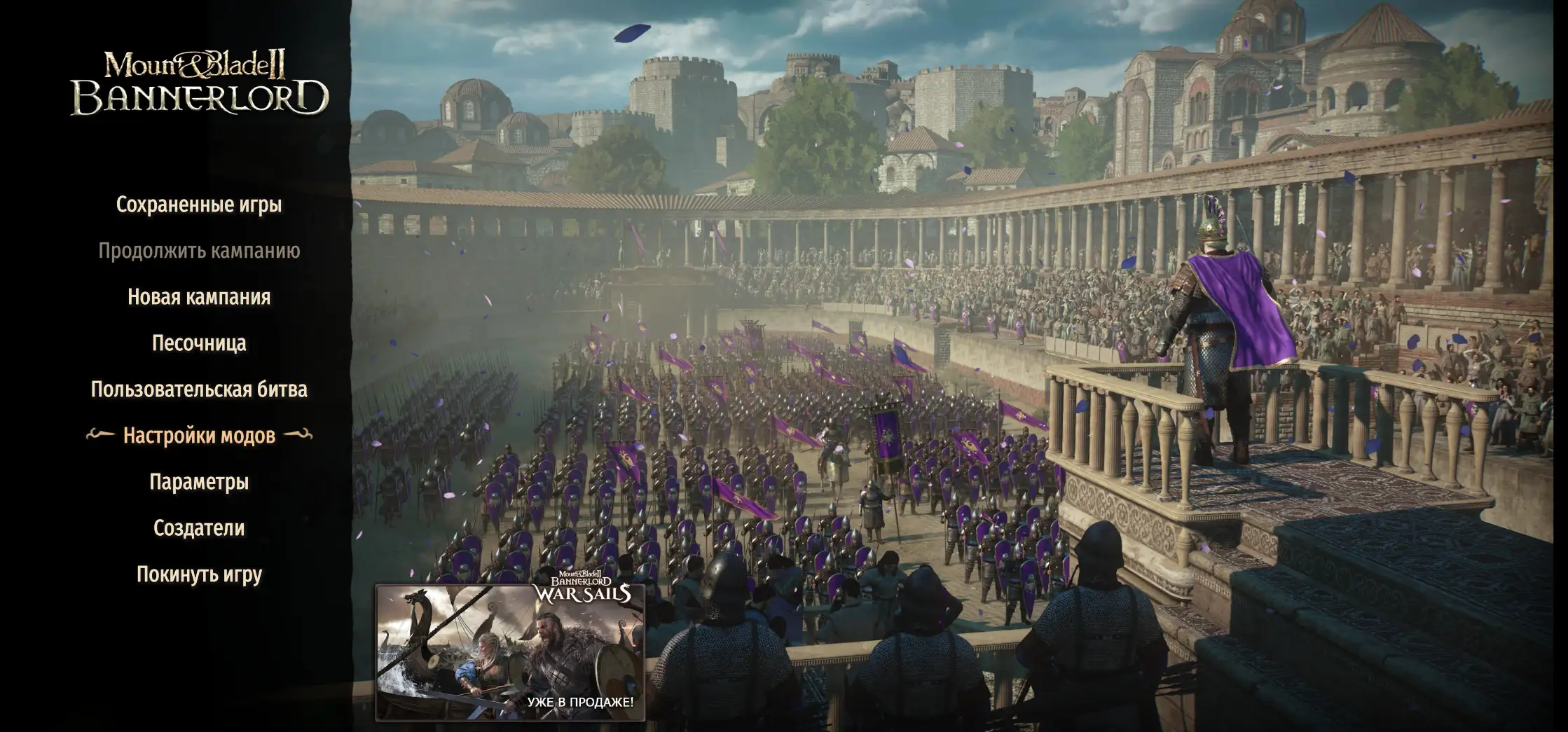
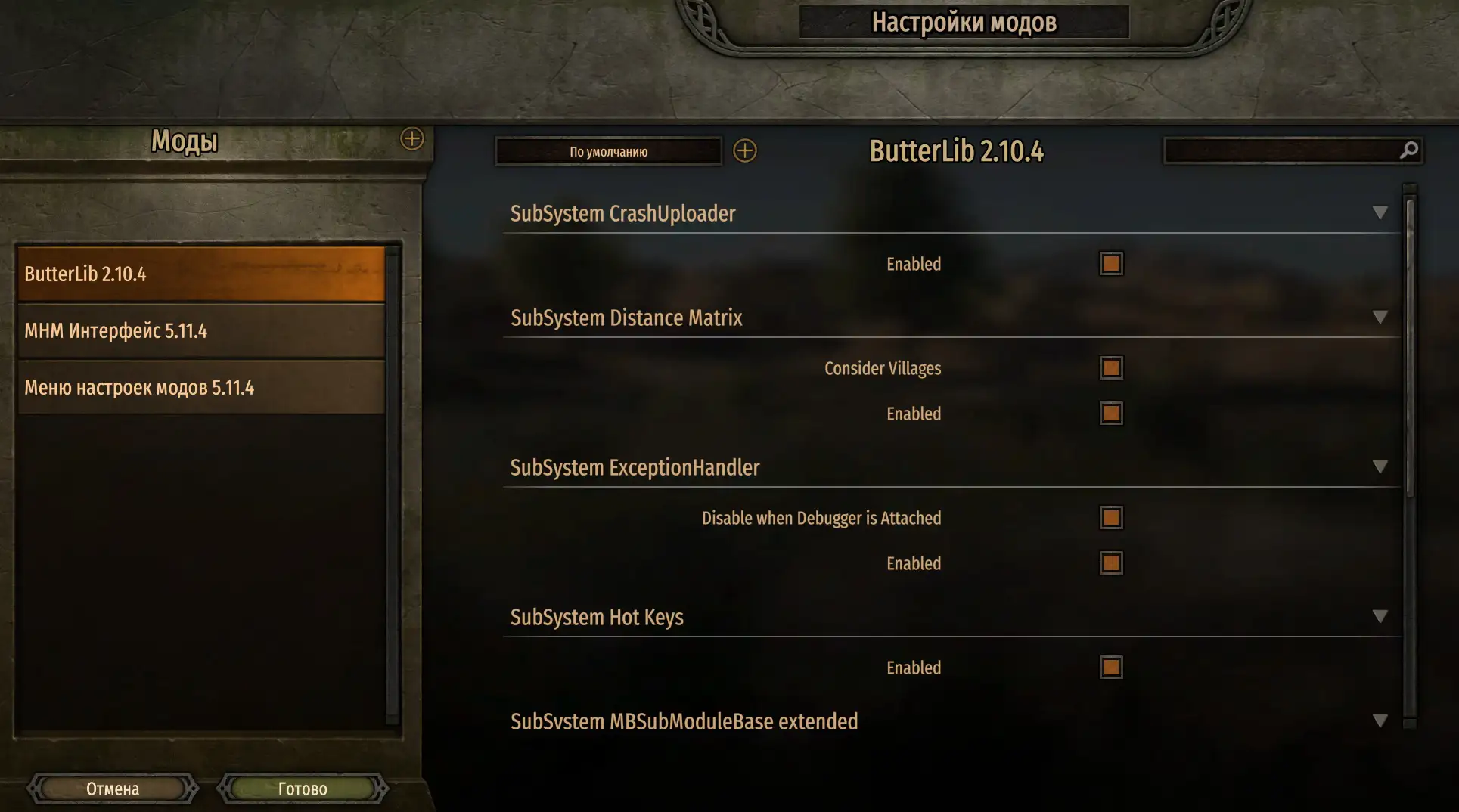
Open the main menu. If you installed Mod Configuration Menu, you will see Mod Options. Open it and check that every mod appears in the list. A mod appearing in MCM means it loaded correctly.
Start a new campaign or load a save. A crash during loading points to the load order or incompatible versions. Disable mods one at a time to find the culprit. I recommend installing and running the core mods before adding more complexity to your setup.
Installing mods with Vortex Mod Manager
Vortex is the official Nexus Mods manager. It automates installation, tracks updates, and handles load order. It suits players planning to use 10+ mods who do not want to install everything manually.
Step 1: Install Vortex
Download Vortex from the official website. It is a standard installer; just follow the instructions. Launch Vortex once it is installed.
Step 2: Add Bannerlord
On first launch, Vortex will ask you to choose a game. Find Mount & Blade II: Bannerlord and click Activate.
Vortex should find your Steam installation automatically. If it does not, select the game folder manually.
Step 3: Install mods through Vortex
Open a mod page on Nexus Mods. Choose Mod Manager Download instead of Manual Download. Allow your browser to open the link in Vortex. You can also find collections and individual mods under Browse Nexus Mods in Vortex itself.
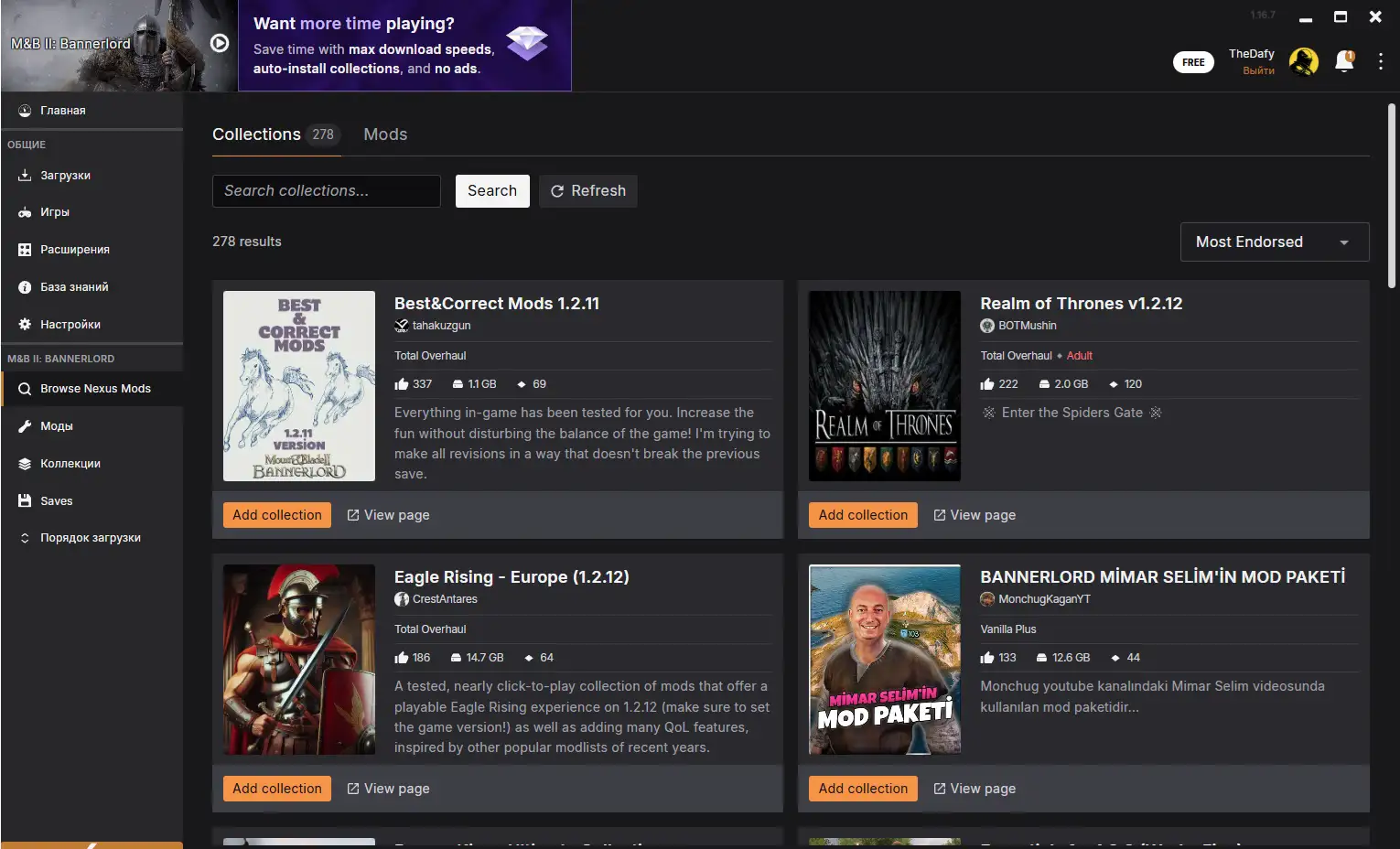
Vortex will download and install the mod automatically. It will appear on the Mods tab.
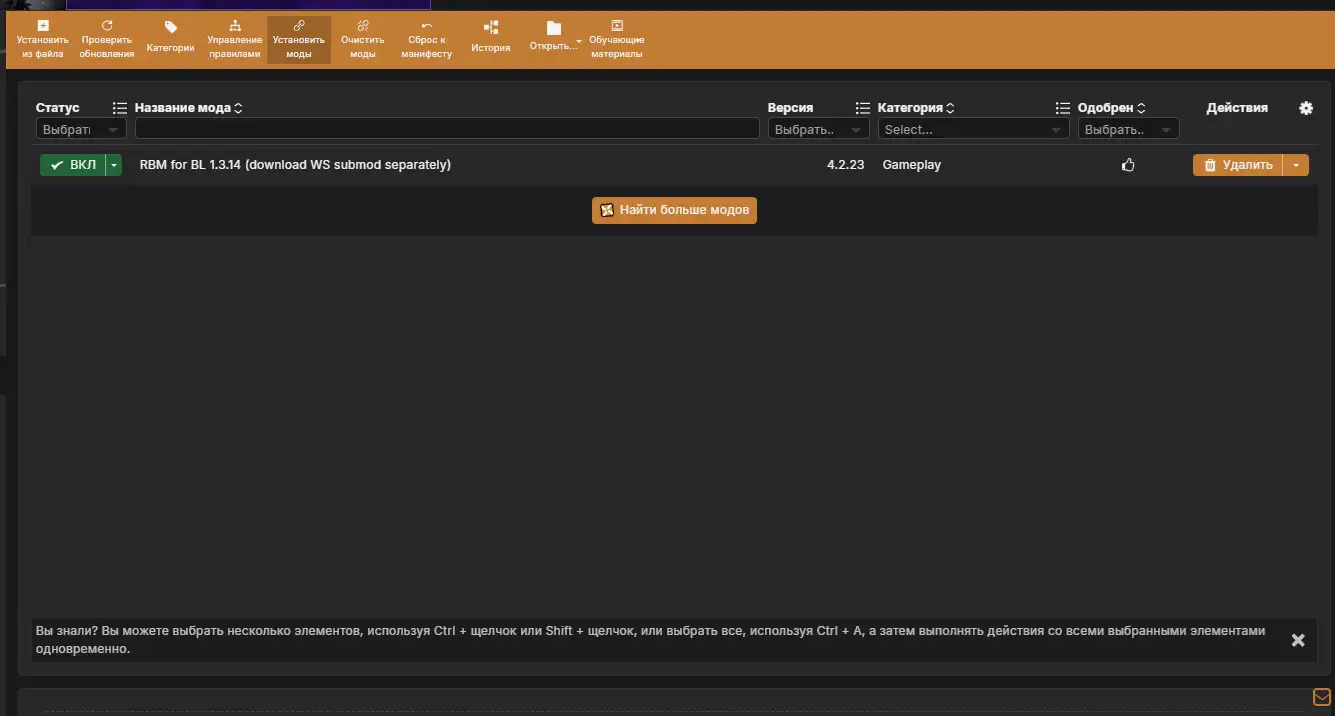
Enable it using the checkbox, then click Deploy Mods at the top. Vortex will create symlinks and connect the mod to the game.
Step 4: Manage the load order
Vortex tries to work out the load order automatically, but often gets it wrong.
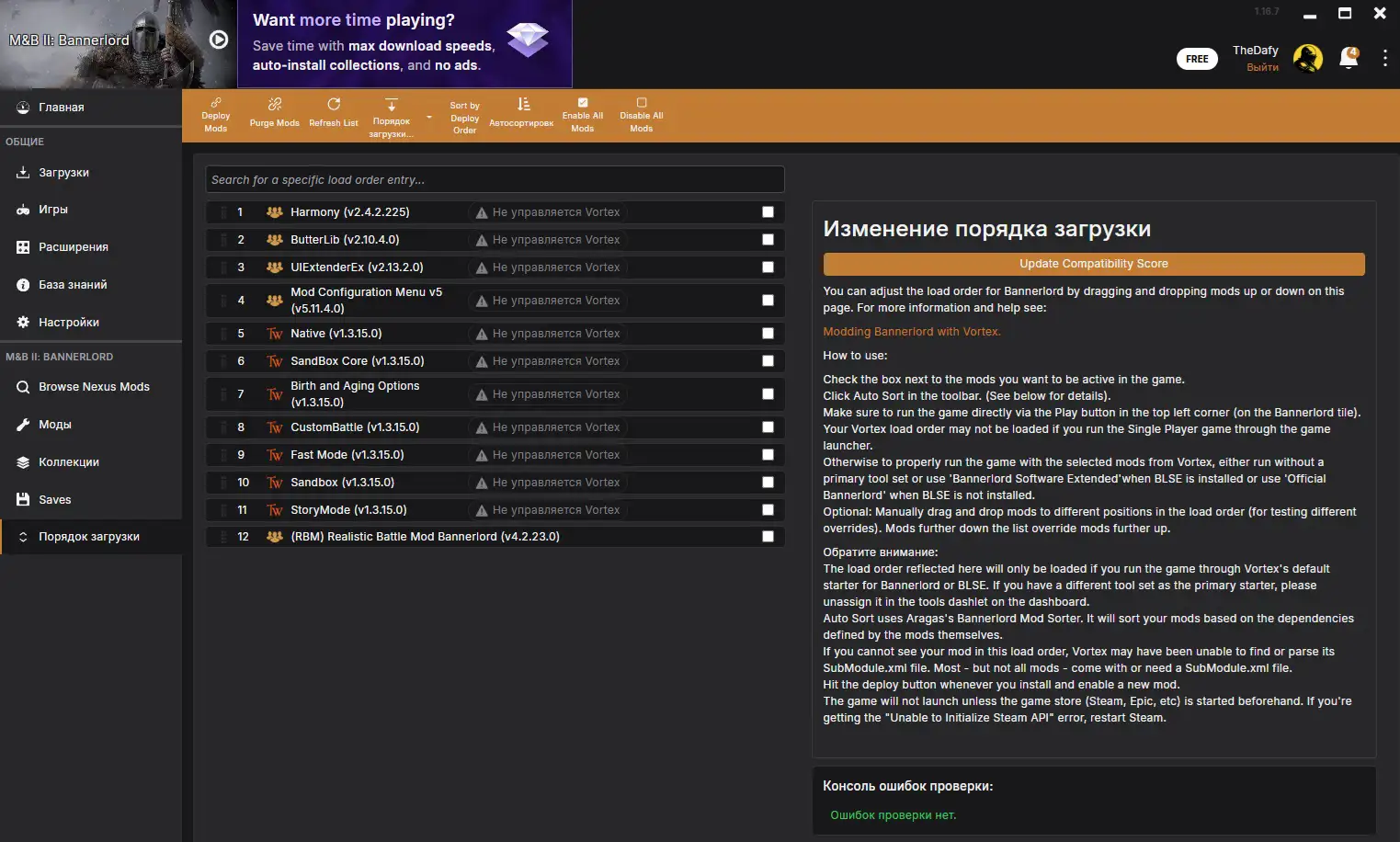
Open Load Order to see all installed mods. If the order is wrong, rearrange them manually by dragging and dropping.
The main problem with Vortex
Vortex stores mod files in C:\Users\[Имя]\AppData\Roaming\Vortex\ instead of the game folder. This frustrates players who want direct control over both manually installed mods and those managed through Vortex.
If Vortex stops working or you uninstall it, the mods remain in AppData, taking up space. You will have to clean them up yourself.
Vortex is excessive for a simple setup of 5-10 mods. For complex setups with 30+ mods and frequent updates, it is useful. You can also read my short guide to choosing mods for a personal collection.
Troubleshooting mod installation
The game crashes when you click Play in the launcher
The load order is wrong or the versions are incompatible.
- Check the load order. Harmony, ButterLib, and UIExtender Ex should sit above all other mods, but below Native and the game's core modules.
- Disable every mod and start the game. Does it work? Enable them one at a time to find which one causes the crash.
- Check each mod's version. If the game is on 1.2.12, but the mod is for 1.2.10, it will not work. Look for an updated release on Nexus.
The launcher says “Mod is for version X, but game is version Y”
The mod version does not match your game version.
Either update the mod to a release compatible with your game or roll the game back through a Steam beta branch.
Sometimes a mod supports a range of versions, such as 1.5.9 to 1.6.5, but the launcher still complains. In that case, it is a false warning: start the game, and the mod will probably work.
Mods do not appear in the launcher
The mod was installed incorrectly. You may have copied the wrong folder.
- Open the mod archive again. There should be a folder containing SubModule.xml. Copy that folder into Modules rather than dropping in the archive's contents directly.
- Windows may also have blocked the DLL files.
- Unblock every DLL in the mod folder as described above.
The game starts, but the mod does not work
The mod needs dependencies that you have not installed.
- Open its Nexus page and read Requirements. Install every listed dependency.
- If a mod needs Harmony and you have not installed it, the mod simply will not load, without any error message.
Mods conflict with one another
Two mods change the same game files or functions, creating a conflict.
- Read their descriptions. Authors usually list known conflicts.
- If two mods change the same system, such as the economy, choose one. You will not be able to use both together.
- Changing the load order sometimes helps: try moving the conflicting mod higher or lower.
- As a last resort, look for compatibility patches on Nexus. Popular combinations often have patches that let them work together.
The game stutters or freezes after installing mods
You have too many demanding mods, or some are poorly optimized.
- Disable them one at a time to find which affects performance.
- Mods that add large numbers of NPCs or troops, or change AI, can put heavy strain on the CPU. Try lowering graphics settings or reducing battle sizes.
- Check that the mod is up to date. Older releases often contain memory leaks.
Saves will not load after installing mods
The save was created without mods or with a different set installed.
Bannerlord ties saves to the active mod list. Enable a new mod halfway through a campaign, and the game may refuse to load the save.
Start a new campaign with the mods you want. Do not add or remove mods during a playthrough: doing so is almost guaranteed to break the save.
If you really need to add a mod to an existing campaign, back up your saves first. They are in C:\Users\[Имя]\Documents\Mount and Blade II Bannerlord\Game Saves.
Do you need Vortex, or is manual installation enough?
Manual installation gives you full control. You can see every file, understand the mod structure, and resolve conflicts yourself. For 5-10 mods, that is more than enough.
Vortex makes large collections easier to manage. With 20+ mods, automatic updates and separate profiles for different playthroughs can be a lifesaver. The convenience does come at the cost of direct file control.
My advice is to start manually. Install 3-4 core mods, such as Bannerlord Tweaks, Diplomacy, and RTS Camera, play for a few hours, and get a feel for how they work. Switch to Vortex when you want a larger collection with dozens of mods.
More questions and answers
Can you add mods halfway through a campaign?
Technically yes, but it is risky. Bannerlord ties saves to the mod list. Adding a new mod can upset the balance, cause crashes, or corrupt your save. If you need to do it, make a backup first.
Which Bannerlord version is best for mods?
Version 1.6.3 is considered one of the most stable choices for long modded campaigns. Most popular mods have been updated for it, and conflicts are rare. If you want War Sails, stay on the latest version (1.2.12+), but check each mod's compatibility.
Do you need a new campaign after installing mods?
Yes, if a mod changes mechanics, adds factions or troops, or alters balance. Loading an old save with new mods often causes errors and crashes. Purely cosmetic mods, such as interface or camera changes, can work with an existing save.
What if a mod has not been updated for the new game version?
Either roll back to an earlier game version through Steam's beta branches or wait for an update. Mods sometimes work on versions newer than those listed: try launching the game and see. If a mod has been abandoned, look for an alternative on Nexus.
Can you use mods in multiplayer?
Only server mods installed on that server. Client mods, such as interface, camera, and graphics changes, work only in singleplayer. Trying to join multiplayer with active mods usually gets you kicked from the server.
How do you remove a mod that broke the game?
Open Modules, find the mod's folder, and delete it. Then open the launcher and untick that mod. If it left changes in your save, you will need to load an earlier save or start a new campaign.
Why does Vortex install mods outside the game folder?
Vortex uses symlinks: it stores files in AppData and creates links in the game folder. This keeps mods from being deleted when you reinstall the game. If you dislike that approach, install manually. To bring these ideas together, use my Bannerlord mod collection guide to plan the rest of your setup.