Windows freezes just before a match. You restart, your friends are already in voice chat, and you’re still waiting for Windows to finish an update. If you’re tired of starting game night like that, take a look at the best Linux distros for gaming. Many of them let you choose when to install updates and reboot your PC. Having to figure out which drivers to install and which terminal commands to run used to put people off switching.
For a handheld or a PC hooked up to a TV, I’d start with Bazzite. If you’re coming from Windows and want a familiar desktop, try Linux Mint Cinnamon. Nobara is the distro I use day to day. It’s worth a look if you want some of the gaming setup done for you on a regular PC.
I compare these distros on three things. I look at whether the games you care about run, whether your hardware is supported and how much setup you’ll have to do after installing. Start with your library. Valve’s Proton lets Steam run many Windows games on Linux. If anti-cheat in your favorite game blocks it from running through Proton, switching distros alone won’t fix that.
Which distro fits your games and hardware?
| Distro | Good for | What to keep in mind | Rating |
|---|---|---|---|
| Nobara | A gaming and recording PC with some setup already done | Nobara has its own update tool | ★★★★★ 5/5 |
| Bazzite | A handheld or a TV-connected PC you can use with a controller | Steam Gaming Mode depends on the image and hardware | ★★★★☆ 4/5 |
| Linux Mint Cinnamon | A first Linux install with a familiar desktop | You’ll install Steam and any extra drivers yourself | ★★★★☆ 4/5 |
| Fedora KDE Plasma Desktop | One PC for games and work, with a desktop you can customize | Steam and some drivers may need a separate package source | ★★★★☆ 4/5 |
| CachyOS | A PC for trying different kernels and settings | Updates roll out continuously, and the effect of the optimizations depends on your hardware and the game | ★★★☆☆ 3/5 |
To rate how easy it is to switch from Windows, I leave FPS out and look at whether your games run, whether your hardware is supported and how much setup you need after installation.
How ChatGPT and Claude make moving from Windows easier
Current ChatGPT and Claude models can help you get to your games without having to study Linux in depth first. If Steam throws an error or a game picks the wrong GPU, describe what’s happening. Ask the assistant to explain unfamiliar terms and commands and tell you what to check first.
Say a game from Steam runs on integrated graphics even though your laptop has a dedicated GPU. Describe how you noticed, and give the assistant your distro version and both GPU models if you know them. If you have a log, share a few lines with any personal details removed. Ask it to start with checks that leave your system as it is. If it suggests a terminal command, ask what it does and which files or settings it could change. Check the steps against your distro’s documentation, especially if they involve installing a driver.
How these five distros differ for gaming
Nobara for gaming with less setup
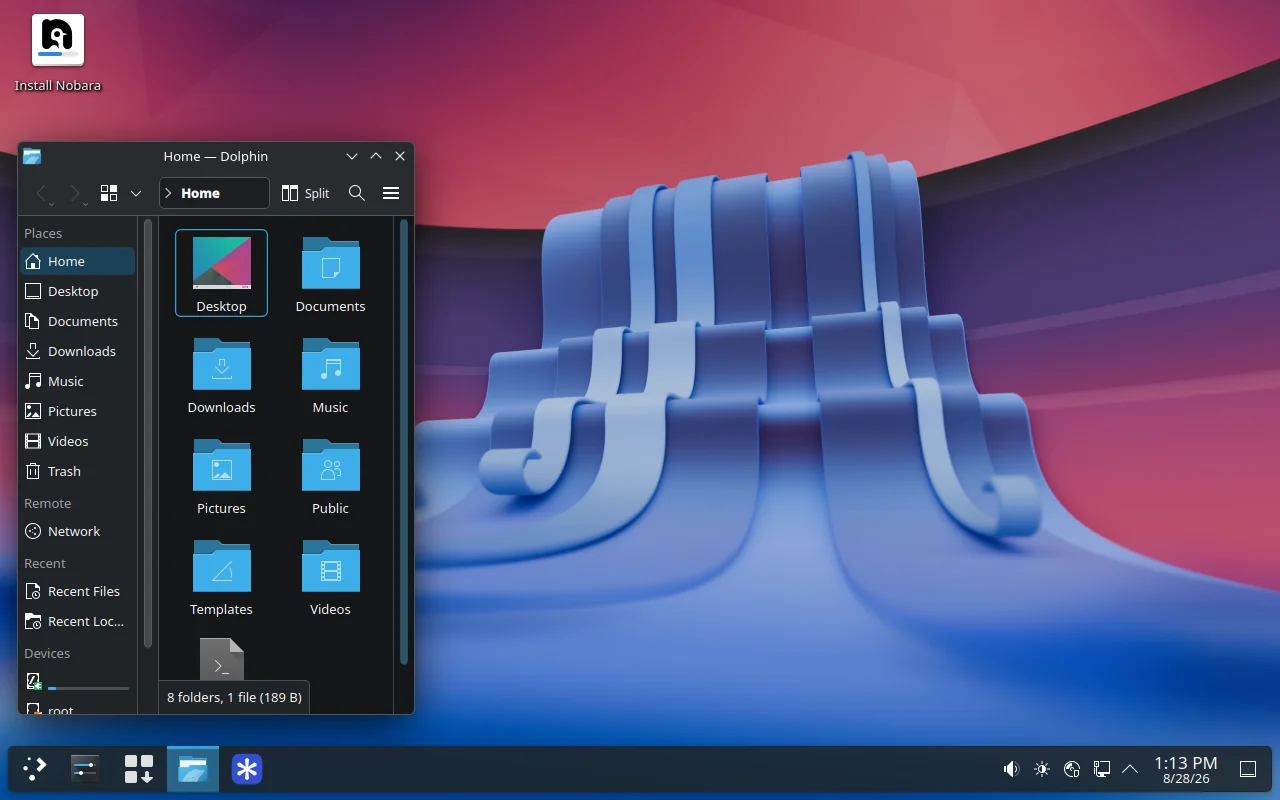
Nobara is based on Fedora and maintained by an independent team. The Nobara Official 44 image includes Steam and OBS Studio. Wine dependencies and third-party repositories are already set up, and a built-in wizard installs extra codecs. That comes in handy when you want to play and record a couple of matches in the same evening without spending half of it looking up packages.
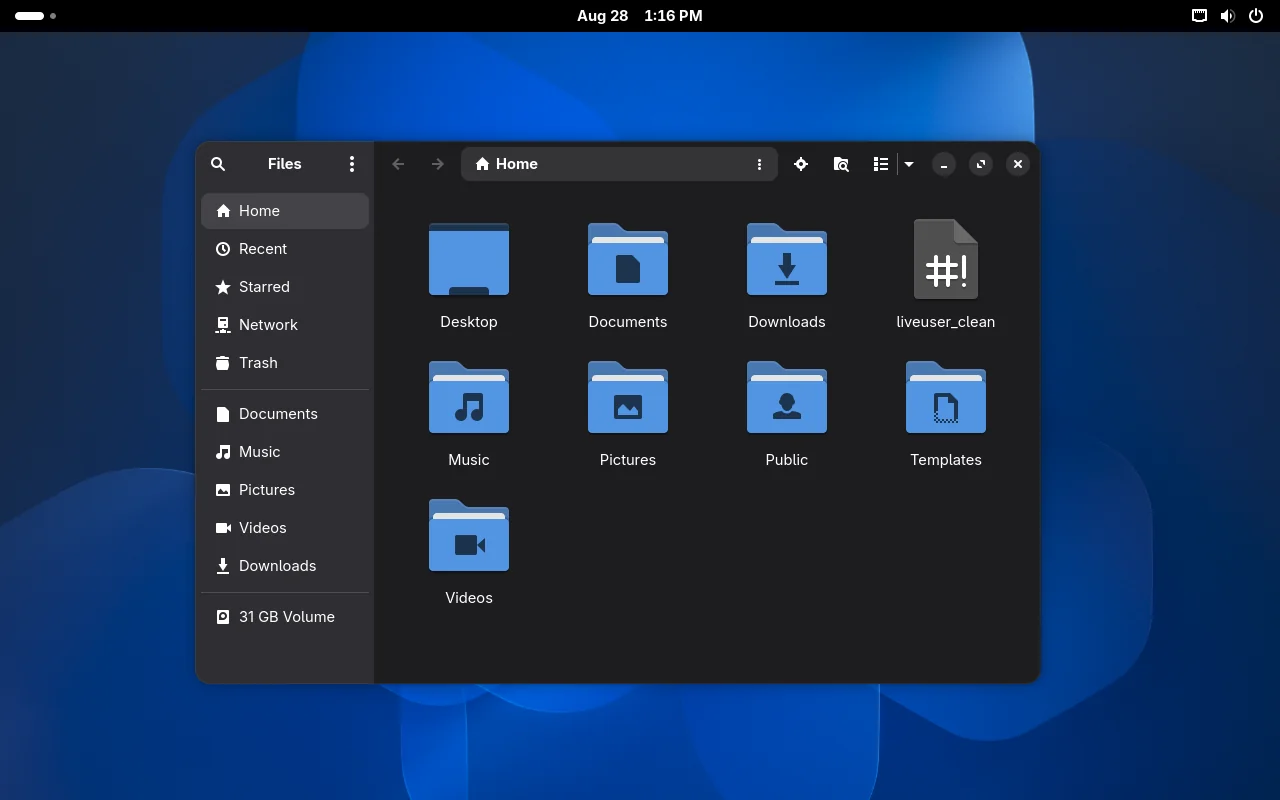
Use Nobara’s own tool to update the system. It checks for repository changes and syncs installed packages with those repositories. If an update causes trouble, start with Nobara’s documentation. It covers the changes the project makes to the system.
Nobara recommends turning off Secure Boot before you start the installer. If you need it for Windows, factor that in before installing, especially if you plan to keep both systems on the same PC.
To make a test recording, start the game in a Wayland session, add the Window Capture (PipeWire) source in OBS Studio and select the game window. Record a short clip and check that it has both video and audio.
Main features
- The Welcome app lets you install media codecs and open Driver Manager.
- Wine dependencies are already available if you need to run a Windows launcher outside Steam.
- Nobara’s updater keeps installed packages in sync with the project’s repositories.
Pros and cons
| Pros | Cons |
|---|---|
| Nobara Official 44 has Steam and OBS Studio preinstalled. | Following Fedora’s DNF update instructions can skip steps that Nobara’s updater handles for you. |
| You can select the NVIDIA driver in the installer using the same image as AMD and Intel users. | Nobara does not ship a proprietary driver for some older NVIDIA cards. |
| You can choose an edition with a regular KDE Plasma or GNOME desktop. | The installer calls for Secure Boot to be disabled. Check whether Windows on the same PC relies on it. |
System requirements
For a typical Intel or AMD PC, use the x86-64 image. Nobara recommends booting the installer in UEFI mode with Secure Boot disabled. Use a USB drive of at least 8 GB. The project’s partitioning guide recommends a drive of at least 32 GiB to leave room for the system and updates. Set aside additional space for games. If you have an NVIDIA GPU, check your model against the project’s list of supported cards.
Example commands
nobara-sync clidownloads system updates over the internet. Regular app updates can install right away, while the updater prepares kernel updates and release upgrades for the next restart.- Add
mangohud %command%to the launch options for a Steam game if MangoHud is installed and available to the client. The overlay shows your FPS, and you can configure it to display load and temperatures.
Bazzite for handhelds and couch gaming
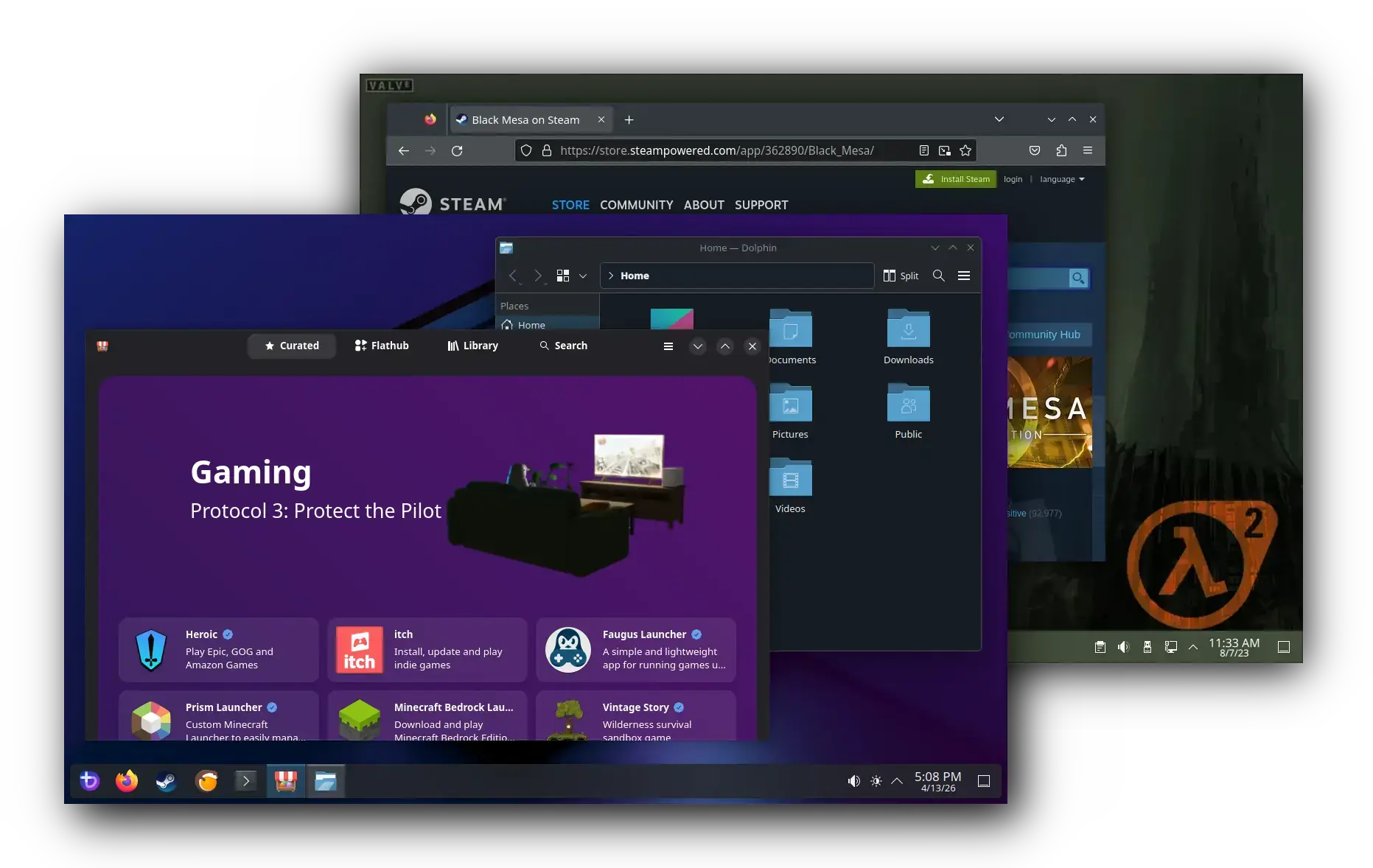
Hook up the PC to your TV, grab a controller and pick a game from your Steam library. That’s the idea behind Bazzite-Deck, the Bazzite image for Steam Gaming Mode. It’s a dedicated session with a controller-friendly interface like the one on Steam Deck. There’s also a regular desktop you can switch to when you need a browser or want to sort through your mod folders.
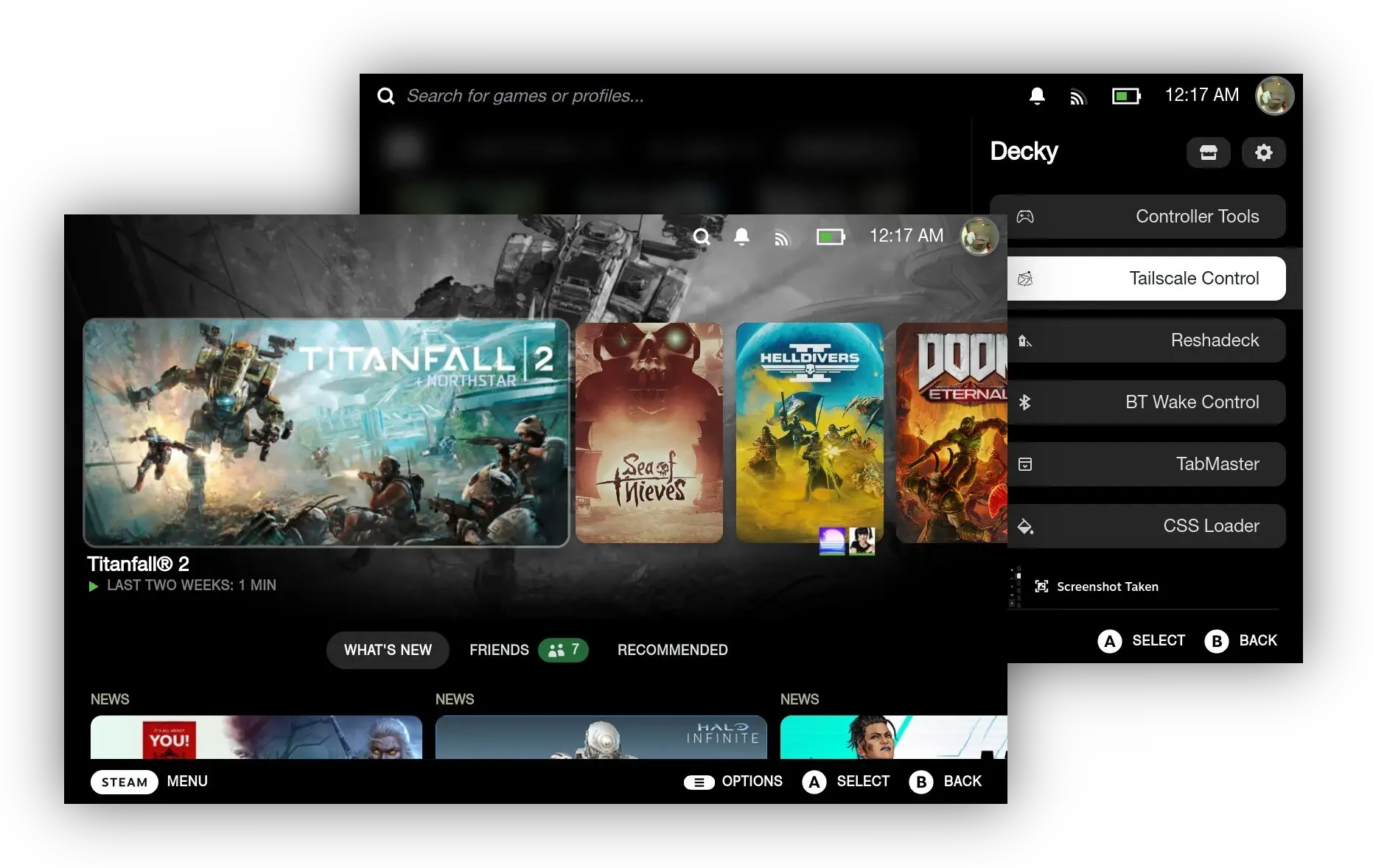
Before you download anything, look up your exact handheld or graphics card model and pick an image that suits it. On a handheld, check sleep and wake, the built-in buttons and power controls if you use them. On a TV-connected PC, Steam Gaming Mode also depends on the GPU. Bazzite offers compatible NVIDIA images, though Gaming Mode faces more limitations on NVIDIA cards than on AMD. If you spend more time at the desktop, Bazzite has desktop images with Steam as well.
Bazzite is based on Fedora Atomic Desktop and updates as a whole system image. If an update breaks something, you can boot into the previous version. Installing apps also works differently from standard Fedora. The project recommends Flatpak for most apps. If you need system packages, look up the instructions for Bazzite first.
On a handheld, try Bazzite with a game you play regularly. Start it in Steam Gaming Mode, put the device to sleep, then wake it and check that audio and controls come back. That tells you whether you can put the game down and pick up where you left off.
Main features
- On Bazzite-Deck images, Steam Gaming Mode lets you open your library and start a game with a controller.
- Desktop mode lets you run regular desktop apps and install Flatpaks.
- Booting the previous system image can help you check whether a change in how the device behaves came from the latest update.
Pros and cons
| Pros | Cons |
|---|---|
| Steam Gaming Mode puts games and settings within reach even if you don’t have a keyboard by the TV. | Sleep, buttons and power controls depend on your handheld model. |
| You can still boot the previous system image after an update. | The graphics driver version is tied to the system image, so you can’t choose it separately. |
| A separate desktop session gives you access to mods, files and a browser. | Bazzite does not support running games from NTFS partitions. If your library is on a Windows drive, you’ll need a Btrfs or ext4 partition for it. |
System requirements
Bazzite lists a 64-bit x86 processor with four cores at 2 GHz or above, UEFI with GPT partitioning, 8 GB of RAM and a GPU with Vulkan 1.3 or later. You’ll need at least 50 GB of free space on an internal SSD, with 120 GB recommended. Check your GPU or handheld model separately for Steam Gaming Mode.
Example commands
ujust updateupdates the system, Flatpak apps and supported containers. Connect to the internet and reboot when it finishes to load the new system image.rpm-ostree statuslists the installed system images. You can see which image is running and whether there’s another one to choose at the next boot.
Linux Mint Cinnamon for your first move from Windows
Cinnamon gives you a familiar desktop layout. The app menu and taskbar sit where you’d expect them, and you can work with files and windows the way you’re used to. Boot from a USB drive to see whether you like the interface and whether Wi-Fi, sound and the display work. Save the gaming performance test for the installed system.
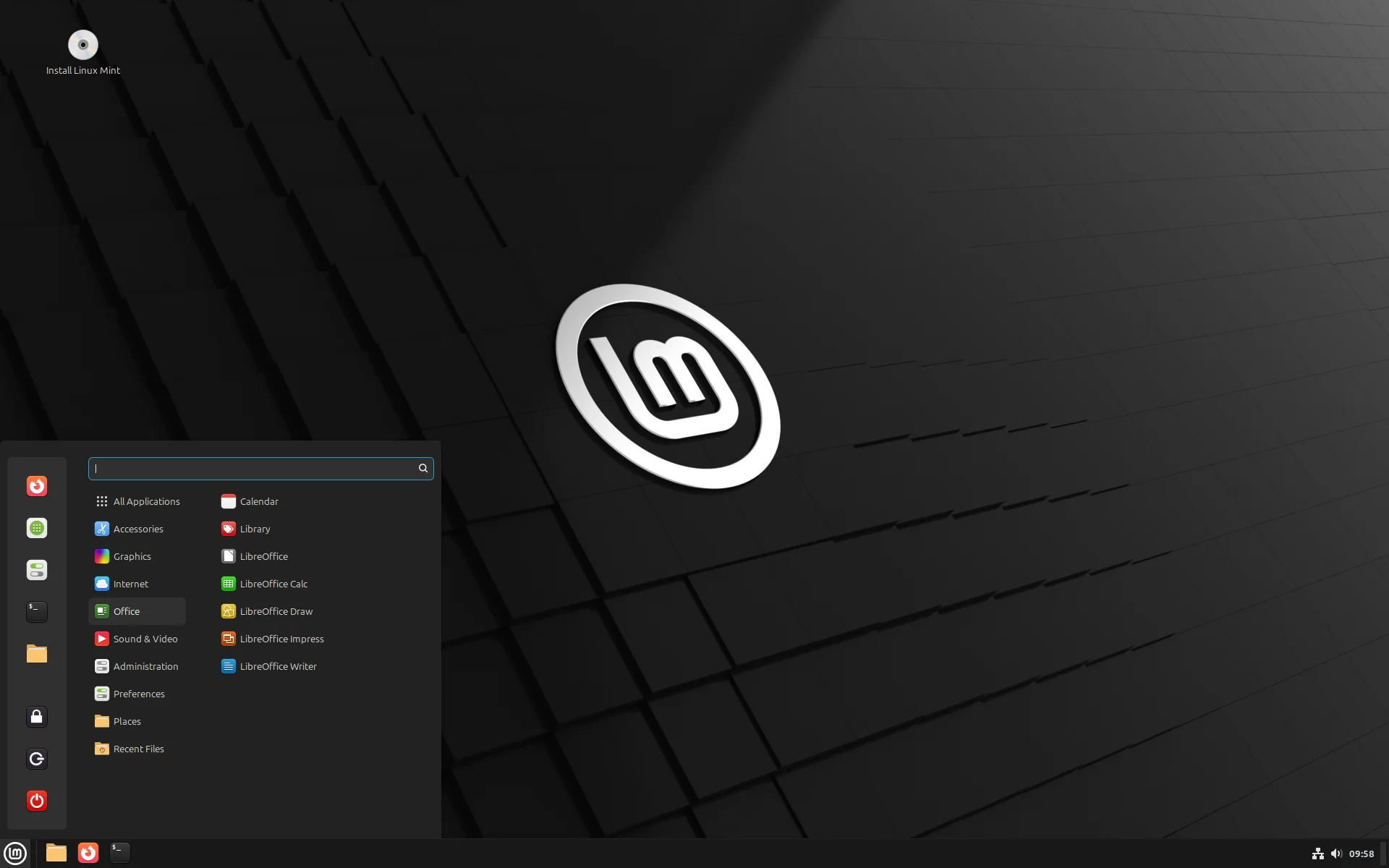
For games, install Steam separately and use Driver Manager to pick a driver if you need one. With a brand-new graphics card, check whether the driver available in your chosen release supports it. Mint makes sense when games live alongside your browser and work apps and you rarely need an interface that looks like a game console.
If you’re moving a shared home PC to Linux, start with your normal routine. Open the browser, check the audio in voice chat and pin Steam to the panel after you install it. Familiar menus make it easier to spot what actually gets in the way, like the system picking the wrong microphone by default.
Main features
- Cinnamon lets you pin apps to the panel and switch between tasks using the menu and window list.
- Driver Manager shows available extra drivers and lets you install the one you need.
- Timeshift takes system snapshots you can restore if a change causes trouble.
Pros and cons
| Pros | Cons |
|---|---|
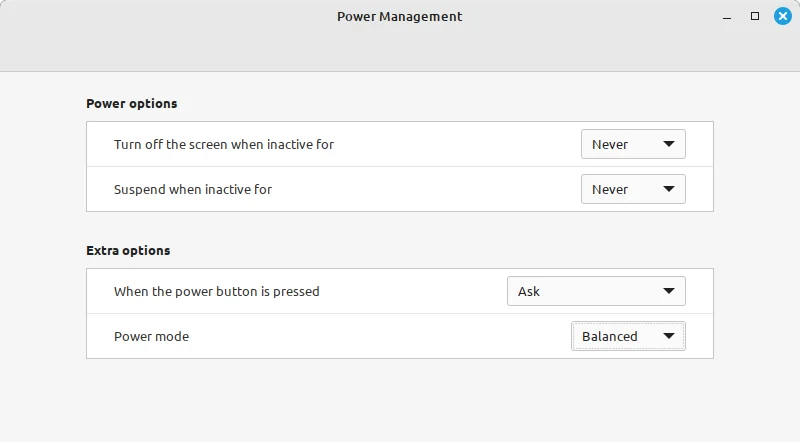
| A Timeshift snapshot can get the system working again after a failed update. | Snapshots exclude personal files by default. Make a separate backup of your saves. |
| There are graphical tools for drivers and updates. | You install Steam separately, and you should check whether your release supports a brand-new GPU. |
| The 22.x releases have long-term support. | The standard Cinnamon edition comes without a session like Steam Gaming Mode. |
System requirements
Linux Mint 22.3 Cinnamon comes in a 64-bit image. The release lists 2 GB of RAM, 20 GB of disk space and a 1024×768 display. For general use, Mint recommends 4 GB of RAM and 100 GB of disk space. Check the requirements for the games you play and leave room for your library.
Example commands
mintupdate-cli listlists available package updates using the local package information. If it’s out of date, refresh it in Update Manager first.- If the inxi package is installed,
inxi -Gshows your GPUs and graphics drivers. It can help you tell whether Mint sees both GPUs in a laptop.
Fedora KDE Plasma Desktop for gaming and work on one PC
Fedora KDE Plasma Desktop suits a PC you use all day, especially if you like to set up workspaces, panels or rules for windows. KDE Plasma gives you more options than you need just to start a game, but they come in handy if you have multiple monitors or regularly keep a browser, chat and work apps open. Fedora keeps its kernel and graphics libraries up to date, which is especially helpful if you have a new GPU.
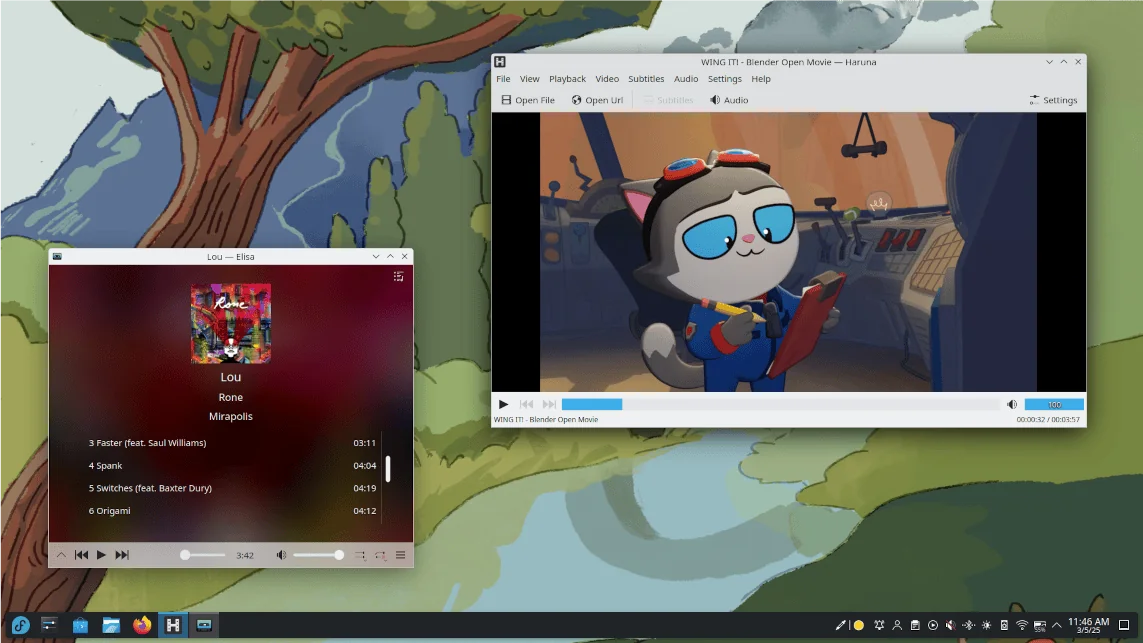
You put together your own gaming setup here. Install Steam, check whether your card needs a separate driver and add the apps you actually use. While your Fedora release is supported, you can keep updating its packages. When support is about to end, it’s time to move to a newer release. If you’d rather have a gaming setup that’s ready sooner, you can skip some of these steps with Nobara.
On a dual-monitor PC, you can put your chat and browser on one screen and play on the other. In KDE Plasma, a window rule can make the chat open on the same monitor each time, for example. If you play in windowed mode, that makes it easier to get back to the desktop between matches.
Main features
- KDE Plasma settings let you customize panels, desktops and window placement rules.
- The kernel and graphics libraries update along with Fedora’s packages.
- KDE Discover lets you find and update apps, and DNF manages system packages from the terminal.
Pros and cons
| Pros | Cons |
|---|---|
| Window and panel settings come in handy if you work across multiple monitors. | Setting up the desktop around your routine can take time. |
| Recent kernel and graphics libraries can help on new hardware. | You still need to check support for your GPU, and some drivers need a separate package source. |
| You choose what goes into your gaming setup. | You install Steam separately and move to a newer Fedora release when support ends. |
System requirements
For a typical Intel or AMD PC, pick the x86-64 image. Fedora’s general recommendation for most editions is 4 GB of RAM and 40 GB of disk space. Games and other apps may need more memory and storage.
Example commands
vulkaninfo --summarylists the graphics cards available to Vulkan and shows details about them. It requires the vulkan-tools package. It’s a quick check if the system sees your GPU and a Proton game has trouble starting.sudo dnf upgrade --refreshrefreshes repository metadata and offers package updates for your current Fedora release. Connect to the internet and review the package list before confirming the update.
CachyOS if you like tuning your system
CachyOS is based on Arch Linux. It offers its own kernel builds and packages optimized for different processors, including builds for x86-64-v3. Pick a kernel for your hardware and use CachyOS Hello to install gaming dependencies and apps such as Steam, Heroic and Lutris in one go. It’s a good fit if you’re curious about what actually changes when you switch kernels or graphics drivers.
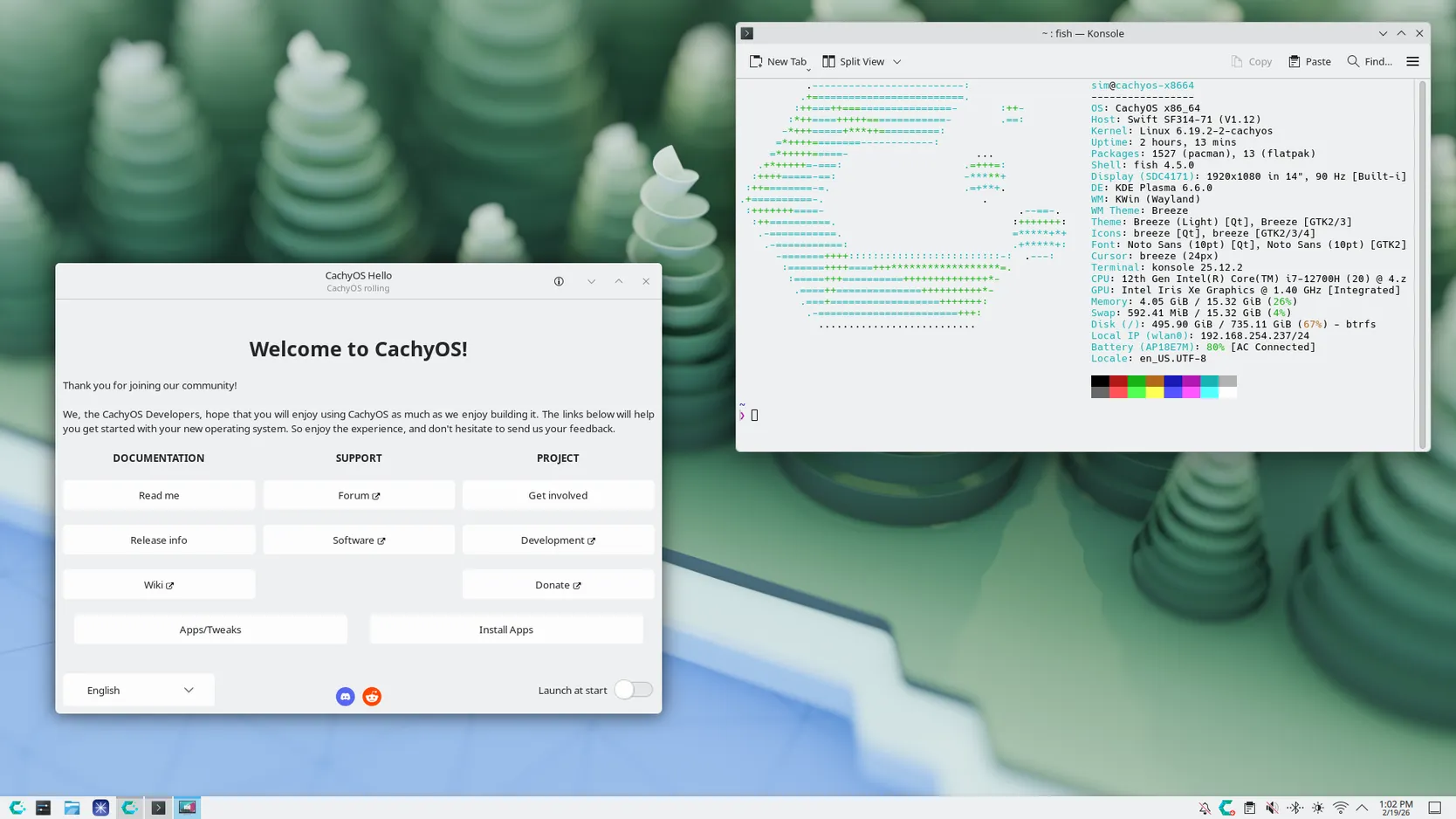
CachyOS gets new package versions continuously on a rolling release model. If something breaks after an update, you may have to trace it back to the component that caused it. A list of optimizations won’t tell you how many frames a game will deliver on your PC.
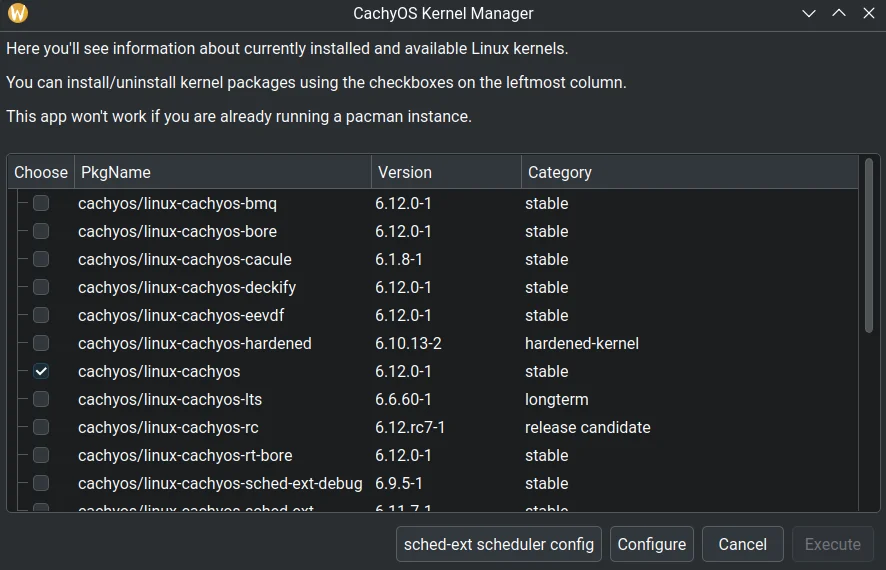
To compare kernels, keep the one that works and add another with CachyOS Kernel Manager. Run the same scene on each kernel at the same resolution and graphics settings. That makes it easier to spot the difference you care about, like a smoother camera pan.
Main features
- CachyOS Kernel Manager lets you install another kernel alongside the current one.
- The optimized repositories offer packages built to use features of different processors.
- CachyOS Hello installs a gaming bundle with libraries and launchers. The app bundle also includes MangoHud and GOverlay.
Pros and cons
| Pros | Cons |
|---|---|
| You can keep multiple kernels and compare them on the same PC. | System updates arrive continuously, and you may have to trace the cause of a problem yourself. |
| CachyOS Hello can install gaming libraries and launchers in one go. | You need a stable internet connection to install the system itself. |
| There are package builds that use features of newer processors. | Performance gains depend on the game and hardware. Test with the settings you play on. |
System requirements
Installation requires at least 3 GB of RAM, 30 GB of space on an HDD or SSD and a stable internet connection. The project recommends 8 GB of RAM, 50 GB on SSD or NVMe storage, an x86-64-v3-capable processor and an internet connection of at least 50 Mbps. Budget additional space for your games.
Example commands
pacman -Q cachyos-gaming-meta cachyos-gaming-applicationsshows which of the two gaming metapackages are installed and which versions you have. You can do this check offline.- With cachyos-settings installed, add
game-performance %command%to the launch options for a game in Steam. It enables the performance profile while you play if your system supports it. That can increase power use and heat.
What to check before moving to Linux
For the first test, pick a few of the games you turn your PC on for in the first place. Include a game you play with friends and one you run with mods or through a separate launcher. That’ll tell you more than working through your library in alphabetical order.
- Test the online mode you actually play. Get past the main menu and join the mode you launch the game for. Easy Anti-Cheat and BattlEye can work with Proton when the developer enables support for the game. The Steam Deck compatibility badge is a starting point. Check your own PC and the mode you play separately.
- Run the game with your mods. For a game from another store, check that you can sign in to its launcher. For a modded setup, check the mod manager and load the save you want to keep playing. If the game supports Steam Workshop, start with mods you can subscribe to there. For example, my guide to installing Kenshi mods walks you through the Workshop and shows you how to check the load order.
- Check your devices and display. Start with the graphics driver, Wi-Fi, sound and controller. Check your monitor refresh rate too. On a laptop with two GPUs, check which one the game is running on. If you use HDR or variable refresh rate, turn them on during the test.
- Back up your saves and files before installing. For a full test, you can install Linux on a separate drive and keep Windows. If one important game or app still requires Windows, keep the option to boot into either system.
Installing PC Game Pass games through the Xbox app still requires Windows. Xbox Cloud Gaming works separately, and the games you can stream depend on the catalog and your region.
If the games you wanted to switch for run and your controller and screen work as expected, spend a few evenings on your chosen distro. You’ll soon find out how comfortable you are installing mods and updating the system. If your friends are expecting you in voice chat on Friday night, it helps to know which drive to boot from by then.