Gothic 1 Remake mods are worth a look when putting away a torch means dropping it, loose loot is hard to spot in a dark cave, or trade prices catch you off guard. Here’s what I’d try first for those small frustrations.
These are the mods I’d consider even for a first playthrough.
G1L — Mod Manager and Launcher for Gothic 1 Remake
G1L is a dedicated Gothic 1 Remake mod manager. Each Unreal Engine mod type uses a different folder, making manual setup easy to get wrong. Drag an archive into G1L and it identifies the type, then puts its files in the right place.
What the launcher can do:
- installs all types of mods: UE4SS Lua/DLL, pak files, splash screen replacements, fyryNy plugins, ReShade presets;
- safely disables pak mods without deleting them — it just renames the files;
- includes a built-in config editor right in the interface;
- lets you install the correct UE4SS build with one click from the settings;
- backs up your saves before every launch;
- warns about missing dependencies before starting the game;
- checks for updates via the Nexus API;
The interface is Gothic-style: dark theme, stone texture.
✅ Why I’d install it first: a manager saves you copying files by hand and remembering which archive added them. Set up G1L before building the rest of your mod list.
Ultra Plus for Gothic 1 Remake
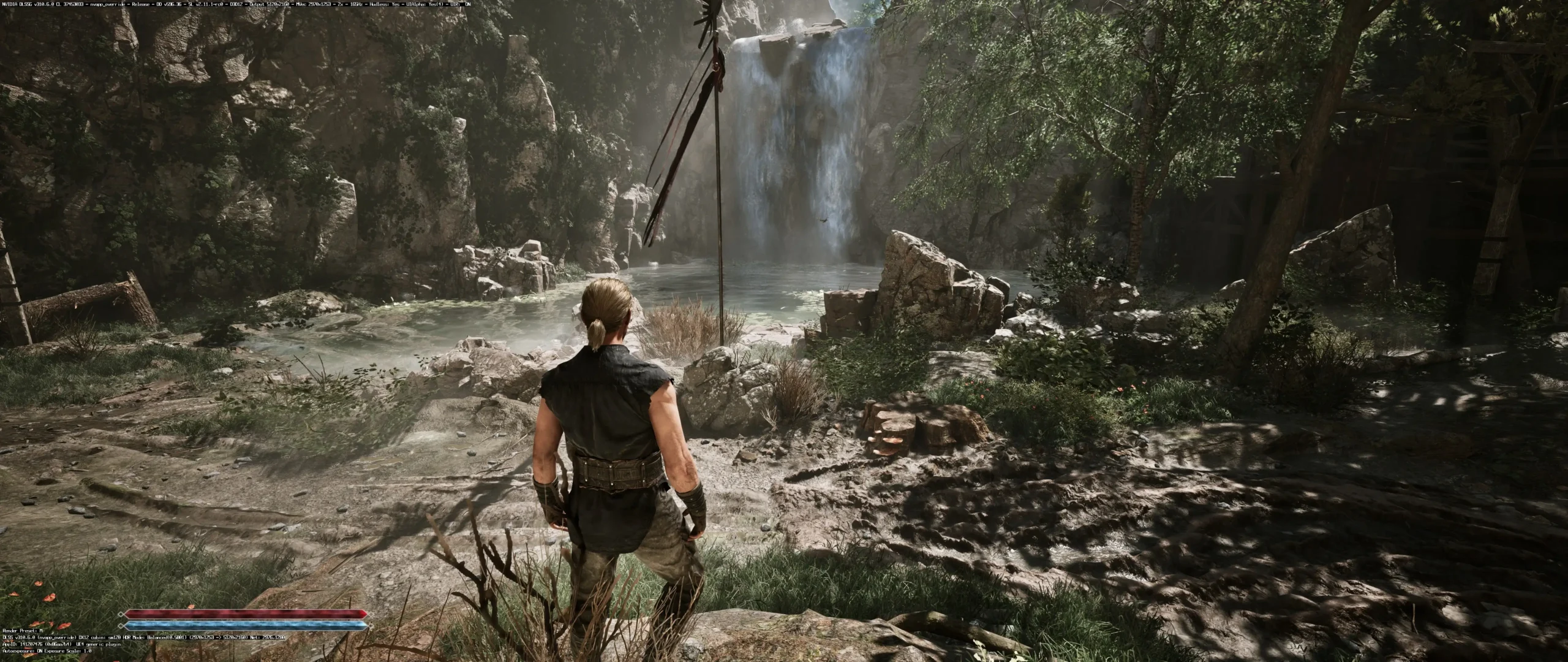
Lazorr’s Ultra Plus gives you detailed control over the engine settings. It aims to improve the game’s inconsistent maximum-quality configuration while letting you tune individual effects.
What you can adjust:
- the quality of lighting, shadows, fog, reflections, and Lumen global illumination;
- turning off chromatic aberration, vignette, grain, and lens flare;
- dynamic FPS with a set target value;
- the draw distance for objects and vegetation;
- the intensity of fog and local exposure.
Controlled through the Ultra Plus Manager or directly via config files. In-game settings are applied with the key F12. There are ready presets: low, medium, high, very high, epic.
⚠️ Important: Don’t combine Ultra Plus with other Engine.ini mods — this can cause crashes or visual glitches. Ultra Plus already includes all the necessary engine tweaks.
✅ What changes: clearer visuals and a frame rate you can tune around your hardware. I’d begin with medium or high, then adjust individual settings.
Gothic Remake Intro Skip
Removes the intro videos and takes you straight to the main menu. The Alkimia intro plays at a volume that can be startling the first time.
Installation is pretty simple: copy the files into the folder Gothic 1 Remake\G1R\Content\Movies. UE4SS is not required. If you’re using G1L — it will handle this mod automatically, including backing up the original files.
✅ What changes: saves about 20–30 seconds on each launch. Sounds like a small thing until you start the game for the tenth time in one evening.
Lootlight
Lootlight highlights all loot around your character with a single key press. In Gothic 1 Remake, items on the ground are really easy to miss, especially in caves at night. The mod adds color coding: weapons glow red, plants green, ore and coins yellow, and everything else blue.
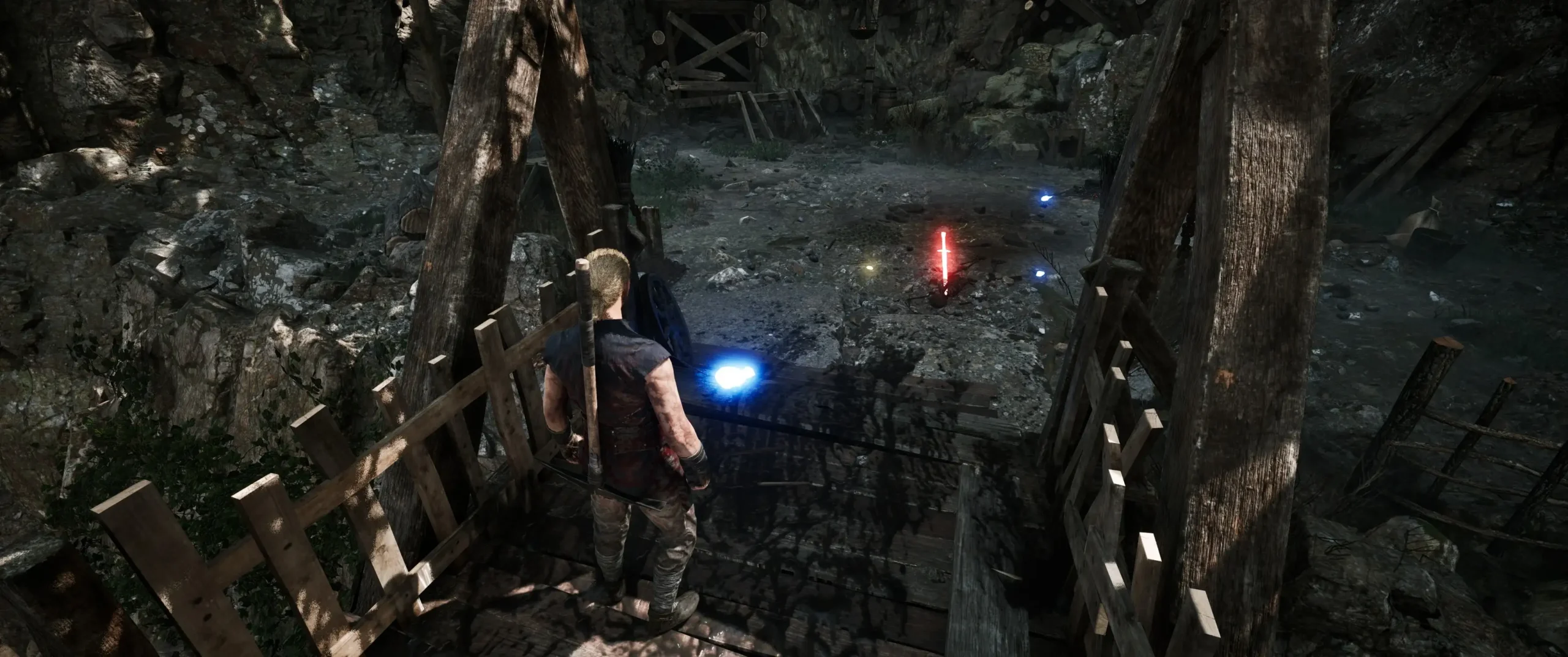
Important things to know:
- can be turned on and off with the key F4;
- the highlight updates automatically as you move;
- range, brightness, colors, and refresh rate can be adjusted in the config;
- requires UE4SS (experimental build).
⚠️ Watch for crashes with highlighting active in crowded areas on experimental UE4SS builds. Reduce the radius or disable the highlight before opening your inventory if you encounter them.
✅ How gameplay changes: instead of moving the camera around every corner of the cave looking for ore, you just press F4 and see everything at once. Especially handy after a fight, when there’s a bunch of weapons on the ground and it’s unclear what’s worth picking up.
Highlight All Nearby Items (FocusNearbyPickups)
Another item highlighting mod, but with a different approach. FocusNearbyPickups enhances the built-in Gothic 1 Remake object outline system — the very one that works through the «Object Outline» setting in the accessibility menu. The mod just increases the activation range for pickable items.
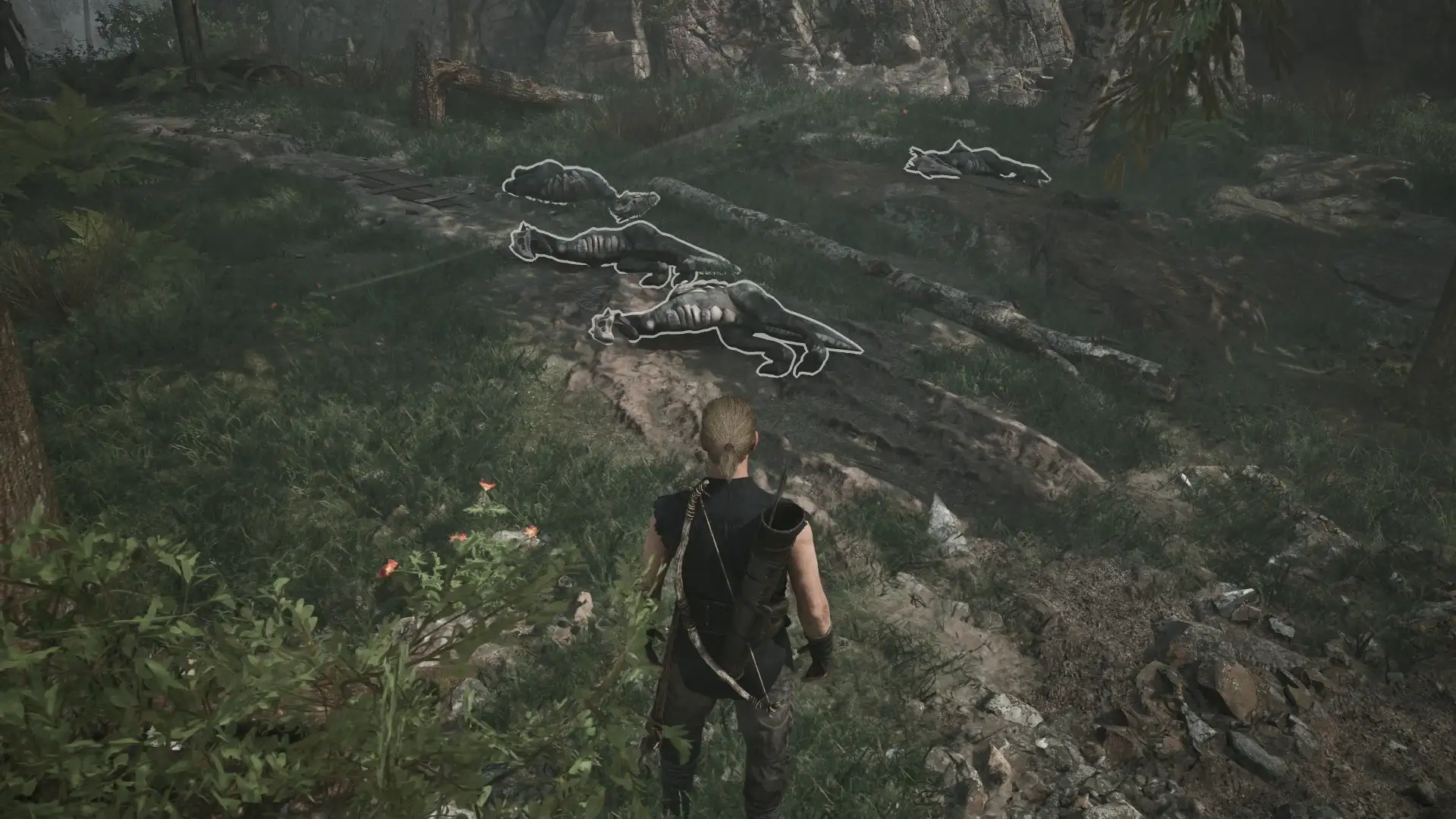
Three versions to choose from:
- Lite — pickable items only: herbs, ore, weapons, food, loot;
- Lite + Quickloot — same thing plus support for quick pickup;
- Full — additionally highlights corpses and containers.
To work, you need to enable “Object Outlines” in the game’s accessibility settings. Switch — key F6.
✅ Compared with Lootlight: FocusNearbyPickups extends the game’s own outlines, giving a lighter, subtler effect. Lootlight is brighter and easier to spot. Try the approach that feels clearer to you.
Instant Loot and Unlock
Picking through a pile of bodies can take almost as long as the fight. Instant Loot and Unlock speeds up gathering the spoils and lets you set how much of the lockpicking you want to handle yourself.
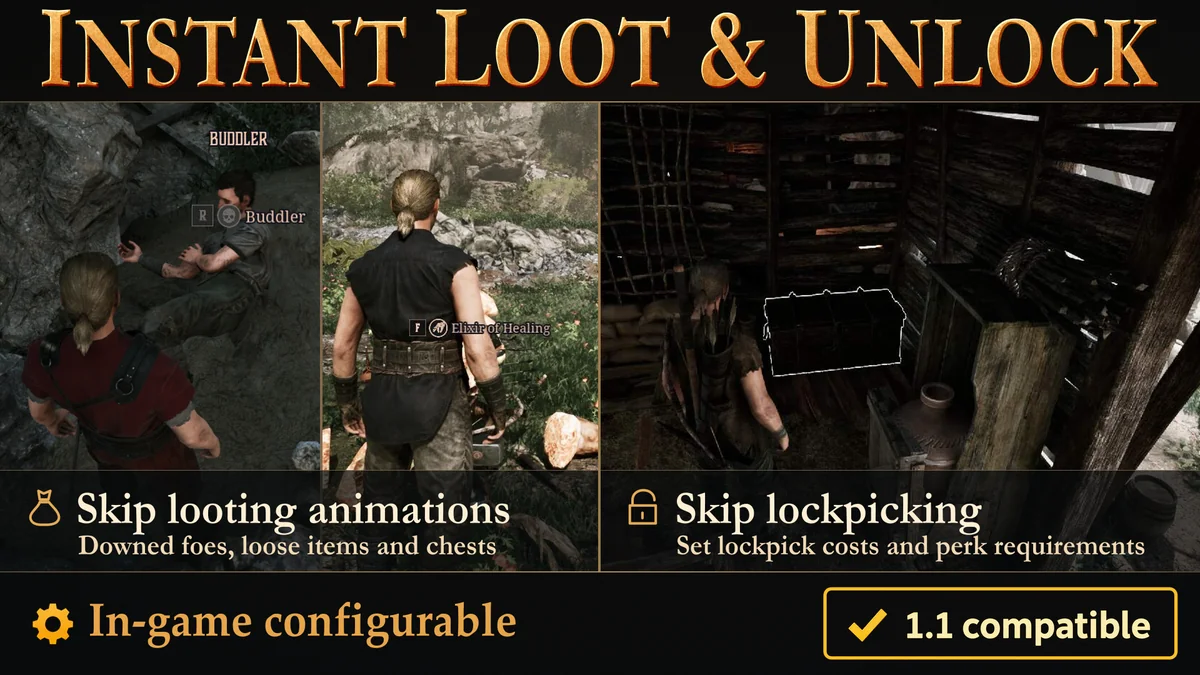
You can adjust these options in the game settings:
- Loot items and defeated enemies instantly.
- Mine ore faster with your pickaxe drawn.
- Set automatic unlocking, lockpick costs and perk requirements.
Requires Gothic 1 Remake 1.1 or later. For a manual install, extract the G1R folder from the archive into your game folder and enable the mod in the in-game mod manager. The author recommends keeping instant looting off for corpses placed in the world to avoid issues in chapters 4–6.
✅ Where it helps: spend less time collecting loot after a fight. You can keep the lockpicking minigame turned on if you still enjoy opening locks yourself.
Uncompromising Trading Patch
A merchant’s price can slip as you add more copies of an item to a sale. Uncompromising Trading Patch puts those changes on the quantity slider so you can see where the good deal ends.
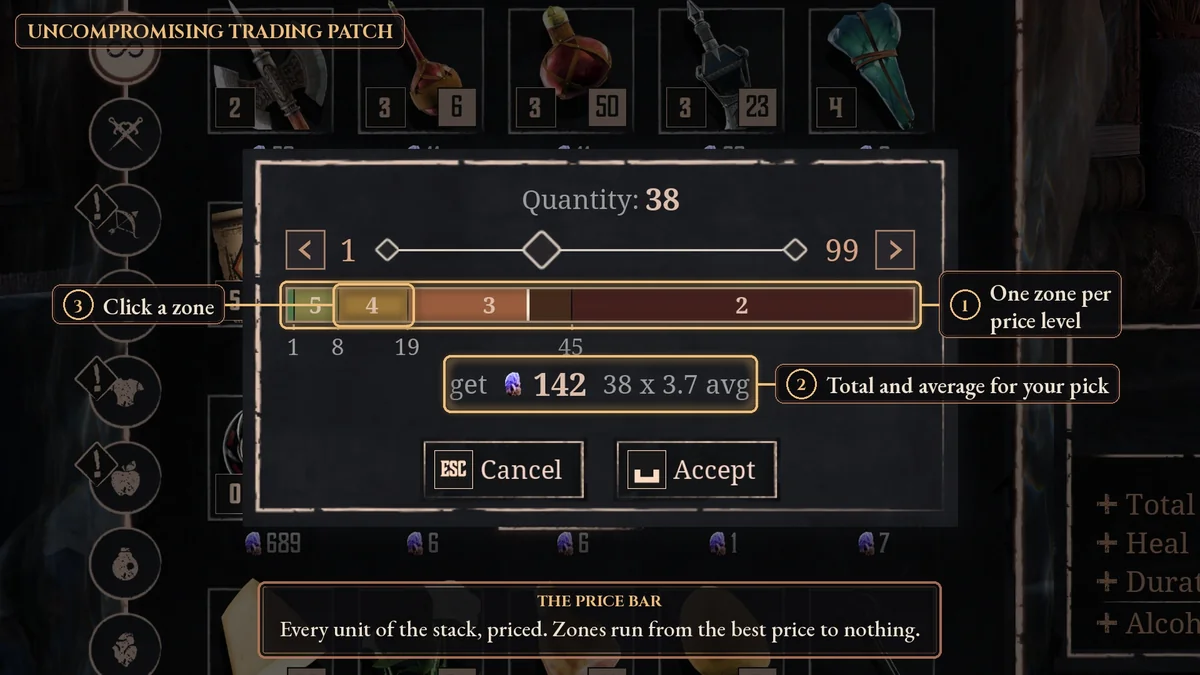
Here’s what the trading window shows:
- A colored bar marks where the price per item changes.
- The total and the average price update as you move the slider.
- The popup warns you when the merchant or your character is short on ore.
Requires Gothic 1 Remake 1.1a or later. Unpack it into G1R/Mods and enable it in the game’s mod manager. The new labels follow your game language.
✅ What changes in practice: if you’re selling a stack of swords, you can pick the quantity that still gets you a good price before you commit.
Passive Regeneration
Passive Regeneration restores health and mana gradually, where the original game normally requires potions or rest. Its default rate is 1% of the maximum per second, paused during combat, unconsciousness, menus and cutscenes.
What can be configured through PassiveRegen.ini:
- separate toggles for HP and mana;
- regeneration speed and interval;
- pause time after combat before resuming;
- minimum health or mana threshold for activation;
- regeneration works right in combat (optional).
It also fixes a useful edge case: mana reaching zero can sometimes leave spells blocked after you’ve recovered it. Passive Regeneration clears that block automatically.
Requires UE4SS (experimental build) and the UEHelpers library.
✅ How it plays: less waiting between fights to restore your resources. The default settings still pause regeneration in combat, so you have to survive each encounter on what you have.
Classic Traders
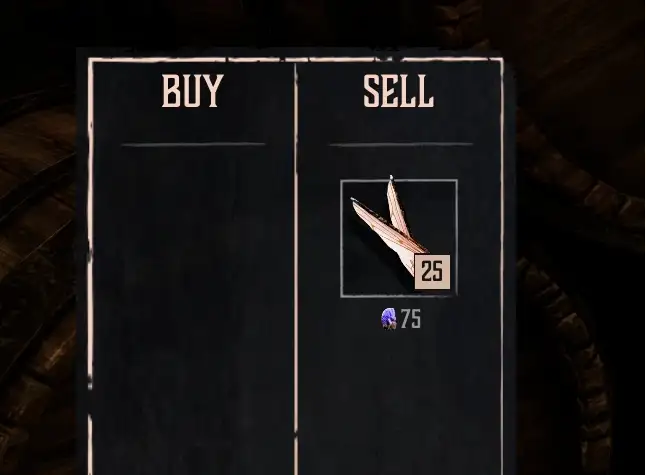
The mod restores fixed prices for merchants. In the vanilla Gothic 1 Remake, there’s a supply and demand system: the more you sell a certain type of item, the less you get for it. Sold ten swords? The last one is worth almost nothing. Classic Traders removes this dynamic and fixes the price of each item at a constant level.
Additional features:
- ‘Range’ mode — prices react to the market, but only within set limits;
- separate multipliers for buying and selling prices;
- price alignment for all merchants, regardless of profession or camp (enabled by default);
- supports working on existing saves (no need for a new game).
⚠️ Important note: an experimental UE4SS build is required. The stable version won’t work — the game crashes when you first open a trading window.
✅ What changes: selling a large haul no longer drives its price toward nothing. Classic Traders restores a predictable value for each item, as in the original game.
Put Away Torch
The mod adds a hotkey to put away the torch. In the vanilla game, the only way to put the torch away is to drop it on the ground. Put Away Torch adds a key T (customizable) that hides the torch without losing the item.

On Gothic 1 Remake 1.1, use the ModKit release. Enable it in the in-game mod manager and change the hotkey under Settings > Game > Put Away Torch. If you’re still on game version 1.0.5, use the older UE4SS Redux release and follow its requirements.
✅ What changes: switching from torch to weapon underground becomes much less awkward. It’s one of those tiny fixes you start missing as soon as you play without it.
How to install mods for Gothic 1 Remake
Most mods on this list work through UE4SS — a scripting system for Unreal Engine. Without it, Lua mods just won’t load.
Installation order:
- Download and install G1L — it will automatically install the correct version of UE4SS.
- Use the experimental build of UE4SS, not the stable one: Gothic 1 Remake runs on UE 5.4, and the stable version conflicts with it.
- Keep in mind that Pak mods, video replacements, and Engine.ini tweaks do not require UE4SS.
- Use the in-game mod manager for both Instant Loot and Unlock and Uncompromising Trading Patch. The former requires game version 1.1 or later, and the latter requires 1.1a or later.
- Don’t use third-party Engine.ini mods together with Ultra Plus for Gothic 1 Remake.
- Use the fact that G1L makes a backup of saves before each launch — just in case.
My Gothic 1 Remake mod installation guide covers the complete process.
Which mods are worth installing even on your first playthrough?
Start with G1L to manage the setup. Then consider Ultra Plus for Gothic 1 Remake to tune the visuals and Gothic Remake Intro Skip to save time on every launch. The other choices depend on which parts of the game you want to change.
If you know a mod that isn’t on the list — write it down, I’ll test it and, if it’s worth it, I’ll add it.