Gothic 1 Remake performance can look fine on the FPS counter until you walk into the Old Camp and the game starts hitching. Which settings help with those pauses, and which just raise the average? This guide walks through both problems, with starting settings for three tiers of hardware. My Gothic 1 Remake hub has the rest of my guides and mod lists.
Why does Gothic 1 Remake stutter even on powerful hardware?
The game streams assets as you move. That can cause brief hitches in busy areas such as the Old Camp, even on a powerful PC. Unreal Engine 5 features such as Nanite, Lumen and Virtual Shadow Maps add to the overall workload.
If GPU usage drops from over 95% to 70–85%, the CPU or game engine could be holding things up. GPU usage alone can’t tell you which. Frame generation can smooth out motion while the underlying hitches remain.
Official PC requirements and rough FPS targets
| Minimum | Recommended | |
|---|---|---|
| CPU | i7-7700K / Ryzen 5 1600X | i7-7700K / Ryzen 5 3600X |
| RAM | 16 GB | 32 GB |
| Graphics card | RTX 2070 / RX 6700 XT. Steam lists 8 GB VRAM. | RTX 3070 Ti / RX 6800 XT. Steam separately lists 12 GB VRAM. |
| Storage | 60 GB on an SSD | 60 GB on an NVMe SSD |
| Guide targets (estimated) | Around 30–60 FPS on Low | Around 60 FPS on High |
Steam specifies 64-bit Windows 10 or 11 and DirectX 12 without a frame-rate target. For comparison, the figures I have are 50–80 FPS at 1440p on an RTX 3070 and 75–95 FPS at 1080p on an RTX 4060 Ti, both with upscaling and tweaks. The rest of the hardware and the game build are unknown, so use those figures as a rough reference. On an RTX 20-series card, try upscaling if Low still struggles.
Display mode, VSync and frame-rate limits
Open Settings → Display and look for Display Mode. Try Borderless Window and compare it with Windowed on the same stretch of gameplay.
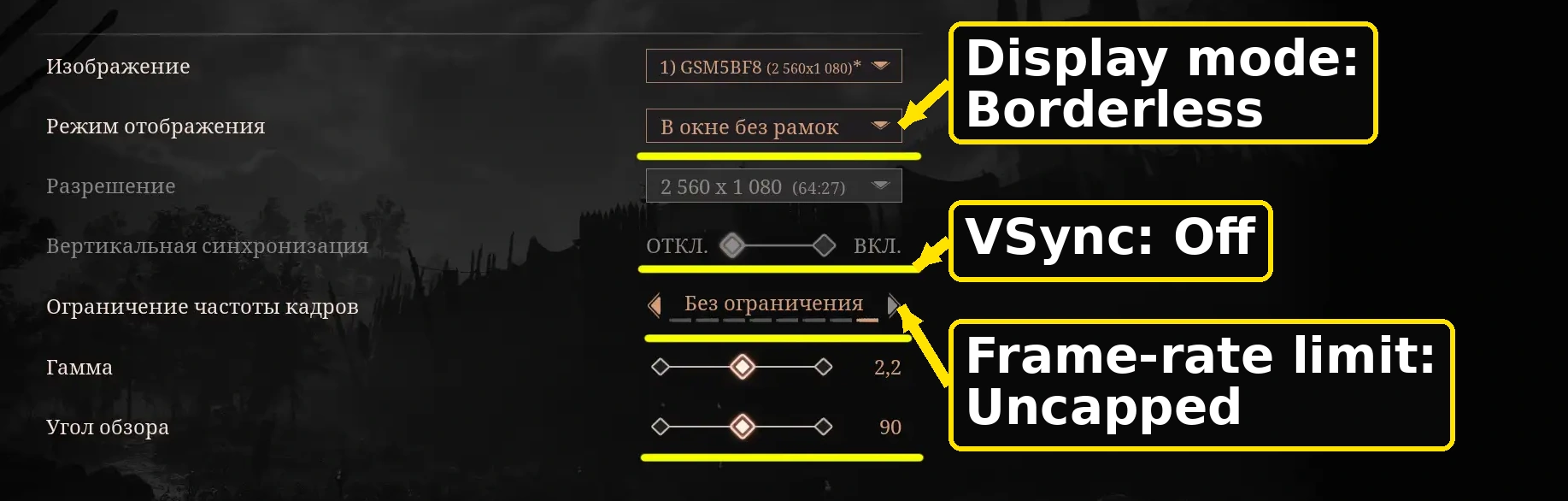
VSync can add input delay. With some double-buffered setups, missing 60 FPS on a 60 Hz display can drop you to 30. On my 100 Hz FreeSync setup, I enable VSync and cap the game at 96 FPS in the driver. With variable refresh at 144 Hz, a cap around 3–4 FPS below the display’s refresh rate is a similar starting point.
Set one frame-rate limit and see how consistent the game feels. For steady pacing, a cap your PC can actually hold may work better than aiming for the display’s full refresh rate.
Which upscaler should you use?
Under Graphics → Rendering Quality, look for Temporal Upscaling and choose an Upscaling Technology your graphics card supports.
| Technology | Hardware | Image quality |
|---|---|---|
| DLSS 4.5 | NVIDIA (RTX) | A good first option on RTX cards |
| FSR 3.1 | AMD and other supported GPUs | Compare fine detail in motion |
| XeSS | Intel Arc | Compare with FSR at the same preset |
Start at Quality and try Balanced if you need more FPS. Performance mode can make fine detail blur, especially when foliage is moving.
Frame Generation is a separate setting. Try it if your hardware supports it and the game already holds roughly 40–45 FPS with it off. At lower base frame rates, the controls may still feel sluggish.
Which graphics settings are worth lowering?
You’ll get more out of the Graphics menu if you know where your PC struggles. Try shadows or foliage first if frame rates drop in the forest, and compare lighting in rooms and caves.
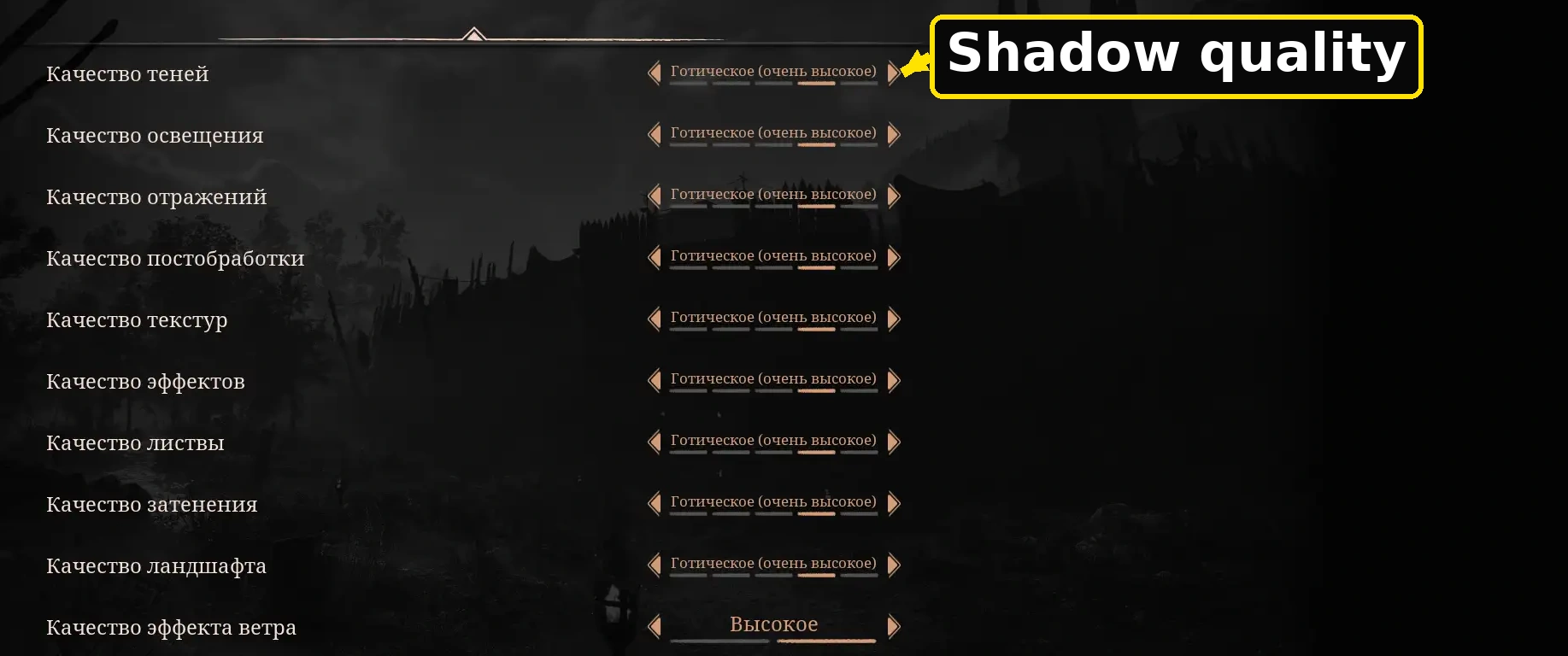
These values are a starting point. Change one setting at a time so you can see what made a difference.
| Setting | Starting value | Why |
|---|---|---|
| Shadow quality | High | Lower this first if shadows are expensive on your PC |
| Lighting quality | High | Compare with Medium in dark interiors |
| Reflection quality | High | Keep on High if the performance cost is small |
| Post-processing quality | Medium | A reasonable trade-off if you need more headroom |
| Texture quality | Gothic | Keep high while there’s enough VRAM |
| Effects quality | High | Try Medium if effects cause dips |
| Foliage quality | Medium | Try Low if wooded areas still hitch |
| Shading quality | High | Compare with Medium on slower cards |
| Terrain quality | High | Reduce if you need more headroom |
| Wind effect quality | High | Leave on High if it makes little difference |
Texture quality depends on your VRAM budget. Gothic can work well on a mid-range card. Lower it a step if textures start loading late or the game hitches as you turn the camera.
Post-processing and image clarity
The Post-Processing options let you tune the image without changing the whole graphics preset.
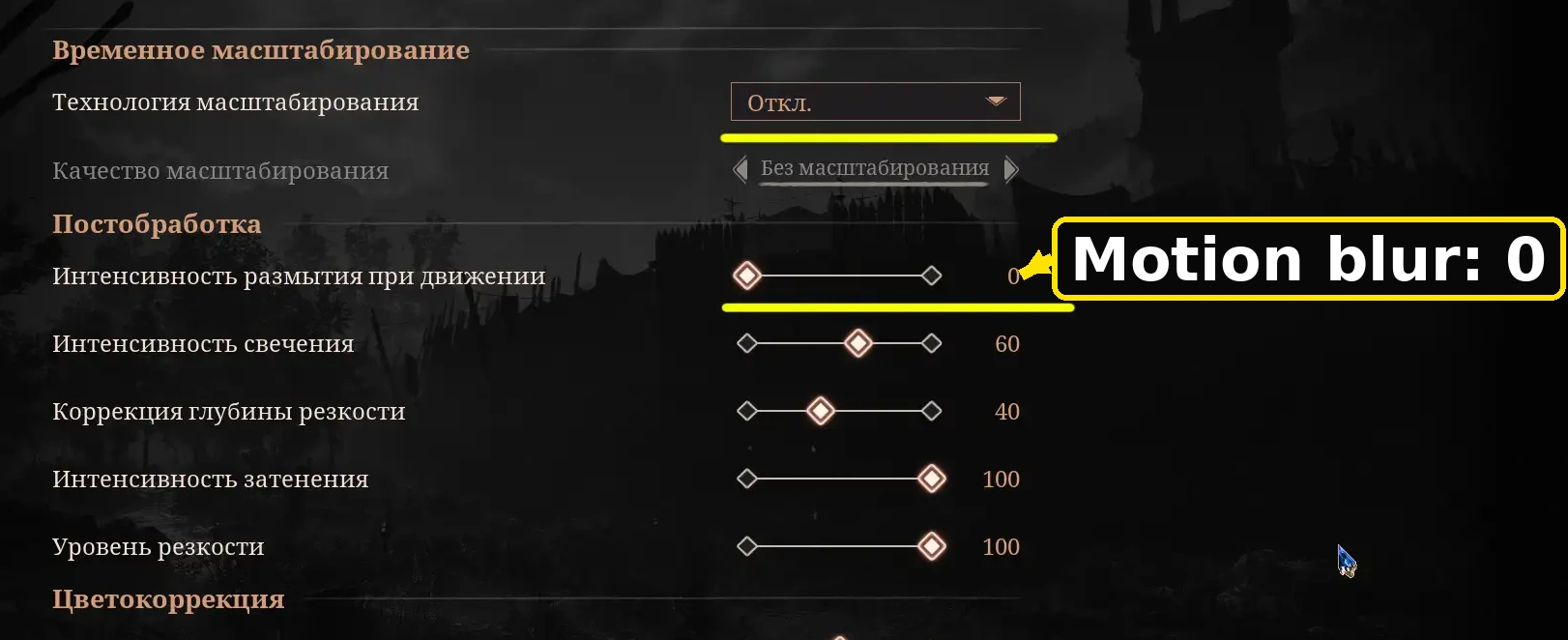
- Set Motion Blur Intensity to zero if you prefer a sharper image while turning.
- Lower Depth of Field Correction if you want more of the scene to stay in focus during dialogue.
- Adjust Glow Intensity to taste.
- Try setting Shadow Intensity to around 50 if you’re losing detail in dark rooms.
Does your GPU’s low-latency setting help?
On an AMD card, compare Radeon Anti-Lag on and off in the per-game profile. NVIDIA’s Low Latency Mode is a different control. If you had enabled either feature, test the same scene with it off before deciding whether to leave it that way.
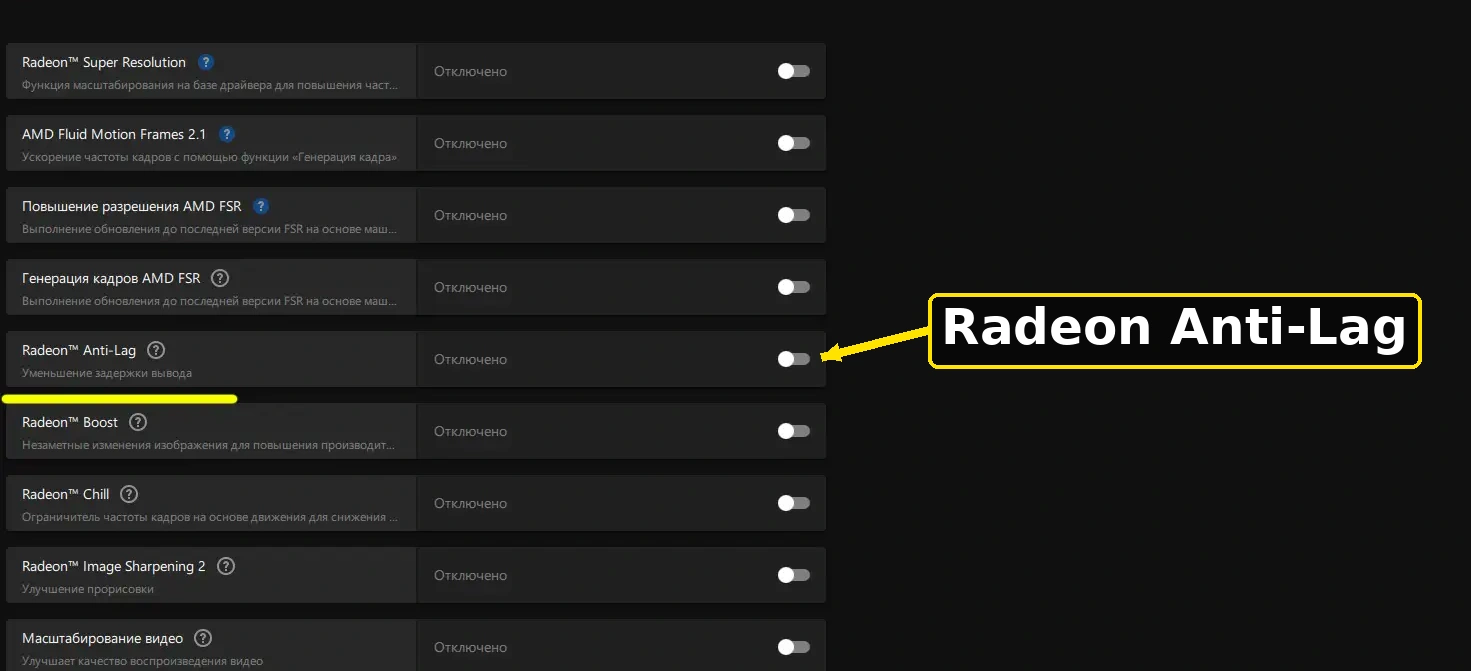
In NVIDIA Control Panel, you can test Prefer maximum performance in the game’s profile. With a fixed-refresh display, compare VSync on and off if input feels slow. For the FreeSync setup above, keep the VSync and frame-limit settings you tested together.
Editing GameUserSettings.ini
Try file edits if the graphics menu doesn’t give you enough control. They’re easier to undo when you test one change at a time.
On Windows, open %LOCALAPPDATA%\G1R\Saved\Config\Windows\GameUserSettings.ini.
Close the game and back up the file before editing. Launch the game after each change to test it. If something breaks, close it again and restore the backup. If you have no backup, move the edited file aside so the game can recreate its defaults.
Edit existing sg.* keys under [ScalabilityGroups]. If AntiAliasingMethod is already present in [/Script/G1R.GothicGameUserSettings], leave it in that section.
| Parameter | Value | What it does |
|---|---|---|
AntiAliasingMethod | 0 / 2 / 4 | Off / TAA / TSR. The game can override the setting. |
sg.ShadowQuality | 0–4 | Shadow quality. Zero is the lowest setting. |
sg.GlobalIlluminationQuality | 0–4 | Global illumination. Zero is Low in stock Unreal Engine. Gothic can change what the level does. |
sg.ReflectionQuality | 0–4 | Reflection quality |
sg.FoliageQuality | 0–4 | Foliage quality. Try going from 3 to 1 if trees and undergrowth are costing you frames. |
sg.PostProcessQuality | 0–4 | Post-processing |
To test with anti-aliasing off, close the game and back up Engine.ini in the same folder first. Set r.AntiAliasingMethod=0 under [/Script/Engine.RendererSettings]. Expect jagged edges if the setting takes effect. Close the game and restore the backup to undo it.
Leave the files writable for normal play. The game can reapply its own settings. If a mod explicitly needs a read-only file, clear that flag before editing again or restoring your backup.
Mods that change performance settings
Try one config mod at a time. Two can overwrite the same settings, so keep your original files handy while you compare.
- Best Performance Optimization by AlexLionel provides a ready-made
GameUserSettings.ini. The mod author reports roughly double the FPS in their own tests. Back up your file before replacing it and compare both performance and image quality. - Ultimate Engine Tweaks is an
Engine.inipreset aimed at stutters and input response. Its author developed it across more than 50 Unreal Engine 5 games. Pick the VRR version if you use variable refresh, or the non-VRR one for a fixed-refresh setup. - G1R – Optimizer – Stutter fixes and more now includes the former Streaming Stutter Fix. It can set the texture streaming pool based on your GPU’s VRAM to reduce texture pop-in and hitches. That’s a different target from raising your average FPS.
The older Streaming Stutter Fix cleared up the hitches I was seeing on my RX 9070, especially in the Swamp Camp. That was my setup at the time. The current optimizer includes other tweaks, so check which changes you’re applying.
Windows system settings
If the game still hitches, check what Windows has running alongside it and where the game is installed.
- Update your AMD or NVIDIA graphics driver. If you’re troubleshooting and need a clean reinstall, download the replacement driver and create a restore point before using Display Driver Uninstaller.
- Close background apps you don’t need, especially browsers with lots of tabs.
- Test with the Steam and Discord overlays off.
- Try the Windows High performance power plan if it’s available.
- Let Windows manage the page file if you’ve previously capped it by hand.
- Use an SSD. If you have room on an NVMe drive, that’s what the Steam requirements recommend.
Recommended settings for low-end PCs (RTX 2060 / RTX 2070 / RX 6600 and similar)
Aim for 45–60 FPS at 1080p. The table gives you a place to start testing.
| Setting | Value |
|---|---|
| Upscaling technology | DLSS / FSR |
| Upscaling quality | Balanced |
| Frame Generation | Off |
| Shadow quality | Medium |
| Lighting quality | Medium |
| Reflection quality | Medium |
| Texture quality | High |
| Effects quality | Medium |
| Foliage quality | Low |
| Shading quality | Medium |
| Terrain quality | Medium |
| Post-processing | Low |
If lighting is holding the game back, close it and back up GameUserSettings.ini before trying sg.GlobalIlluminationQuality=1 in [ScalabilityGroups]. Reload the same scene to compare. Close the game again before restoring your backup.
Recommended settings for mid-range PCs (RTX 3060 Ti / RTX 4060 / RX 7700 XT)
Aim for 60–90 FPS at 1080p or 1440p, depending on the card and the area.
| Setting | Value |
|---|---|
| Upscaling technology | DLSS / FSR |
| Upscaling quality | Quality |
| Frame Generation | Optional on supported hardware |
| Shadow quality | High |
| Lighting quality | High |
| Reflection quality | High |
| Texture quality | Gothic |
| Effects quality | High |
| Foliage quality | Medium |
| Shading quality | High |
| Terrain quality | High |
| Post-processing | Medium |
I’d keep textures at Gothic if there’s room in VRAM, then see how far lowering foliage and post-processing takes you.
Recommended settings for high-end PCs (RTX 4070 Super / RTX 5070 / RX 9070 XT and above)
Aim for 80–144 FPS at 1440p. If you prefer 4K, check the base frame rate in your busiest area before settling on a preset.
| Setting | Value |
|---|---|
| Upscaling technology | DLSS / FSR |
| Upscaling quality | Quality |
| Frame Generation | Optional on supported hardware |
| Shadow quality | High |
| Lighting quality | Gothic |
| Reflection quality | Gothic |
| Texture quality | Gothic |
| Effects quality | Gothic |
| Foliage quality | High |
| Shading quality | Gothic |
| Terrain quality | Gothic |
| Post-processing | High |
Even on a high-end card, try upscaling on Quality if native 4K feels uneven. Compare the gain while moving through a busy area.
What should you try if the game still stutters?
Asset streaming, lighting and shadows can all affect how the game feels. Test on the same route through a busy area and watch for pauses as well as the average FPS.
Here’s the order I’d work through the options.
- Lower shadow quality one step and compare.
- Try Quality or Balanced upscaling if you need a higher base frame rate.
- Compare Borderless Window with Windowed.
- Test your per-game driver latency setting on and off.
- Try one INI tweak or one config mod, with a backup.
- Try frame generation once the base frame rate holds around 40–45 FPS.
If the game still feels sluggish, lower upscaling quality one more step. Watch how the image holds up while you move. A little softness may be an easier trade-off than another drop every time you come through the gate.