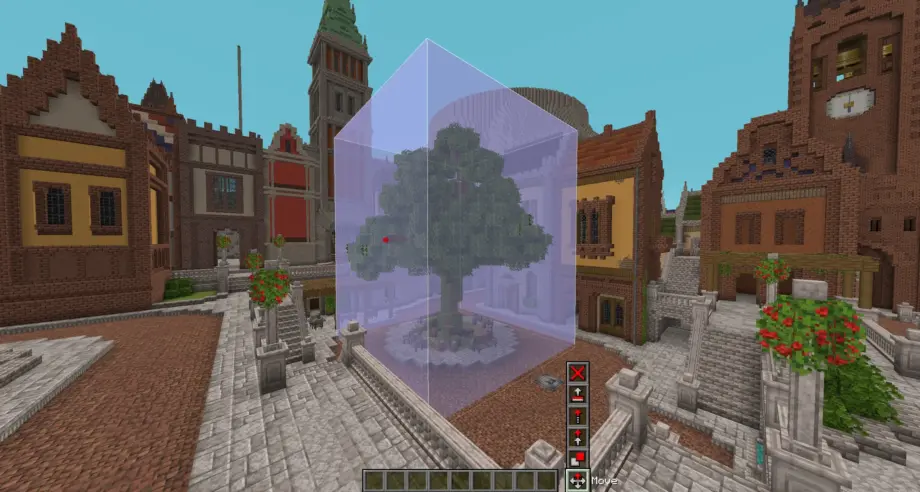
Copying a house, putting up a wall quickly, and finding the right roof shape are different jobs. I picked ten mods for Minecraft that cover schematics, large edits, placing blocks, and finishing details.
Litematica
You’ve spent an evening building a tower in Creative and now want it in your Survival world. Litematica shows the build as a translucent overlay right where you want it. Line up the foundation with the shore, then work your way up the walls one layer at a time without checking a screenshot after every row.
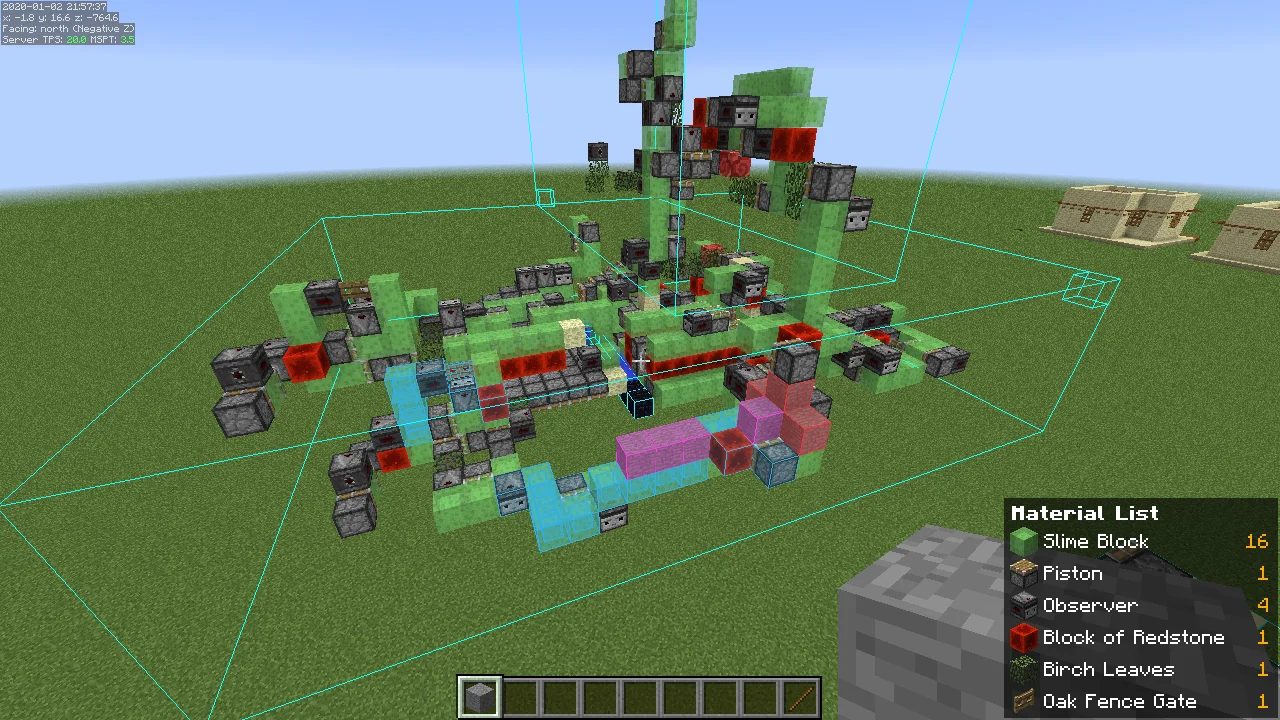
Before you start on the walls, line up the schematic and find out how many blocks you’ll need to bring.
- Save your own build as a schematic or load a ready-made
.litematicfile. You can adjust the placement while the build still exists only as an overlay. - Check the material list to find out how many blocks to collect. Show a single layer if the upper floors get in the way. The schematic verifier helps you find extra, missing, and incorrect blocks.
- For Java 1.21.1, get the Fabric build and a matching version of MaLiLib. Install both on your client. On a QWERTY layout, the default menu key is
M. - In Survival, follow the overlay and place the blocks yourself. Server rules may restrict Easy Place. Anti-cheat can reject placements made with this mode, so check whether the server allows it first.
✅ Litematica puts the plan in front of you and leaves the building to you. In Survival, give yourself time to gather the materials, too.
WorldEdit
Say you want to replace a stone facade with sandstone or repeat a section of wall five more times. WorldEdit lets you select the area and use a command. One edit can save hundreds of clicks.
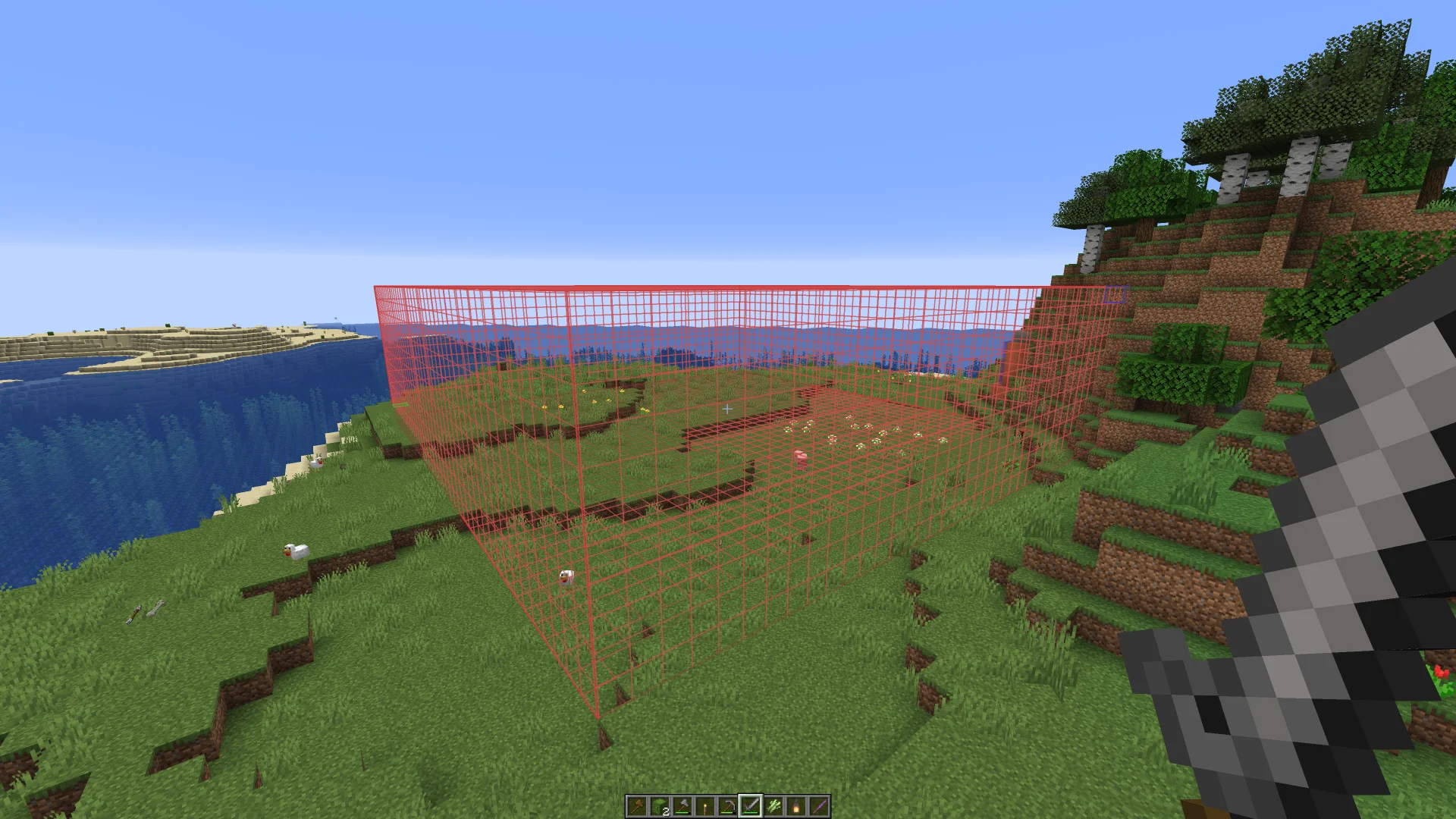
Start with a small test selection and check its edges before running your first command.
- With the wooden axe, left-click one corner of the area and right-click the opposite corner. The
//setcommand fills the whole selection, while//replacechanges a specific type of block. To keep the windows and trim, specify only the material you want to replace. - Save time on repetitive work with
//copyand//paste. When you paste a build, its position relative to you depends on where you were standing when you copied it. Save the selection as a schematic to move it to another world. - Java 1.21.1 has Fabric and NeoForge builds. On Fabric, the loader and WorldEdit file are enough. For Paper, download the server plugin. By default, you’ll need cheats enabled in single-player and operator access on a Fabric or NeoForge server. On Paper, the server’s permissions apply.
- To see the selection in the world, add the separate WorldEdit CUI client mod on Fabric. You can reverse your last edit with
//undo. Back up the world before a major change.
✅ Pick WorldEdit when you can describe the change in a command. If you’re replacing stone with sandstone, for instance, test it on one section before editing the whole facade.
If you’re building a Survival base and want to automate some resource processing along the way, take a look at Opolis Plus in the Vanilla+ Minecraft modpack roundup.
Axiom
What if you’re still working out the shape of the cliff? Axiom lets you move the camera and see how the area looks from the road or the window of a house you haven’t built yet. Brushes and live previews make it easier to shape the terrain.
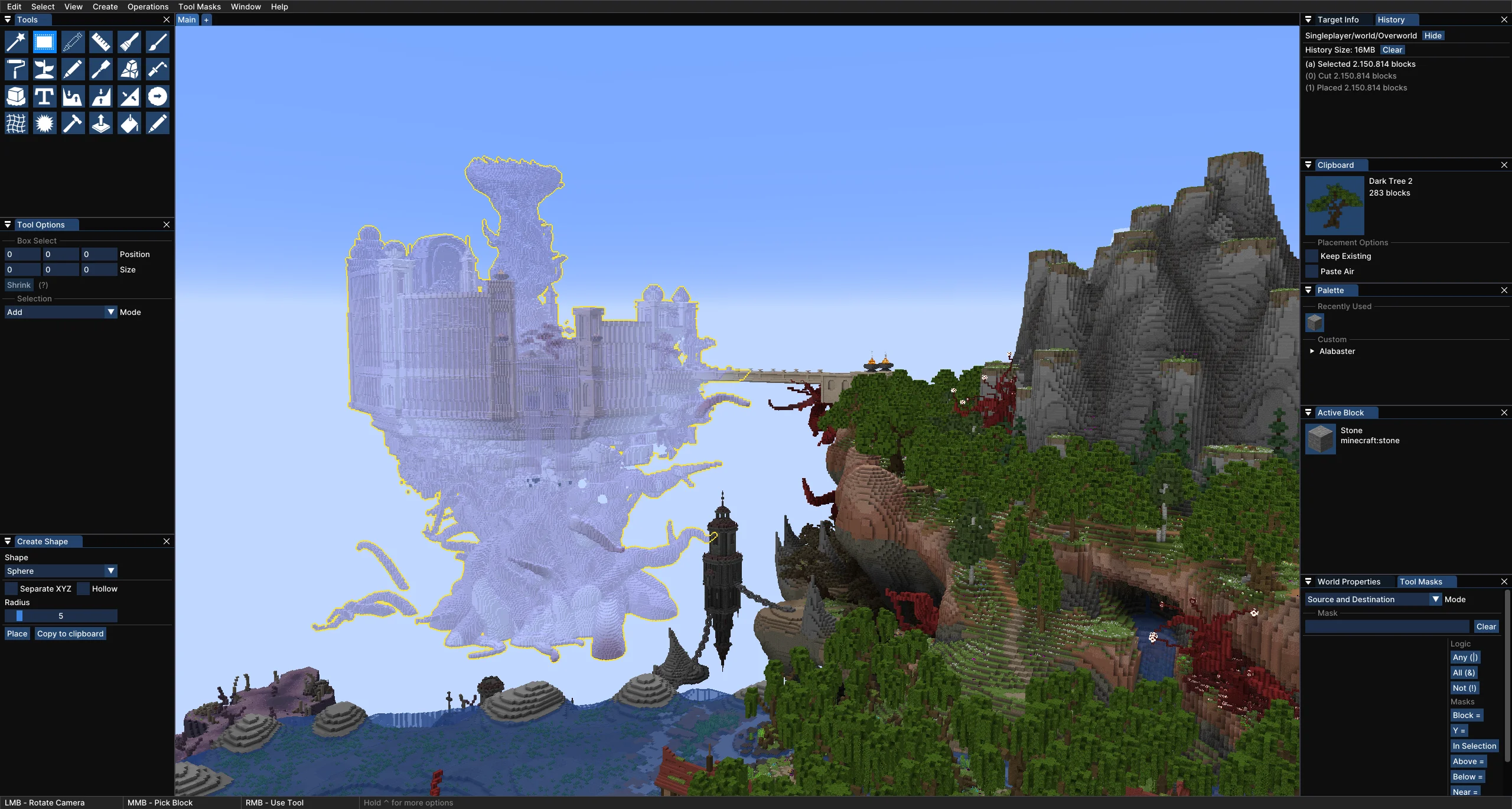
Builder Mode sticks with the familiar controls. Switch to Editor Mode for terrain or changes that cover whole areas.
- Start in Creative. Hold
Left Altto open the Builder Mode menu. You can swap hotbars and adjust your flight speed while looking over a large build. - Open Editor Mode with
Right Shift. It has tools for selecting areas, replacing blocks, drawing, and smoothing terrain. Try roughing out a hill and then smoothing its sides. - For Java 1.21.1, install Fabric and a compatible Fabric API. You can use Axiom for non-commercial builds in single-player. You can ask the Axiom team for permission to use it on a private server for non-commercial builds.
✅ I’d use Axiom for terrain work. Try a brush on a small patch of ground, then see how the slope looks from the road.
Building Gadgets 2
You don’t have to place every block in a wall by hand. Building Gadgets 2 lets you build a repeating area in a few moves, then copy a finished section or swap out its material.
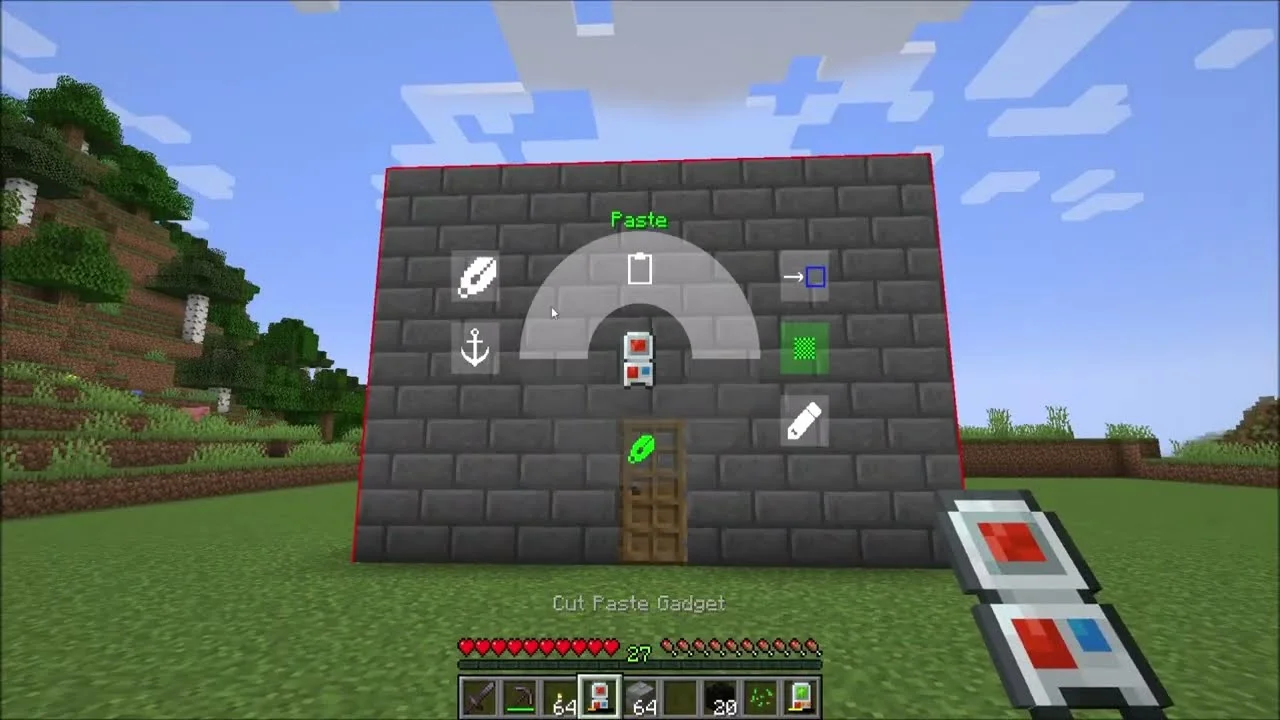
Different gadgets handle different edits.
- The Building Gadget places batches of blocks. Use it to cover a long stretch of wall with one material, for example.
- The Swapping Gadget changes blocks that are already in place. Use copy and paste to repeat a section, or cut and paste to move it elsewhere.
- Use Building Gadgets 2
26.1.2.3on Minecraft 26.1.2 with NeoForge. Install it on the client and server for multiplayer. The file listing names no separate required libraries.
✅ Pick it if you want to put up or redo large surfaces with a tool you can carry in your inventory.
Effortless Building
Say you’ve built half a facade and want the other half to mirror it. Effortless Building repeats placements as you work and helps lay out lines, walls, and floors quickly.
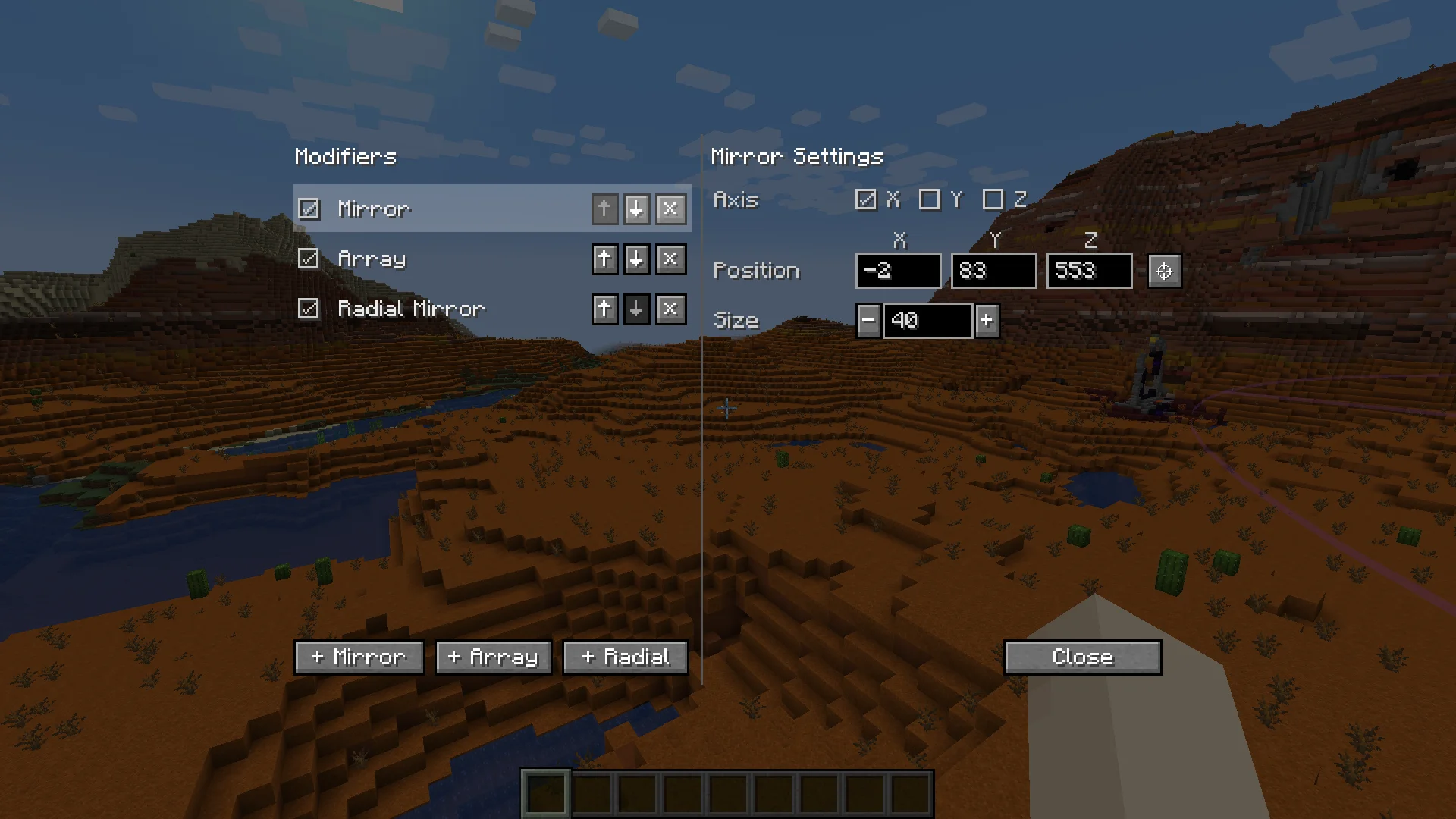
Open the radial menu and pick the mode that fits the shape.
- Pick a line, wall, or floor and set two endpoints. Turn on mirroring for a symmetrical build, or use repetition for matching sections.
- You can randomize materials and place or break blocks in batches. If an edit catches more than you meant to change, the mod can undo and redo actions.
- For
4.3on Minecraft 26.3, use Fabric Loader 0.19.5+, Fabric API, and Java 25 or later. Install it on the client and server. There’s a separate NeoForge build. The author documents Survival support.
✅ A good fit if you want to see repeated placements live and adjust the shape as you build.
Construction Wand
When you need to extend a roof or add another row, Construction Wand builds outward from the face you’re looking at. You can follow a single row without touching the rest of the surface.
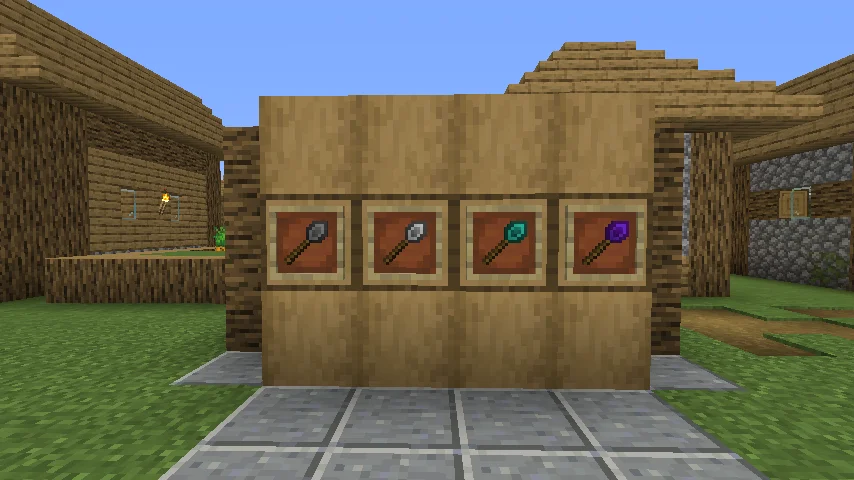
Check which direction the wand is set to build in and which upgrades it can take.
- Limit placement to a row or column if you only want to extend one narrow section.
- An Angel Core can place a block on the far side or in midair. A Destruction Core removes batches of blocks. The basic stone wand can’t take upgrades.
- The
1.20.1-2.11file supports Minecraft 1.20–1.20.1 on Forge. Install it on the client and server for multiplayer. The file lists no separate required libraries, and JEI is useful for viewing its guide.
✅ A handy pick for an older Forge instance if most of your work involves extending a surface that’s already there.
Structurize
Once a house turns out well, you might want to move it or build it again somewhere else. Structurize lets you capture it as a schematic, find a new site, and preview how it fits the terrain.
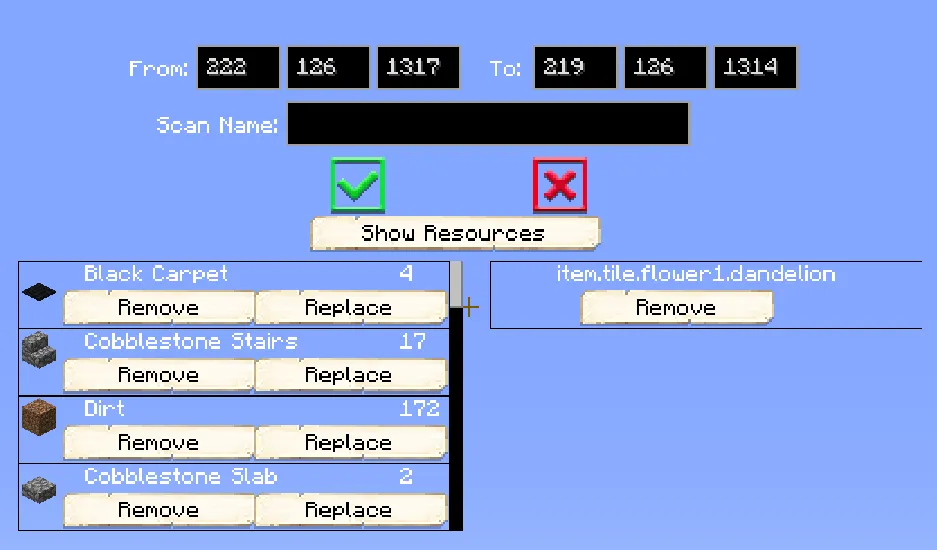
Capturing and placing schematics use different tools.
- The Scan Tool saves the build you select. You can open the resulting schematic in the interface and preview it.
- The Build Tool previews and adjusts placement. Standalone schematic placement is a Creative workflow. The builder NPC belongs to MineColonies.
- For
1.0.840on Minecraft 1.21.1 and NeoForge, install BlockUI 1.0.191-1.21.1-snapshot or later and Domum Ornamentum 1.0.203-1.21.1-snapshot or later. Use the mod on the client and server in multiplayer.
✅ A good fit for a Creative world where you want a library of buildings you can preview on new sites.
Building Wands
Building Wands helps when you already know the shape and placing it by hand would take a while. Think of marking out a circle or filling an area between two corners.
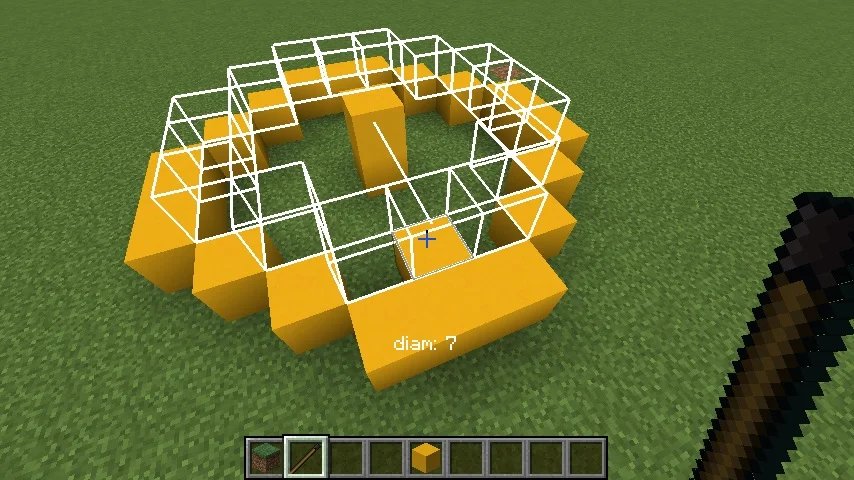
Pick the mode that fits the shape you’re making.
- There are modes for lines, circles, rows, and columns. Mark two corners to fill the area between them.
- Copy mode captures a selected volume, and Paste mode can turn it in 90-degree steps. The mod has a preview setting if the overlay gets in the way with shaders.
- Release
3.2.2for Minecraft 26.2 on NeoForge requires Cloth Config API. Get the separate file for Fabric. The mod goes on the client and server.
✅ Use it if you need several shapes alongside the simple job of extending a wall.
Build Better
A stair can take three tries before it faces the way you want. Build Better previews where a block will go and lets you cycle through valid placements first.
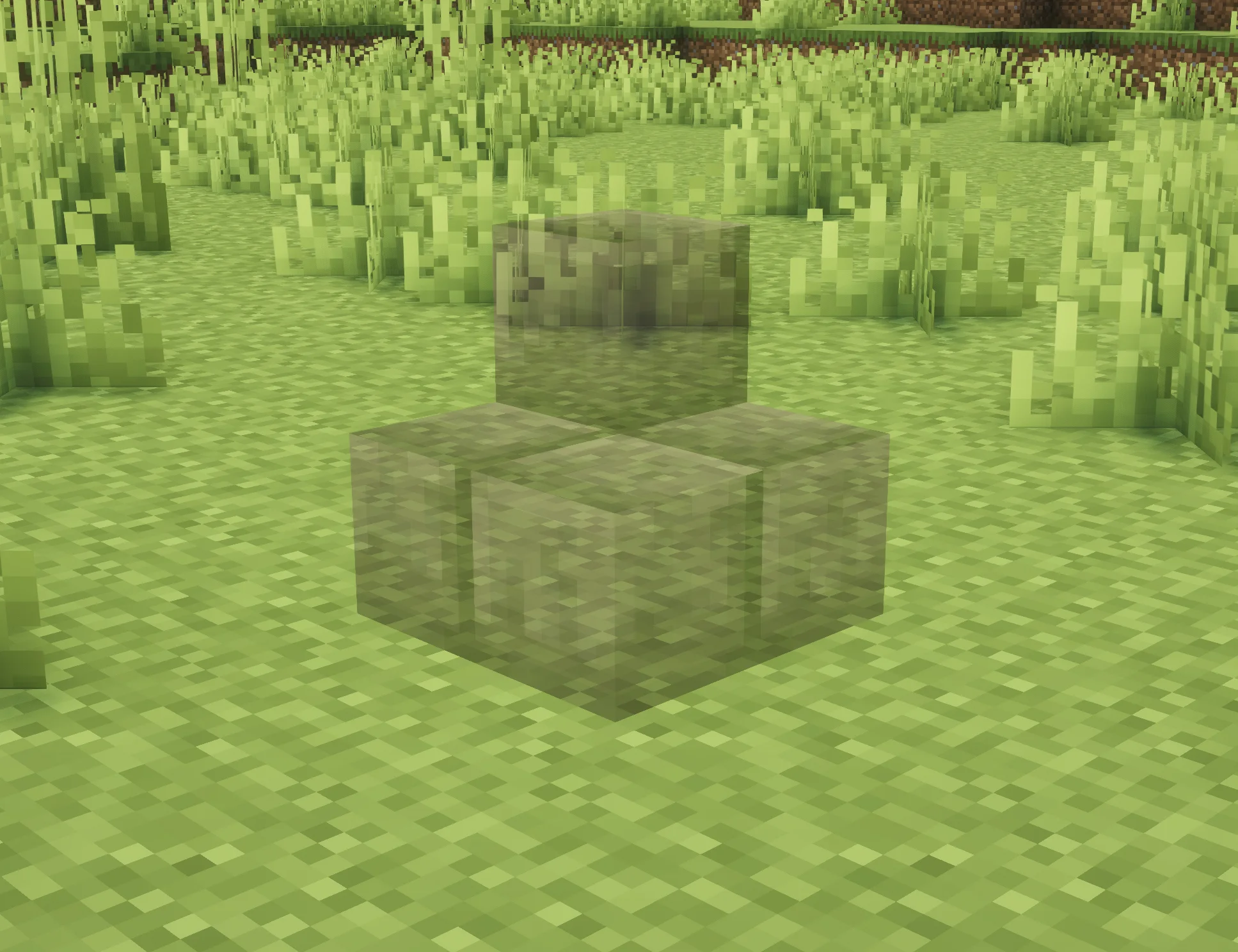
Start with stairs, slabs, or blocks that fall.
- The preview shows where a block will go or where falling sand will land. Hold
Ctrland scroll to change a stair’s facing or choose the top or bottom half for a slab. - In Survival, moving the placement still respects normal reach. Shape generation and repeating patterns are available in Creative.
- Beta
0.10.0for Minecraft 26.3 on NeoForge requires Rosetta. The preview is client-side.
✅ Pick it if fiddly placement slows you down, especially on stairs and trim.
FramedBlocks
You might have the right material and still be missing the shape you need for a roof or window trim. FramedBlocks adds shapes you can give the appearance of another block.
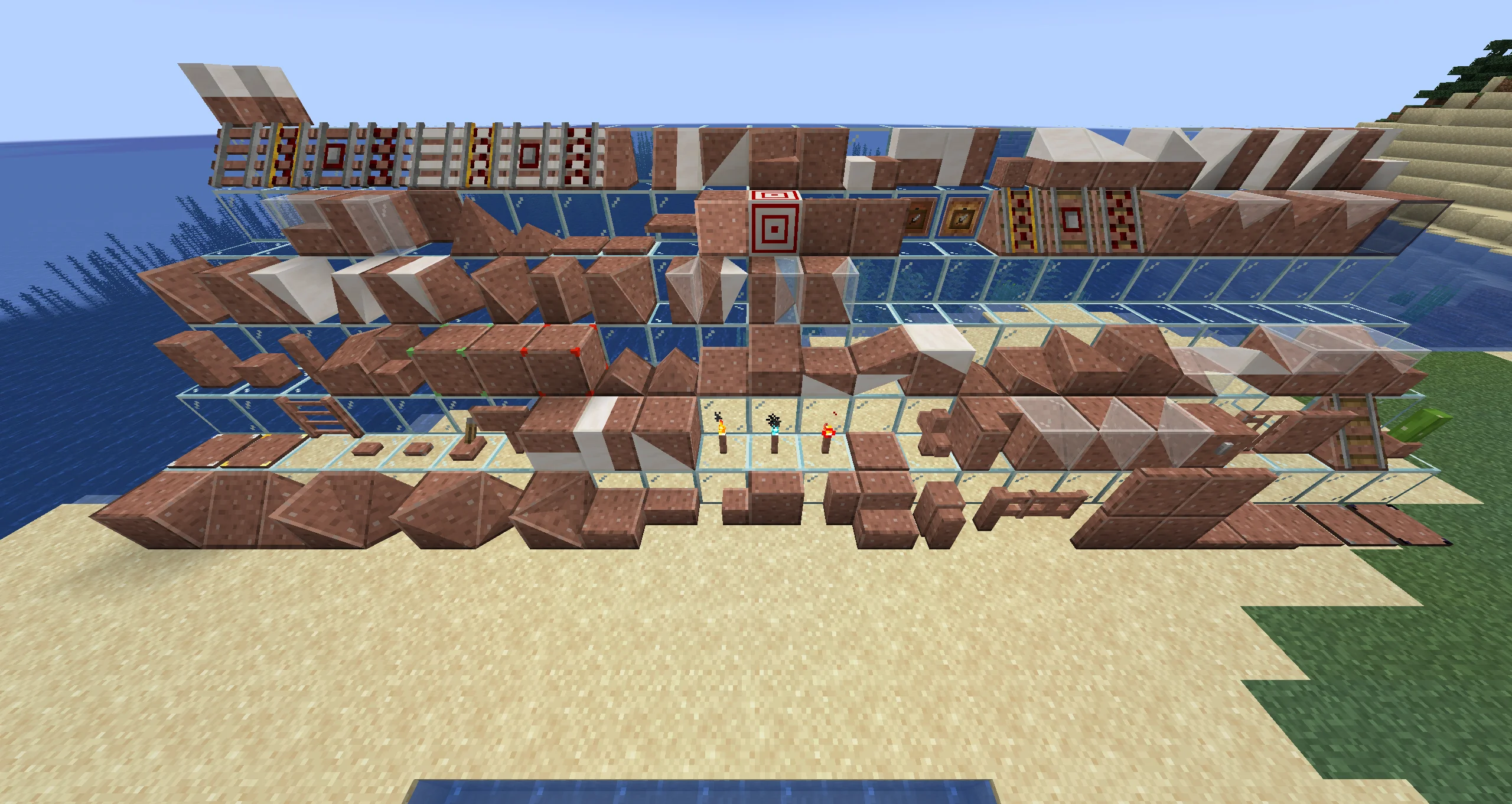
Pick the shape first, then the material you want on its surface.
- Frames include slopes, vertical slabs, and stairs. Try a few if regular stairs make the silhouette too chunky.
- Apply another block as camouflage to give the frame its appearance. Check the project FAQ if your chosen material doesn’t work.
- Release
10.6.3runs on Minecraft 1.21.1 with NeoForge. Install it on the client and server for multiplayer. The file listing names no separate required libraries.
✅ A good fit for roofs and trim when you already know which color and texture you want.
How to install Minecraft building mods
Make a separate instance for the tools you want to try. The Minecraft modpack installation guide shows where to set one up.
- Check the Minecraft version and loader on the download page. Litematica, WorldEdit, and Axiom have Fabric 1.21.1 files. The FramedBlocks and Structurize 1.21.1 builds listed here use NeoForge.
- Put the mod and dependency
.jarfiles in the instance’smodsfolder. For the WorldEdit plugin on Paper, use the server’spluginsfolder. Check which mods need to go on the server as well. - Back up the world. In a small test area, check how the menus open, what the preview shows, and where the selection ends. Then move on to your main build.
Which tool fits the build you’re working on?
If your house is already finished, try rebuilding it from a Litematica schematic in Survival. Look at Structurize for Creative placement or WorldEdit for a precise edit across many blocks. If you’re still shaping the site, try Axiom on a small patch.
If repetitive placement is the problem, pick a gadget or a wand and build one section first. Try Build Better for a stair that’s hard to orient, or FramedBlocks if the shape you want is missing altogether. One small test tells you whether the tool is worth using for the rest of the build.