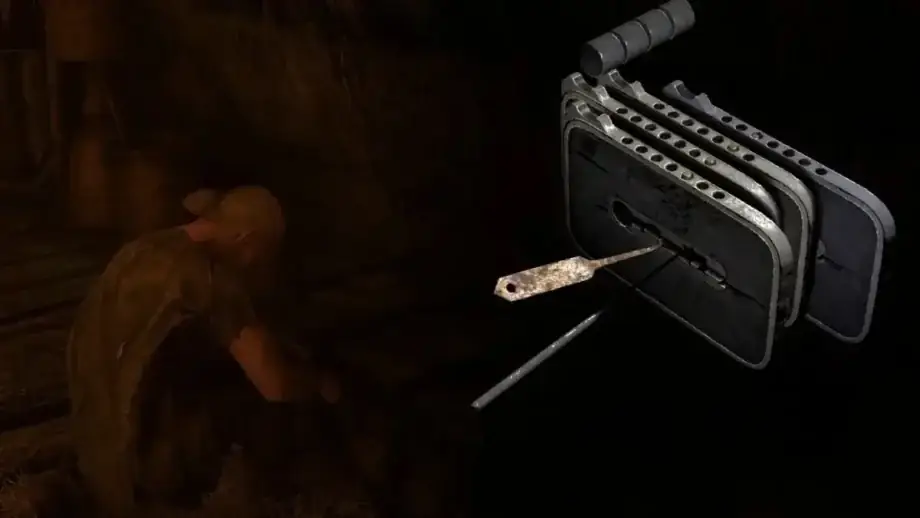
Gothic 1 Remake lockpicking mods are worth a look if the first chest leaves you wondering what you’re supposed to do. The minigame’s unusual rules take time to understand, and even mastering the Lockpicking skill doesn’t help as much as you’d expect.
These four mods change how you deal with locked chests and doors. Here’s what each one changes and which files you need to install it.
Lockpick Settings
Lockpick Settings helps you make sense of the minigame. You can see which pins move together, ask for a hint when you’re stuck, or let the mod pick the lock for you.
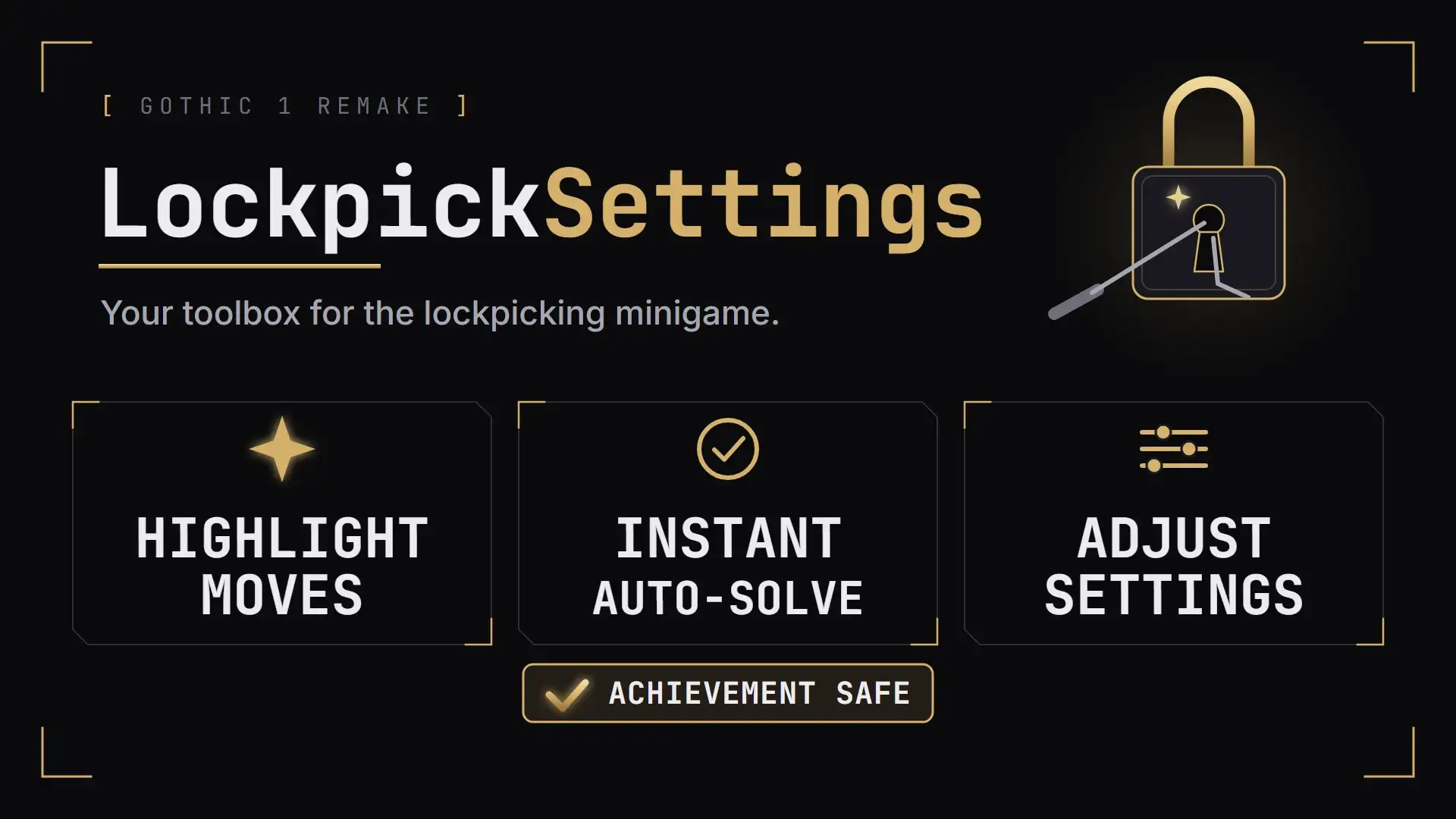
- Automatic lockpicking with adjustable speed
- Hints for the next move
- Display of pin connections
- In-game settings for lockpick costs, skill requirements and more
Press F6 to solve the current lock, F7 for a hint or F8 to see the pin connections. Adjust the options under Options > Game > Lockpick Settings.
Extract the main archive into G1R\Mods. After unpacking, check for G1R\Mods\LockpickSettings\GothicMod.json. If you’re upgrading from the old UE4SS release, remove its LockpickSettings folder before installing the current one.
If you turn on auto-picking, use it on its own before trying it alongside other mods that solve the same locks.
✅ What changes: you keep the minigame, but you can see the connections and work out your next move. I’d start here if you want clearer rules without removing lockpicking altogether.
Unlock All (Lockpick Autoskip)
Unlock All (Lockpick Autoskip) takes over as soon as you start picking a door or chest. You might see the minigame for a moment before it opens the lock.
- Automatically solves the minigame when it starts
- Affects pickable chests and doors only
- Steam achievements should still work, according to the author
- Full download with UE4SS included or a Lua-only download for an existing setup
The main archive includes UE4SS. For an existing UE4SS installation, use the Lua-only download. The author lists UE4SS_v3.0.1-970-gbdef46ff.zip in the requirements. If you use mods.txt to enable mods, add G1R_NoChestLocks : 1.
Use this as your only automatic solver so two mods don’t try to pick the same lock.
✅ Who it’s for: pick this if you just want to get the chest open and get back to exploring.
SkillfulLocks
In the unmodded game, learning Lockpicking mostly gives you more lockpicks per attempt and removes a few pin connections. The underlying mechanic stays much the same. SkillfulLocks makes your training matter by tying the lock’s difficulty directly to your skill level.
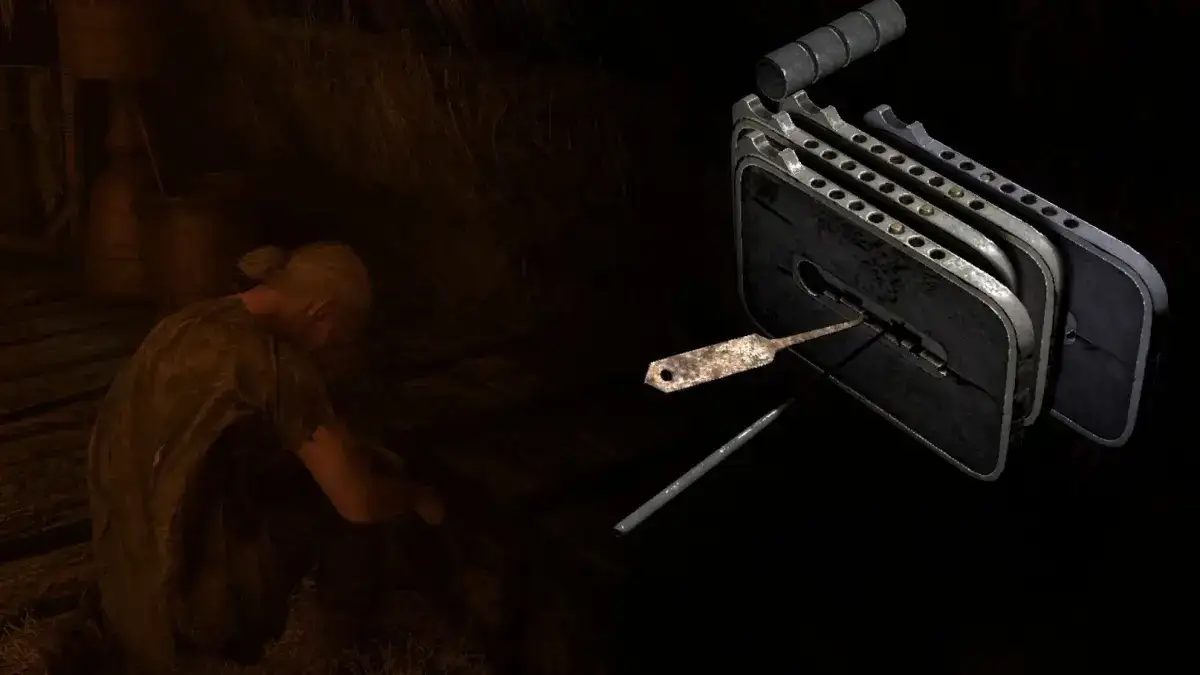
- Without character progression: standard locks, like in the unmodded game
- Skill 1 (Skilled): removes as many pin connections as possible without making a lock unsolvable; the author checked all 416 locks
- Skill 2 (Master): removes every connection so each pin moves independently
The author tested all 416 locks with a solver to check how many connections could safely be removed. All connections can be removed from 297 locks; the rest receive individual limits.
SkillfulLocks needs an experimental build of UE4SS. Copy the SkillfulLocks folder into ue4ss\Mods and keep the included enabled.txt. The author’s notes on reading Lockpick Settings options apply to its older UE4SS release.
✅ What changes in the game: Character progression finally feels like actual progress. A master lockpicker opens locks almost effortlessly — which makes perfect sense.
Instant Loot and Unlock
Instant Loot and Unlock gives you a say in what it costs to skip a lock. You can make automatic lockpicking use up lockpicks or require a perk. There’s also a separate option to collect loot automatically.
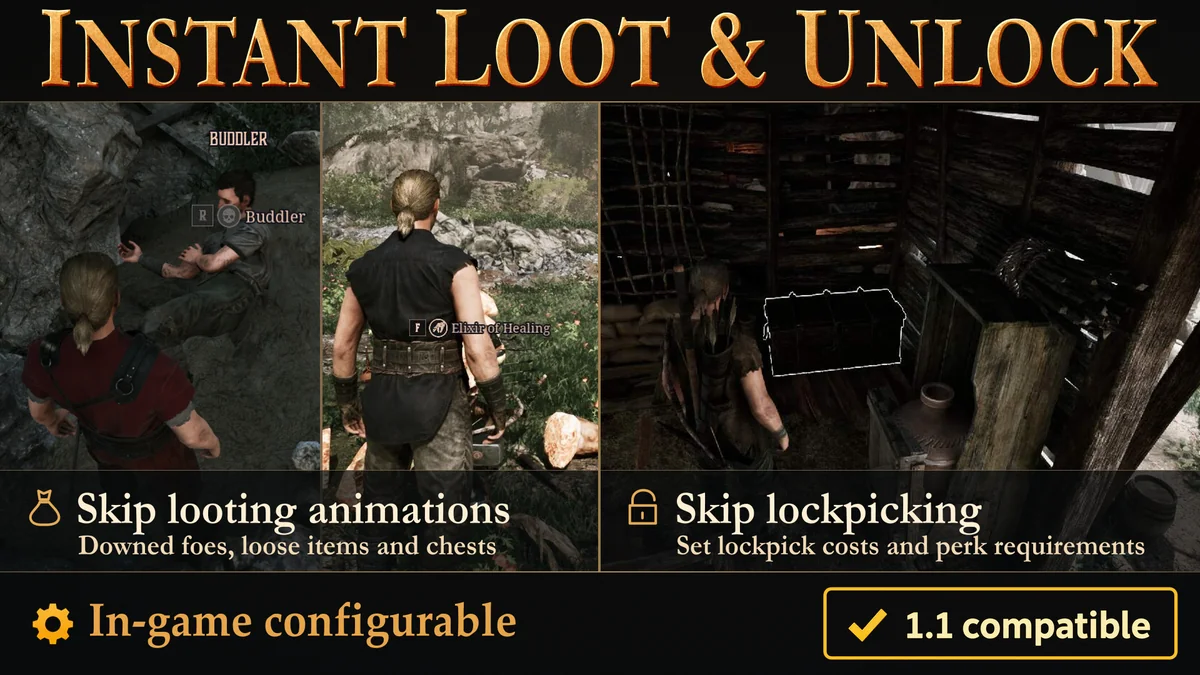
- Automatic lockpicking with adjustable presets
- Configurable lockpick costs
- Optional lockpicking perk requirements
- Separate instant loot settings for items, chests and corpses
Use the ModKit release for game version 1.1. Extract the archive’s G1R folder into the game folder, enable the mod in the game’s mod manager, then open Settings > Game > Instant Loot & Unlock.
If you only want easier lockpicking, turn off the instant loot options. The author recommends leaving automatic looting off for corpses placed in the world, since some can cause issues in Chapters 4–6.
✅ When to use: choose this if you want to skip the puzzle while still spending lockpicks or making use of your training.
Mod installation recommendations
Lockpick Settings and Instant Loot and Unlock use the game’s built-in mod support. Unlock All (Lockpick Autoskip) and SkillfulLocks use UE4SS. If you install that loader separately, check each mod’s requirements before choosing an experimental GitHub build.
- For Lockpick Settings or Instant Loot and Unlock, follow the archive layout in the author’s instructions so the mod ends up under G1R\Mods.
- For a manual UE4SS setup, extract the required build into Gothic 1 Remake\G1R\Binaries\Win64\. Put dwmapi.dll beside G1R-Win64-Shipping.exe.
- Put UE4SS mods in ue4ss\Mods and follow each author’s instructions for enabling the mod.
- Before installing, make a backup of your saves.
- Launch the game. For a ModKit release, check that the mod appears in the in-game manager. For UE4SS, check UE4SS.log to see whether it loaded.
For UE4SS mods, install the loader manually if Vortex symlinks cause problems. On Linux, add WINEDLLOVERRIDES=”dwmapi=n,b” %command% to the launch options. My Gothic 1 Remake mod installation guide covers the setup in more detail.
Which lock mod to choose in Gothic 1 Remake?
I’d start with Lockpick Settings if you want hints for the puzzle. SkillfulLocks is for players who want training to make locks easier. If you’d rather skip the puzzle, use Unlock All (Lockpick Autoskip) for a straightforward bypass or Instant Loot and Unlock if you want to set the costs and skill requirements.