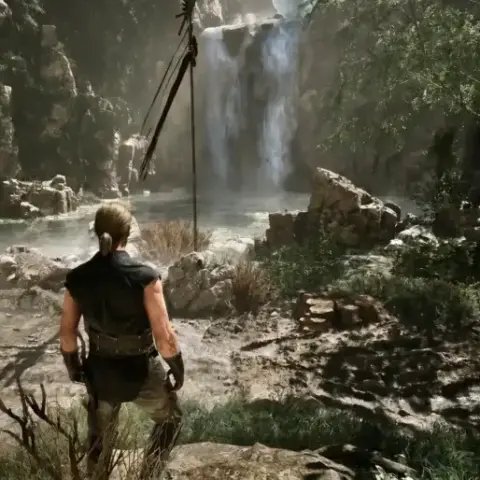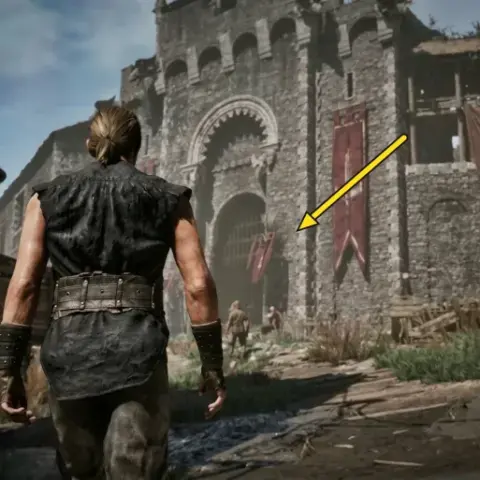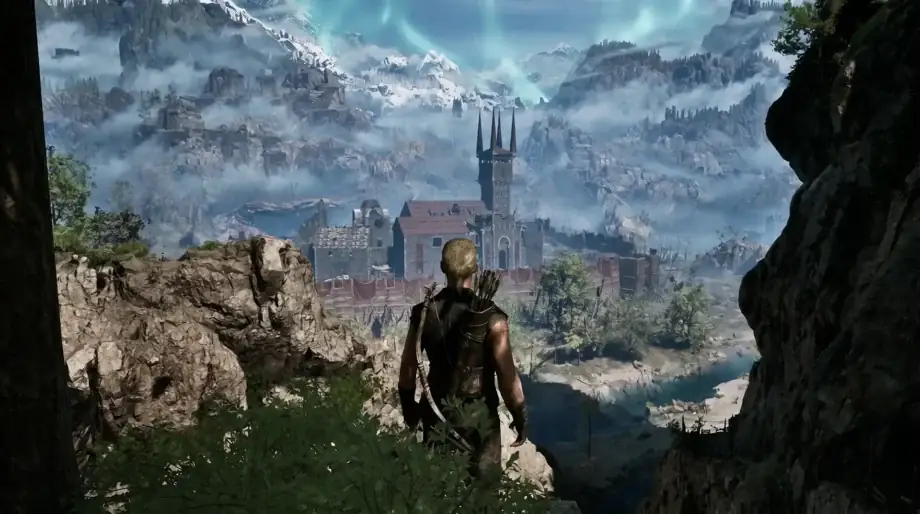
Which Gothic 1 Remake performance mods help when a dense camp makes your frame rate dip? The game’s Unreal Engine 5 visuals can tax even powerful hardware. These mods focus on frame rate, stutters and resource use.
Ultimate Engine Tweaks
Ultimate Engine Tweaks replaces Engine.ini with settings developed over more than a year across 50-plus UE5 games. It trims unnecessary engine work while aiming to preserve the game’s visual quality.
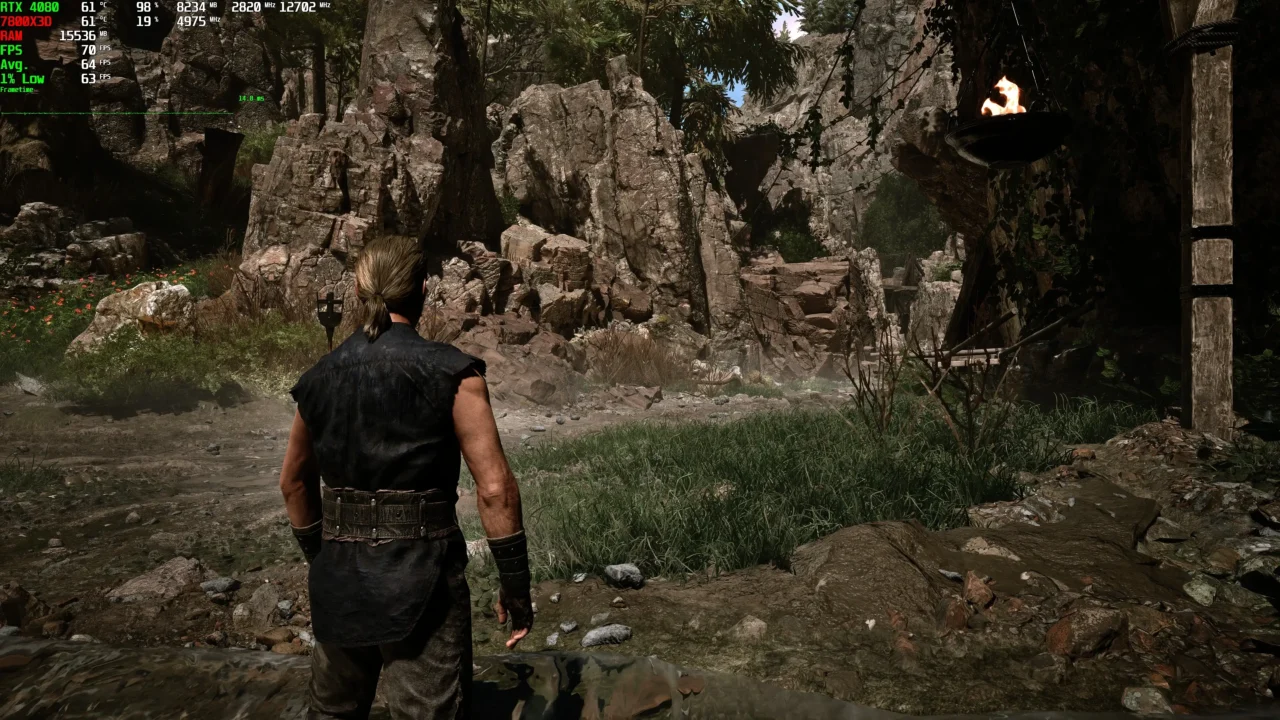
- Removes most stutters and hitching while moving
- Reduces input delay
- Optimizes DLSS/FSR/XeSS and anti-aliasing
- Removes chromatic aberration, optimizes Motion Blur and Film Grain
- The image does not change — no visual loss or glitches
Important: the mod is available in two versions — VRR (for G-Sync / FreeSync) and No VRR. Check your monitor and GPU control panel settings before choosing.
To install it, extract Engine.ini into %localappdata%\G1R\Saved\Config\Windows\, then enable Read-only in the file’s properties.
⚠️ Test Ultimate Engine Tweaks on its own first. Another mod that edits Engine.ini can override its settings.
✅ How it plays: smoother movement between areas, more responsive camera control and higher FPS without an obvious visual change. This is the first option I’d try.
Best Performance Optimization for Gothic 1 Remake
Best Performance Optimization takes a different route, using GameUserSettings.ini. Its author argues that this file contains the settings responsible for the largest frame-rate costs.

- Turns off Lumen and virtual shadows that are hidden in the regular game menu.
- Full transparency — everything is visible in Notepad, everything can be adjusted manually.
- According to the author’s tests, FPS grows 2 times on weak and mid-range systems.
- The archive includes the file INI_Explanation.txt with an explanation for each line.
Replace the original GameUserSettings.ini, then launch the game once so it detects your display and language. Exit, adjust the file to your preferences and set it to Read-only.
The author doesn’t recommend it for high-end systems; it’s intended for hardware that needs bigger reductions in graphics workload.
✅ What you’ll feel in the game: moments with sudden FPS drops are smoothed out, frame time stabilizes. Especially noticeable on laptops and PCs with GPUs at the RTX 3060 level or lower.
Akula Community Bugfix – Stability Core
Akula Community Bugfix – Stability Core gives you three Engine.ini profiles for stutters and uneven frame pacing. The main download works without UE4SS.
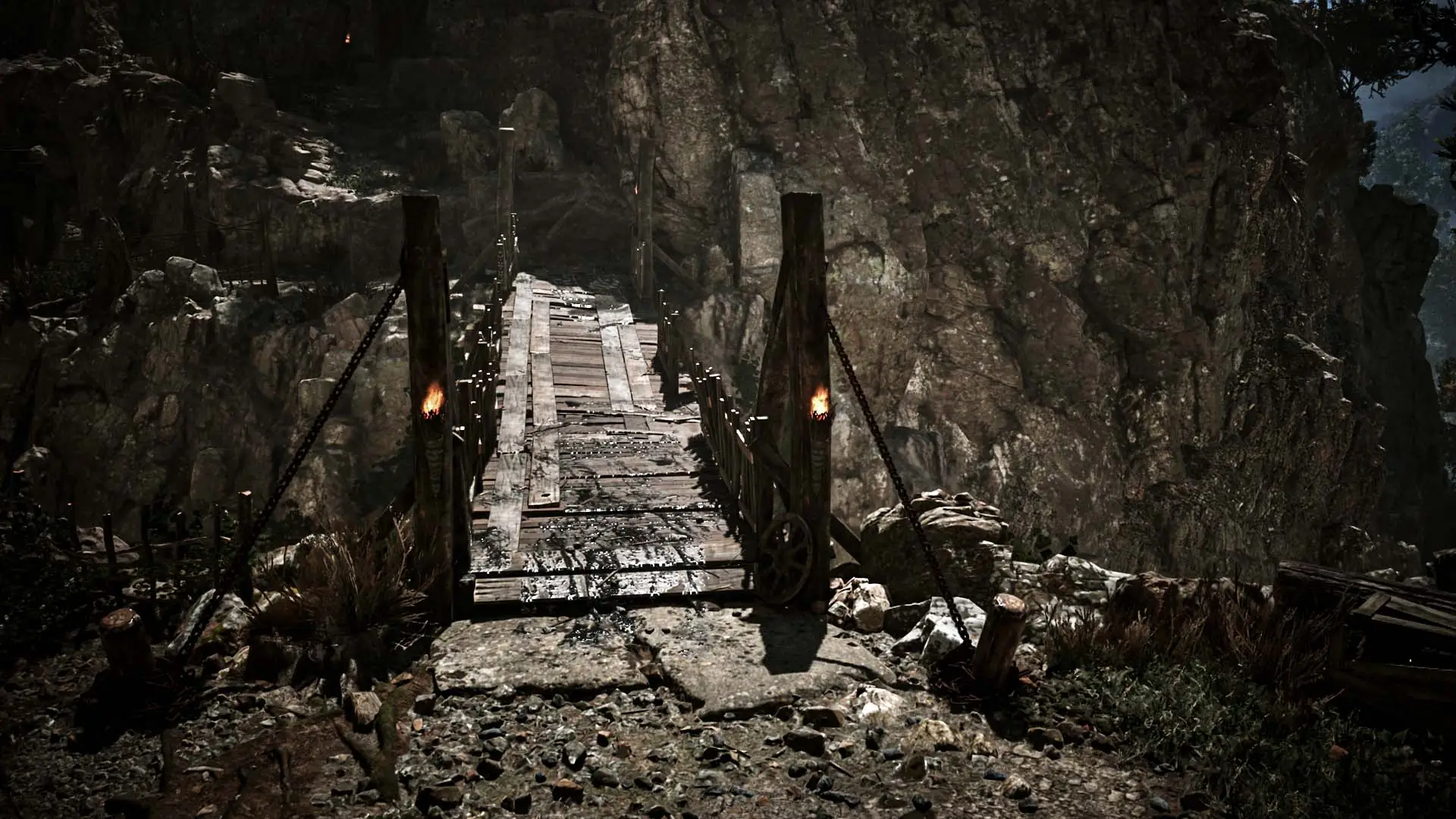
- Recommended / 12 GB VRAM makes modest changes to effects such as shadows and reflections. Start here if your graphics card has around 12 GB of VRAM.
- 6–8 GB VRAM cuts back more on selected effects for graphics cards and laptops with less video memory.
- CrashSafe makes the fewest changes. Try it first if the game is already unstable.
Close the game and back up your configuration before installing a profile through G1L or copying it to the folder below, following the instructions in the archive.
Take the same route into camp before and after installing the profile. Watch for brief freezes as the game loads the area, even if the average FPS barely changes.
Performance and Clarity Improvement
Performance and Clarity Improvement is a configuration refined by its author through a full playthrough. It includes Engine.ini and GameUserSettings.ini.
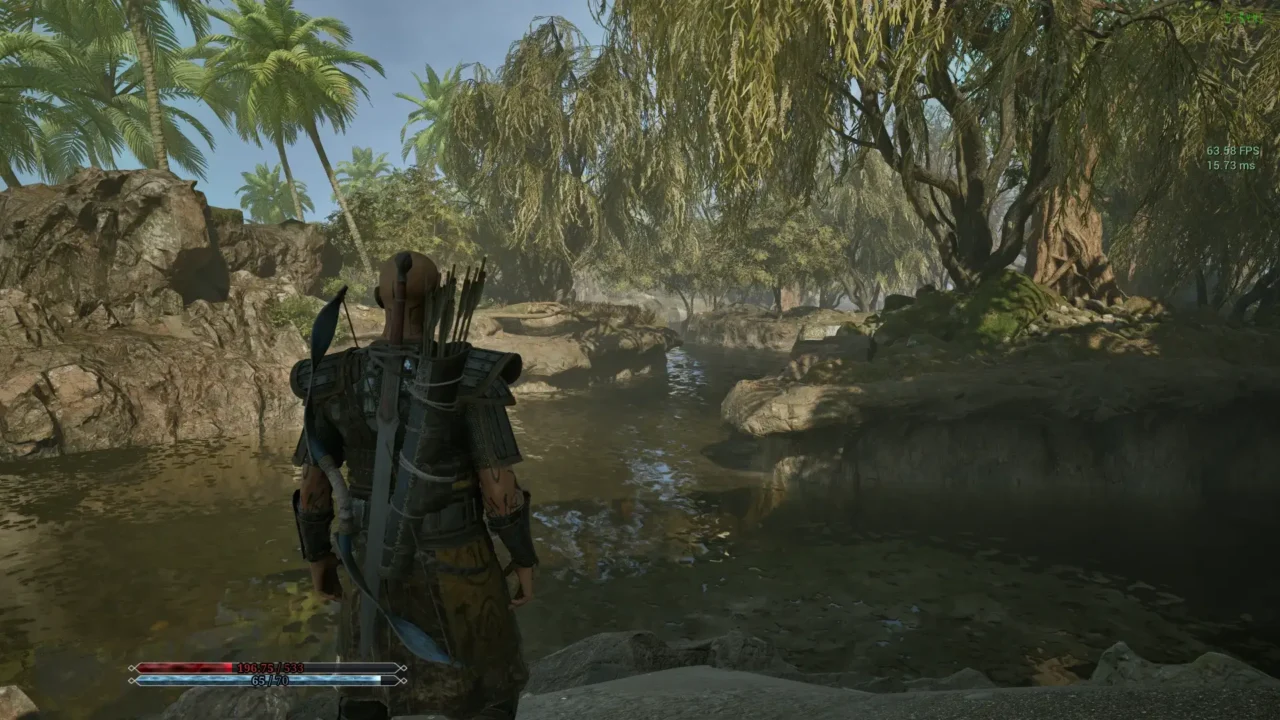
- Color correction: saturation, contrast, brightness — the image becomes cleaner and less ‘cinematic’
- Shadows: Virtual Shadow Maps disabled, Contact Shadows enabled, CSM on 3 cascades with 1536 resolution
- Volumetric clouds are turned off — FPS gain is noticeable, losses are barely visible
- Grass is completely disabled (bushes and trees are unaffected)
- Ray tracing and Lumen are off, SSR set to quality 1
- FPS limit 60 — the author recommends it even on top-end hardware due to drops in certain colony areas
If characters get “glowing hair” after installation, it’s a result of low GI. This can be fixed with a separate mod for balding characters (link available on the mod page).
✅ How it plays: a ready-made balance of image clarity and performance, worked out over a complete run. A useful choice if you don’t want to spend hours adjusting individual settings.
Ultra Plus for Gothic 1 Remake
Ultra Plus combines engine tweaks with Ultra+ Manager (UPM), a separate application and in-game overlay for controlling them.
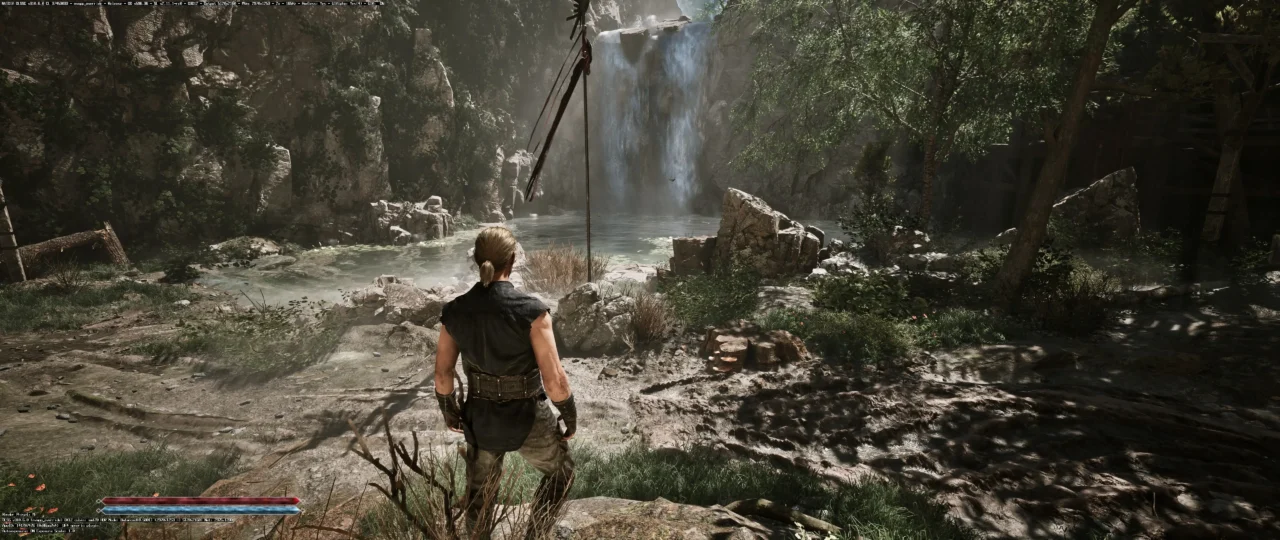
- Quality presets: low / medium / high / veryhigh / epic
- Control fog, reflections, Bloom, Depth of Field, Film Grain, vignette — all through config or overlay
- F12 in-game — apply settings without restarting
- Parameters for fine-tuning: fog intensity, contrast, LOD distance, tracing quality
- Dynamic FPS (ALT+F12), input lag control
Try Ultra Plus with a clean Engine.ini first. Other engine presets can override the settings it relies on.
✅ How it plays: flexible control without repeatedly editing .ini files. Choose it if you want to tune settings while the game is running.
G1R Optimizer
G1R Optimizer provides a dedicated graphical interface with previews, so you can adjust the configuration without editing the files yourself.
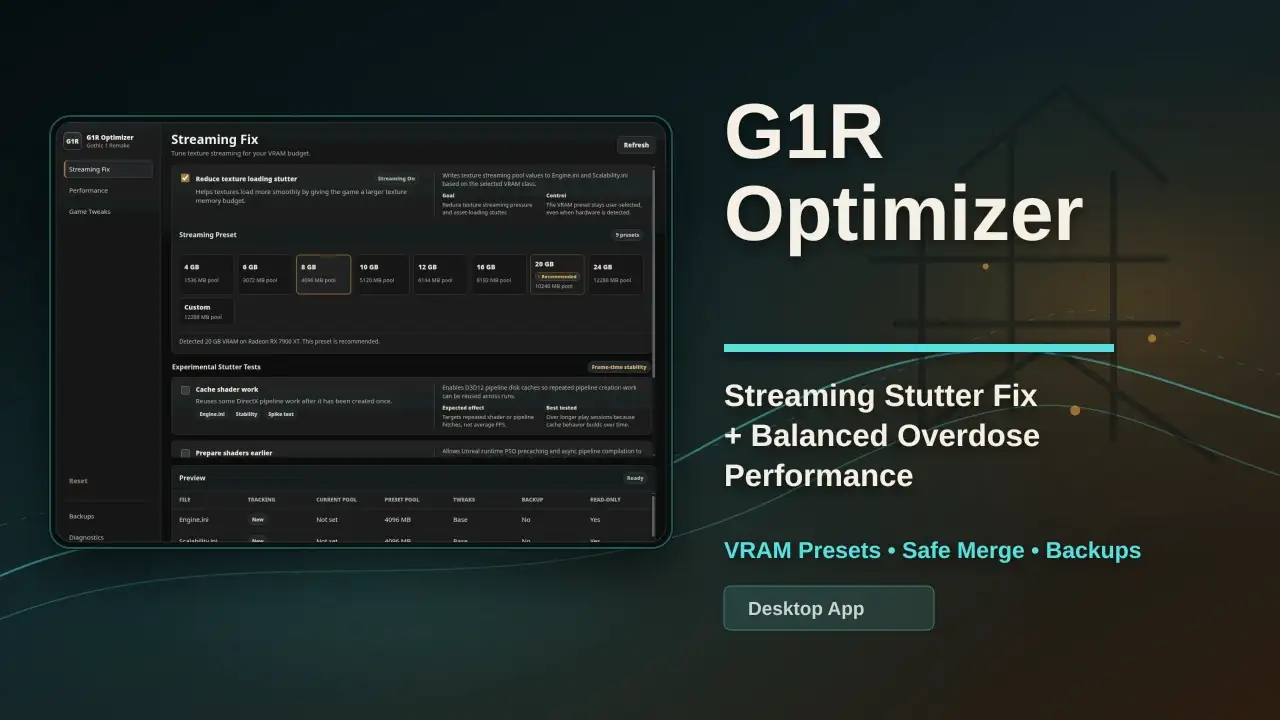
- Texture pool setup for a specific VRAM size (from 4 to 24+ GB)
- Fixes for streaming stutters, shader cache, garbage collector
- Control over volumetric fog quality: standard, low, off
- Skip intro videos on launch
- Safe mode: shows a preview of changes before applying, makes a backup, supports merging and restoring
VRAM presets: 4 GB → 1536 MB pool, 8 GB → 4096 MB, 16 GB → 8192 MB, and so on. If stutters remain — try the preset one step higher.
✅ How it plays: it targets texture-streaming hitches and pauses when entering new areas. I’d consider it if you prefer a visual tool to editing .ini files.
Ultimate Performance Boost and VRAM Optimization
Ultimate Performance Boost targets mid-range PCs and laptops struggling with UE5’s default settings. It offers two versions.
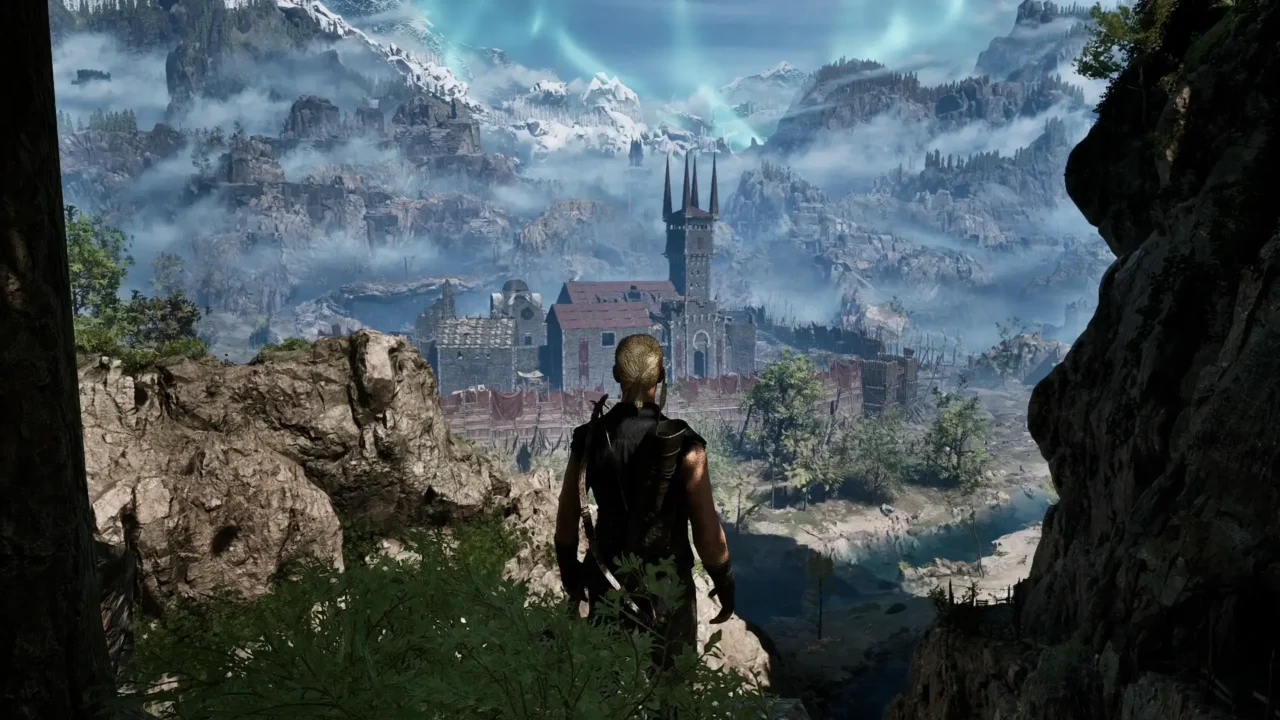
PerformanceBoost (main version):
- Turns off volumetric fog and clouds — this gives the biggest FPS boost of all tweaks
- Optimizes LOD transitions to reduce GPU load
- Virtual Shadow Maps work, but at lower resolution and with aggressive caching
- High-quality SSR remains (puddles and metallic surfaces still look good)
- Expected gain: 30–50% FPS, depending on your starting settings
PerformanceBoost (VanillaGraphics) — if the visuals are fine but there are stutters:
- Graphics stay the same, only the engine backend is optimized
- Forces asynchronous shader compilation
- Speeds up the garbage collector (clears every 30 seconds)
- Removes mouse acceleration — input becomes 1:1
- Protects the CPU from overload during battles with lots of particles
If the game keeps crashing after you install the preset, restore your original configuration and retest.
✅ How it plays: the aim is higher FPS and steadier frame times on mid-range hardware. Use PerformanceBoost for a larger gain, or VanillaGraphics if you want to keep the original visuals.
Mod installation recommendations
Before installing any of the mods, follow a few rules — they’ll save you some headaches.
- Run the game at least once before installing mods — this will create the necessary config folders.
- Make a backup of the original files Engine.ini and GameUserSettings.ini before replacing them.
- Use only one replacement for Engine.ini at a time unless you understand how to merge its settings.
- Leave configuration files writable unless the mod’s instructions tell you to set a specific file to read-only.
- Test one mod at a time and monitor the results using MSI Afterburner or the built-in FPS counter.
- Path to the configuration folder: %localappdata%\G1R\Saved\Config\Windows\.
My Gothic 1 Remake mod installation guide explains the setup in more detail.
Which Gothic 1 Remake performance mod suits your PC?
Ultimate Engine Tweaks is where I’d begin for a configuration developed across many UE5 games while preserving visuals. Choose G1R Optimizer for a graphical interface, Ultra Plus for live control, or Best Performance Optimization when a weaker PC needs bigger compromises.
Try Stability Core if the game hitches as you move between areas, Performance and Clarity Improvement if you also want to change the look, or Ultimate Performance Boost if you’re working with limited VRAM. Check which files each one replaces before mixing settings.
If you know a mod I missed — write to me, I’ll test it and, if the result is worth it, add it to the list.